New here? Start with the guide
If you're not sure how something works, start with these two: the "Open the manual" button in the app (Settings → ❓ Help — opens the Japanese manual if your UI is Japanese, the English one for every other UI language), and the illustrated Steam guide. You can find the illustrated Steam guides (Japanese and English) by opening the Community Hub at the top of this store page and selecting Guides.
Before you buy: about translation quality
The app's standard engines are compact translation models that run fully offline. Because of that, output quality is below cloud services such as Google Translate, most noticeably when translating into Chinese or Korean and on short UI text mixed with numbers and symbols.
If quality matters to you, use the free DLC's "High quality (AI)" engine (supported: English to Chinese, Japanese or Korean, and Japanese, Korean or Chinese to English; requires a Vulkan-capable GPU). In our measurements it fixes most of the short-label mistranslations the standard engines produce. For other languages, registering your own terms in the glossary reliably fixes proper-noun errors.
If you expect cloud-level quality at all times, this app may disappoint you. That trade-off is what buys fully offline operation with unlimited translation and no extra fees.
Turn on-screen English into your language, in place
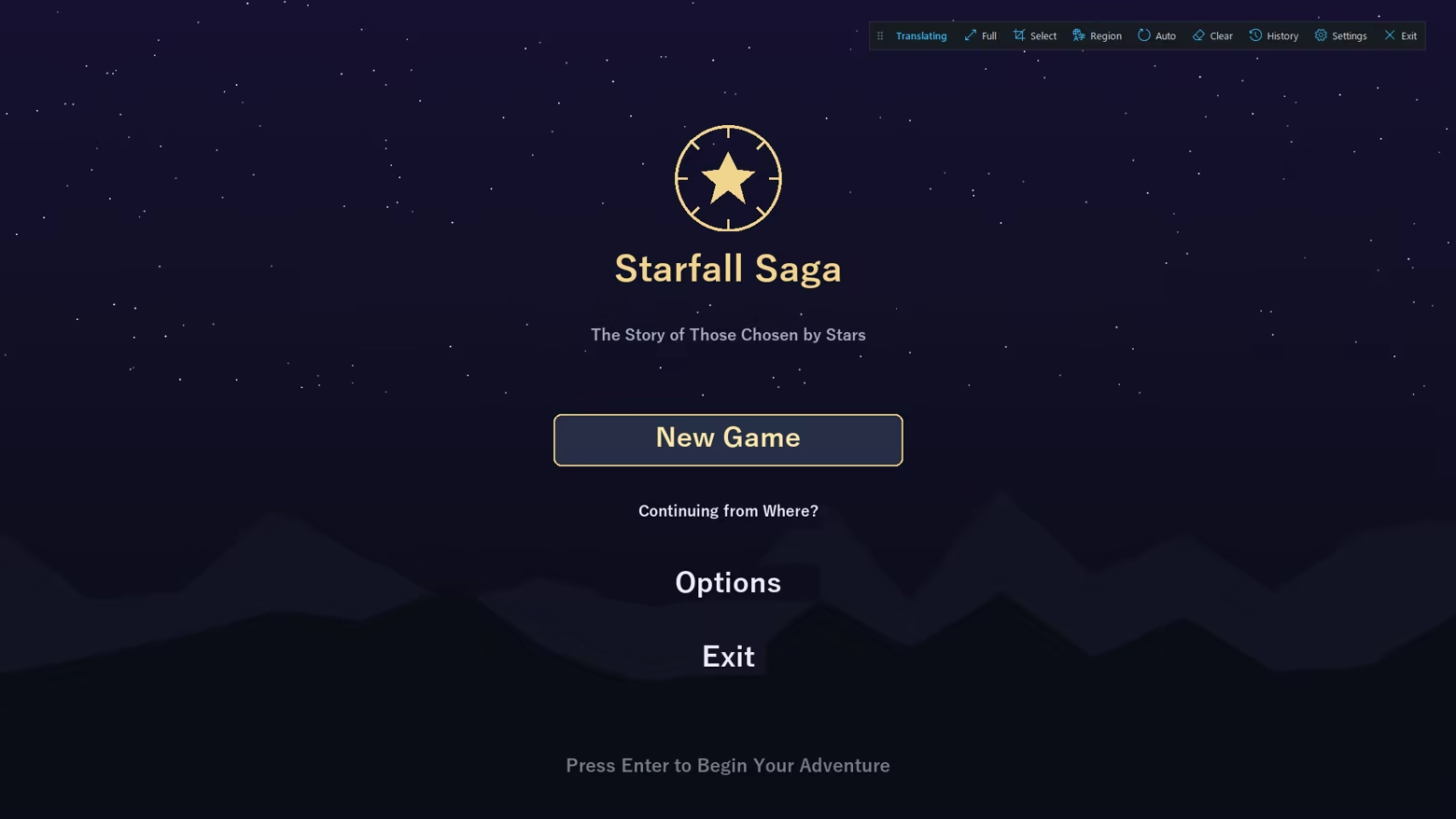
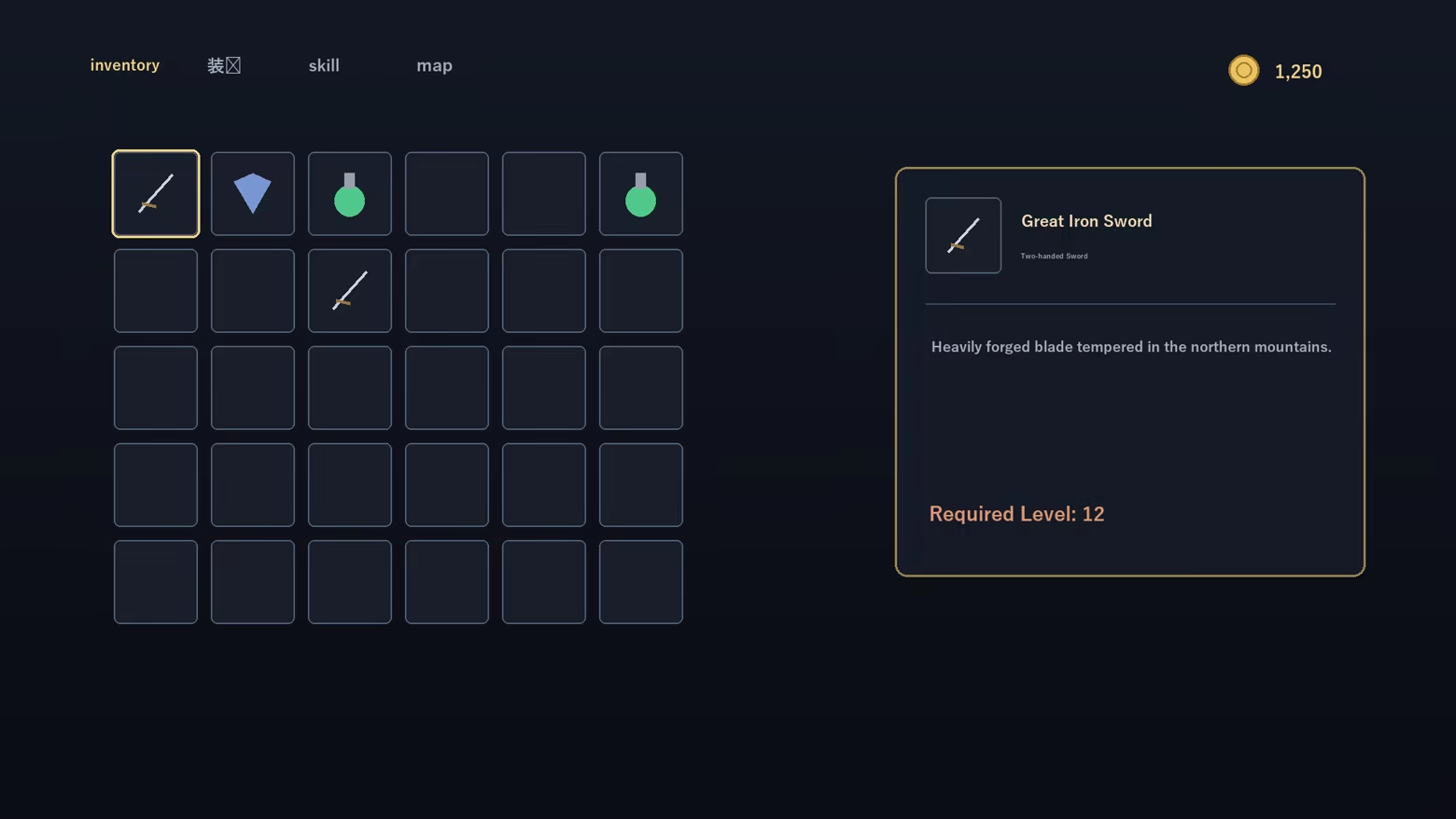
Game Overlay Translator reads the text on your game screen and overlays the translation right on top of the original — no window switching. It works fully offline, with unlimited translations and no subscription.
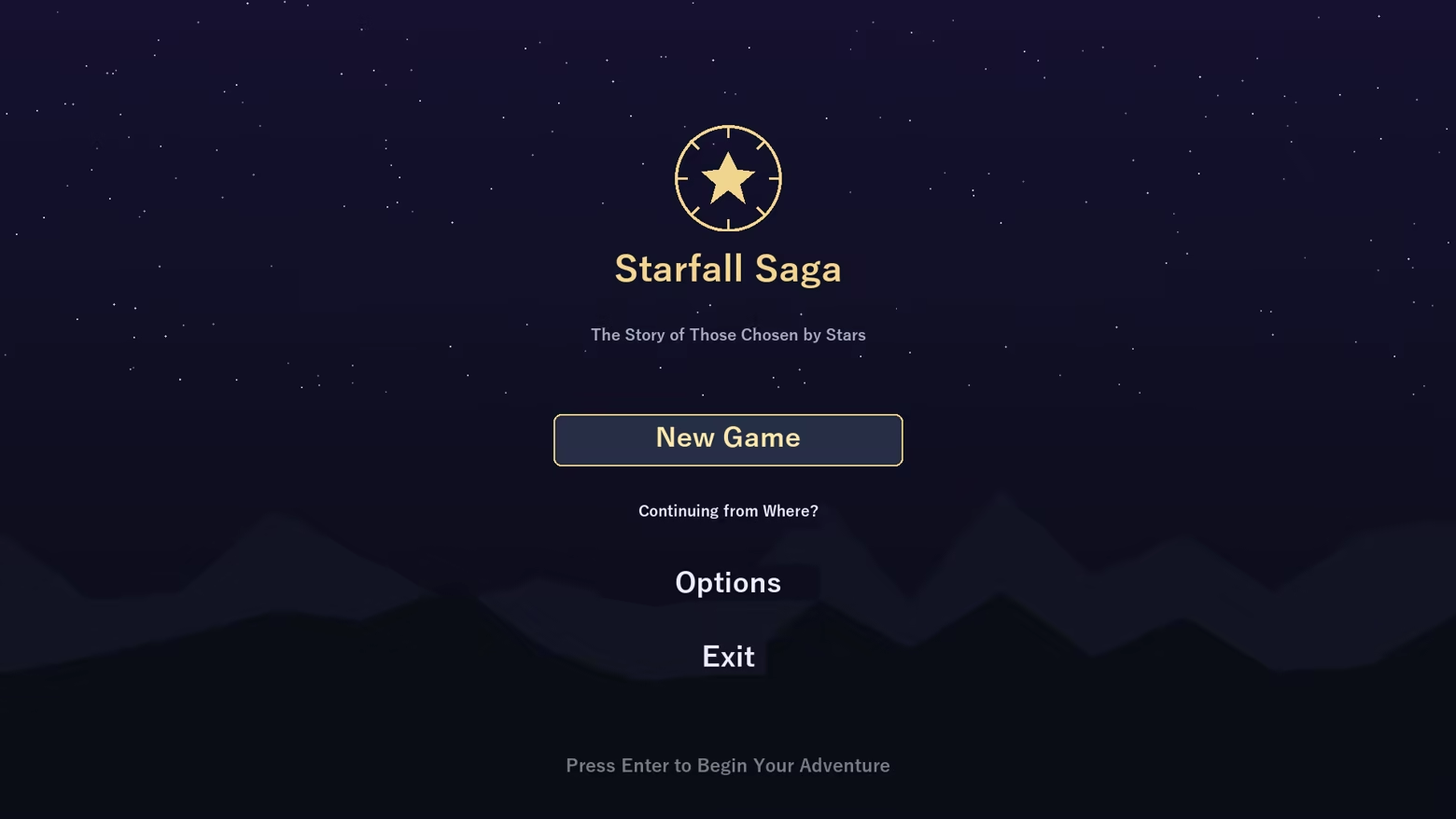
Getting started — ready in 30 seconds
- Launch from Steam. The first-run wizard asks just two things: the game's language and yours.
- Press Full (F9) to translate everything on screen — or drag a frame around the subtitles with Select and switch on Auto.
- Done. Text is recognized, translated and drawn right over the original, and Auto mode keeps up as it changes.
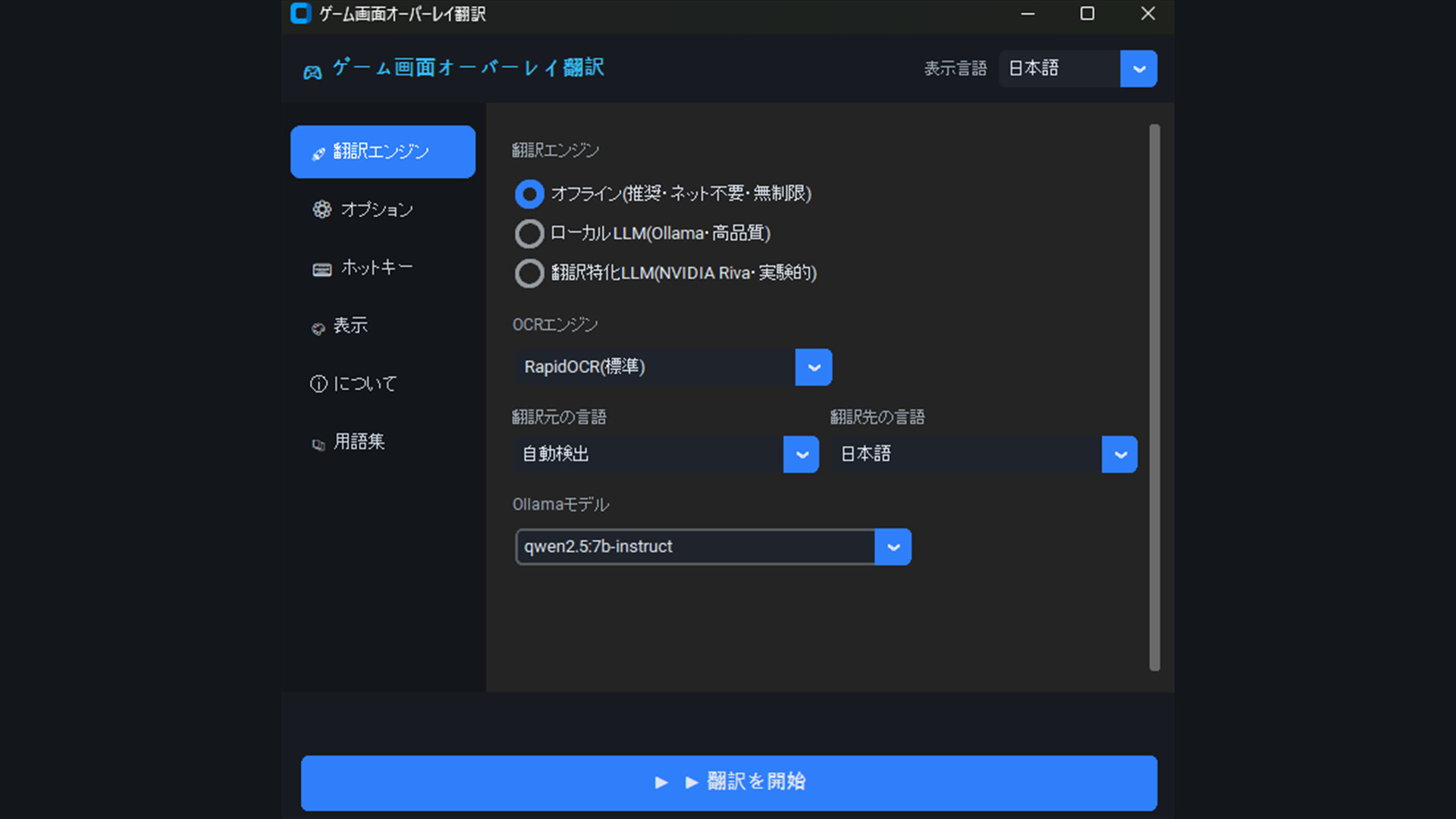
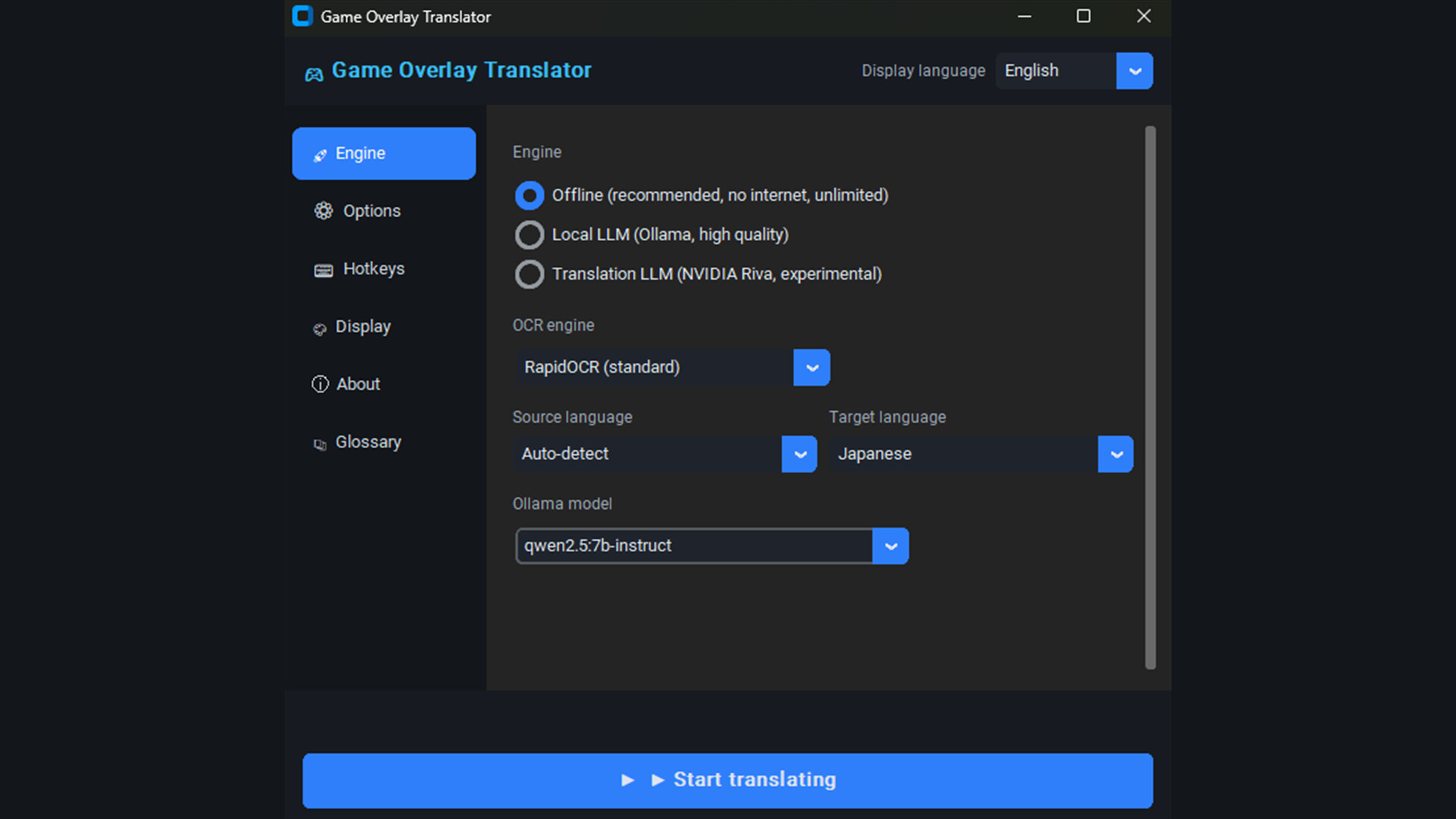
Everything else — hotkeys, fixing a translation with the glossary, choosing an engine — is explained in the built-in Help (Settings → ❓, in all 22 interface languages).
Feels slow? Open Settings → About to see whether you are running on GPU or CPU. Translating a selected region instead of the full screen, switching OCR quality to "Speed", or using the subtitle style (solid box, up to 18x faster rendering) all help.
Want even better quality? Keep OCR on "Accuracy" (the default), register your own terms in the glossary, or connect a local AI — Ollama or LM Studio — with your own custom prompt. Everything runs on your PC.
What it does NOT do (please read before buying)
- It translates on-screen TEXT only. Voice and audio are not translated — for movies, use it with subtitles turned on.
- Windows PC only. Not supported: Steam Deck, macOS, Linux/Proton, VR headsets.
- Stylized or pixel-art fonts (retro games, old-console emulators) are hard for the OCR to read and may translate poorly.
- Some games block screen capture (exclusive fullscreen, some anti-cheat). Switching the game to borderless windowed mode usually fixes this.
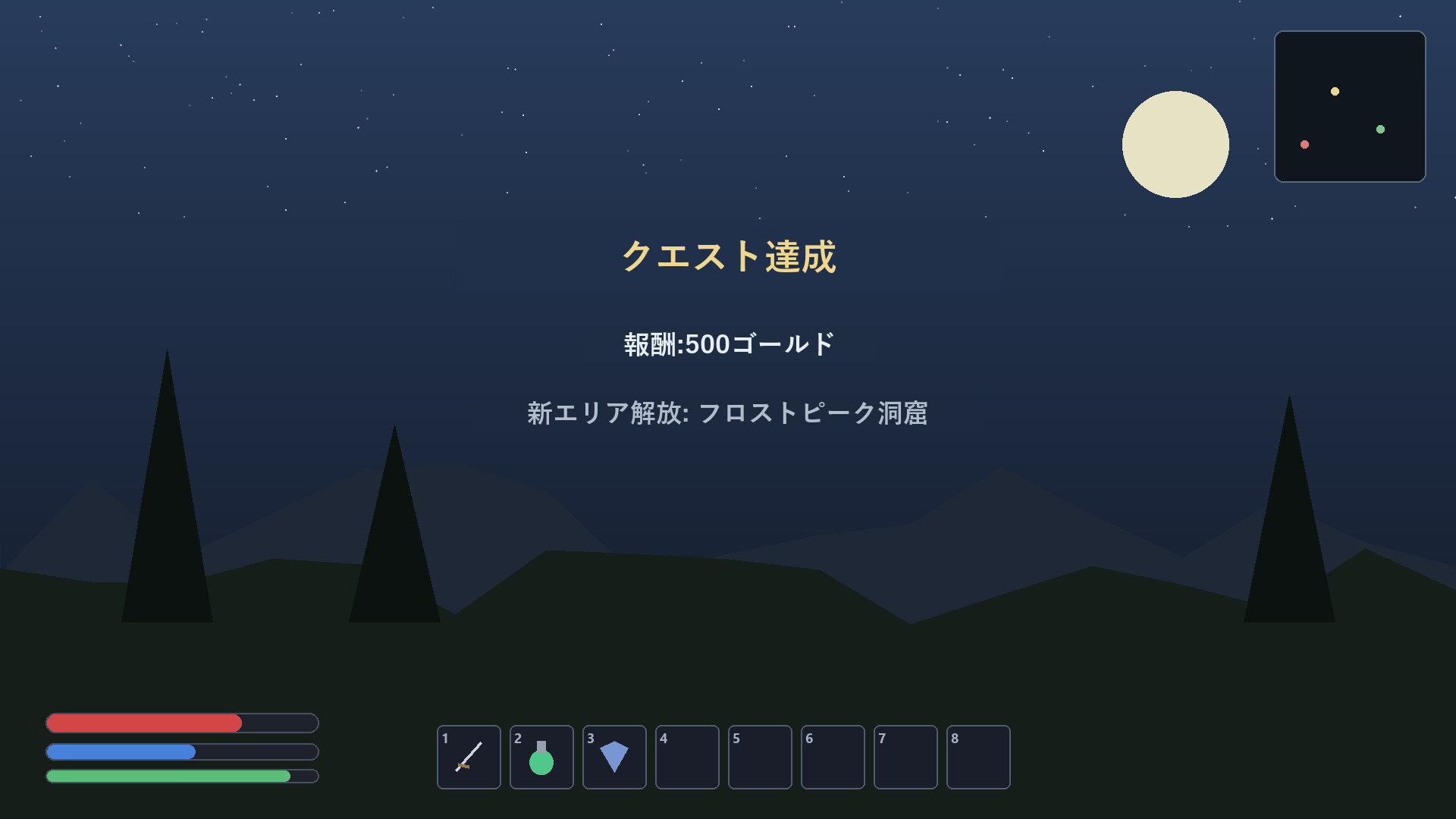
- It translates text where it appears, at that moment — it does not track and follow moving in-world text such as character nameplates or damage numbers.
Tip: press F5 and select just the subtitle or dialogue area — the tool will leave the rest of your screen untouched.
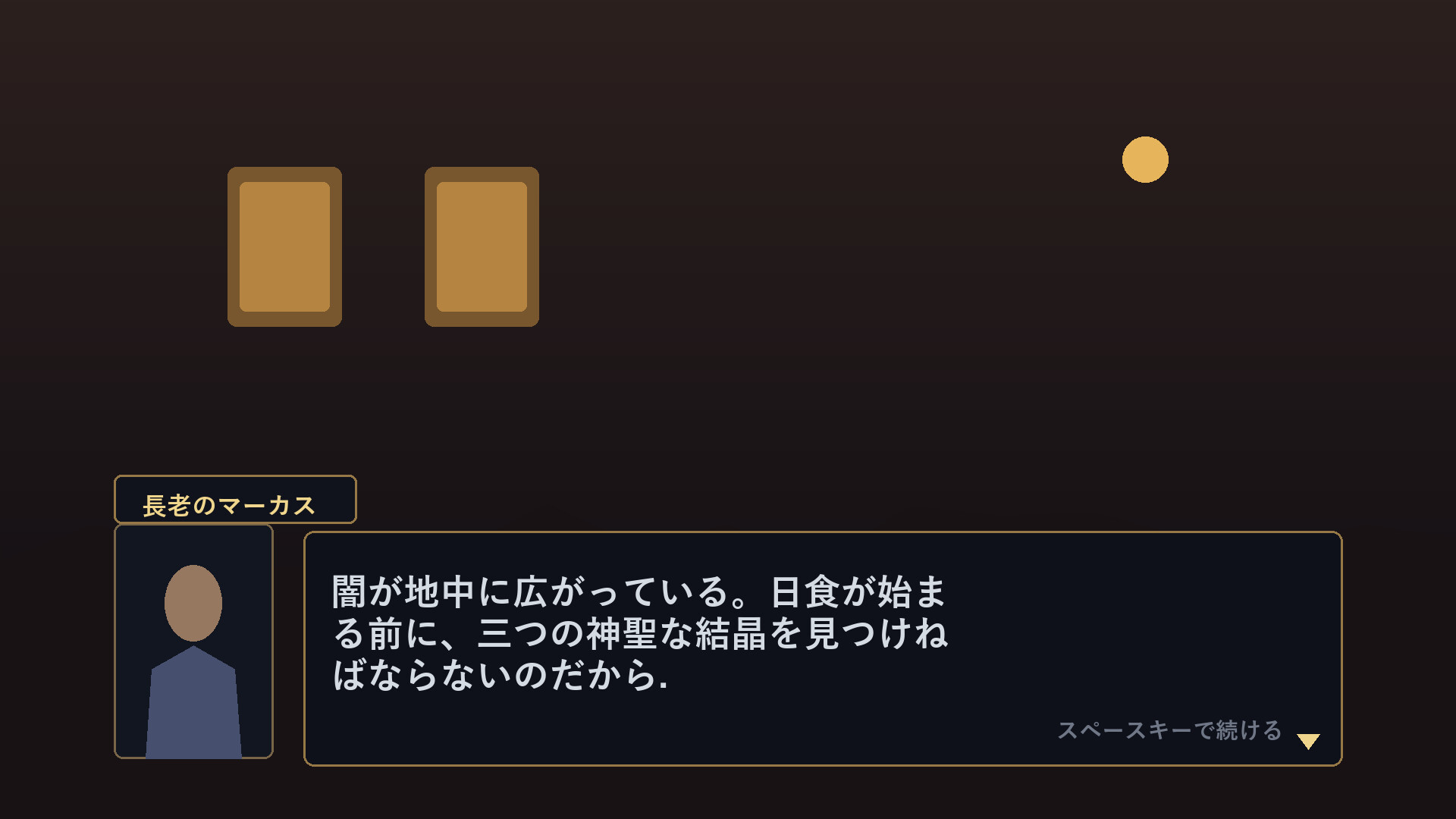
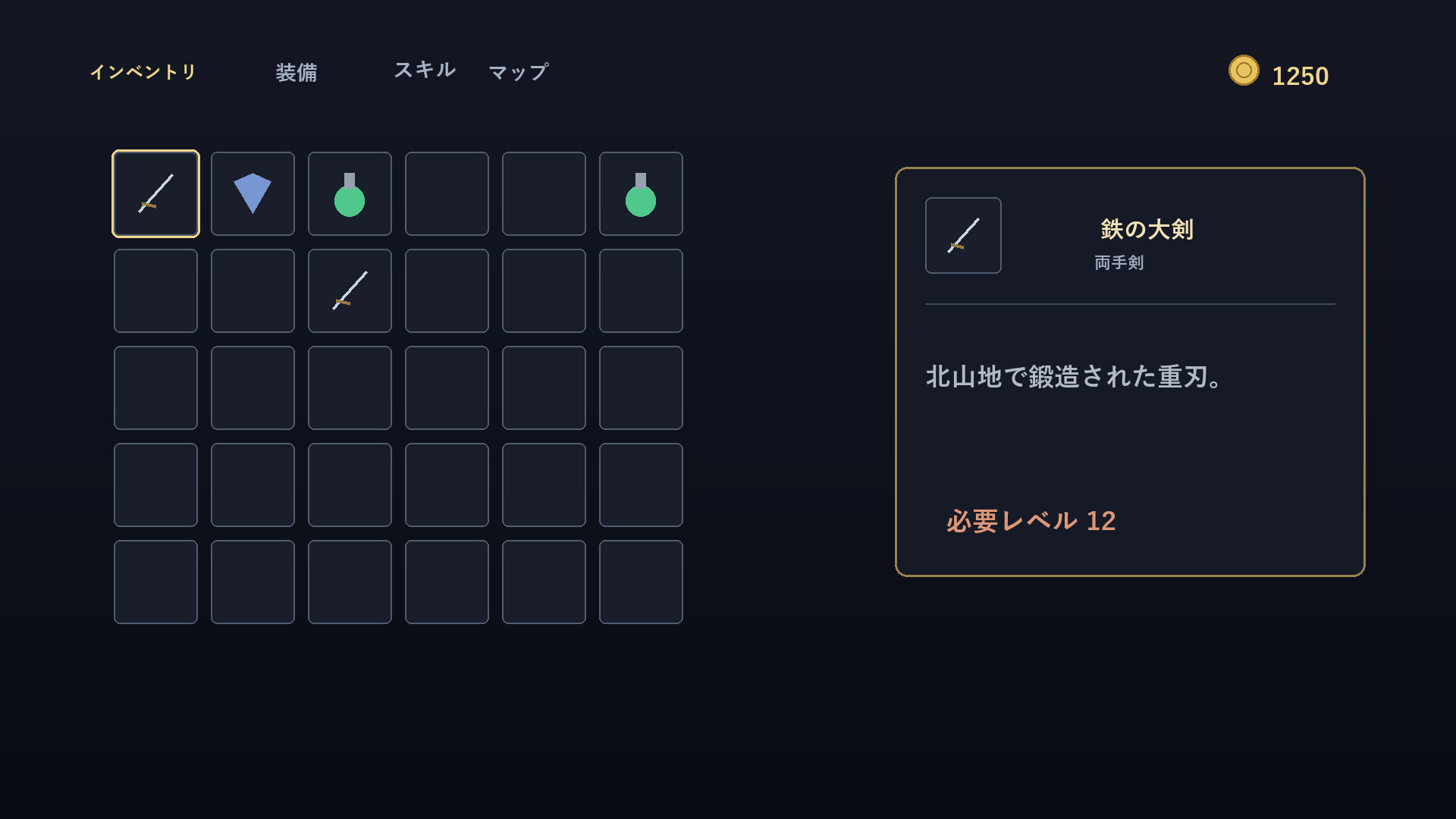
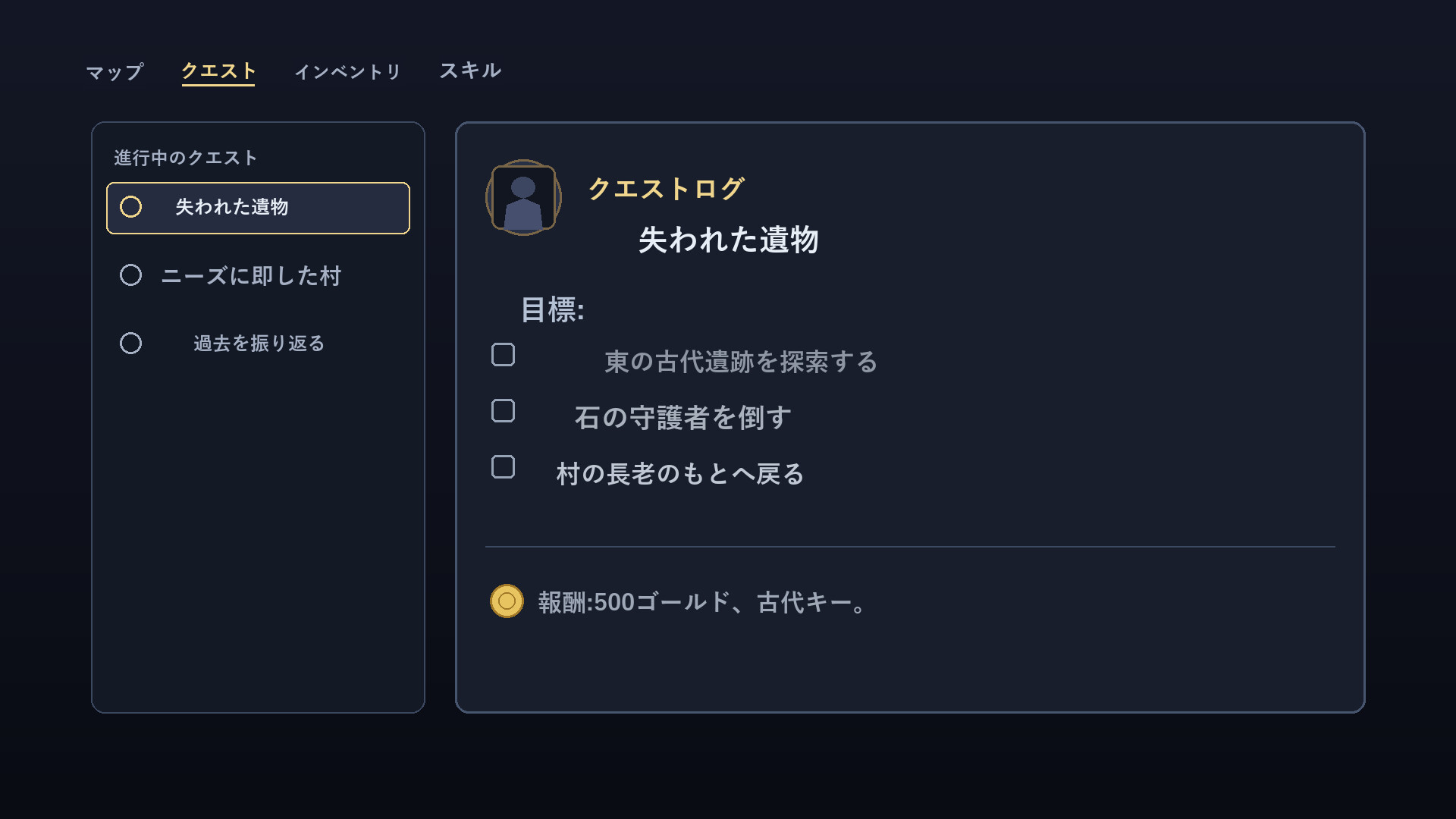
Best results come from still text: chat logs, quest descriptions, item and skill tooltips, dialogue and menus. In MMOs and other games where the whole screen is always moving, press F5 and select just the chat or quest window — translations will be faster and stay exactly where they belong.
Great for
- Playing games with no localization — understand menus, quests and item text as you go
- Reading story and dialogue — translate NPC lines on the spot
- Translating just one area — drag to select a region; only that box is translated
- Doujin, indie and older PC games — comfortable even without an official translation
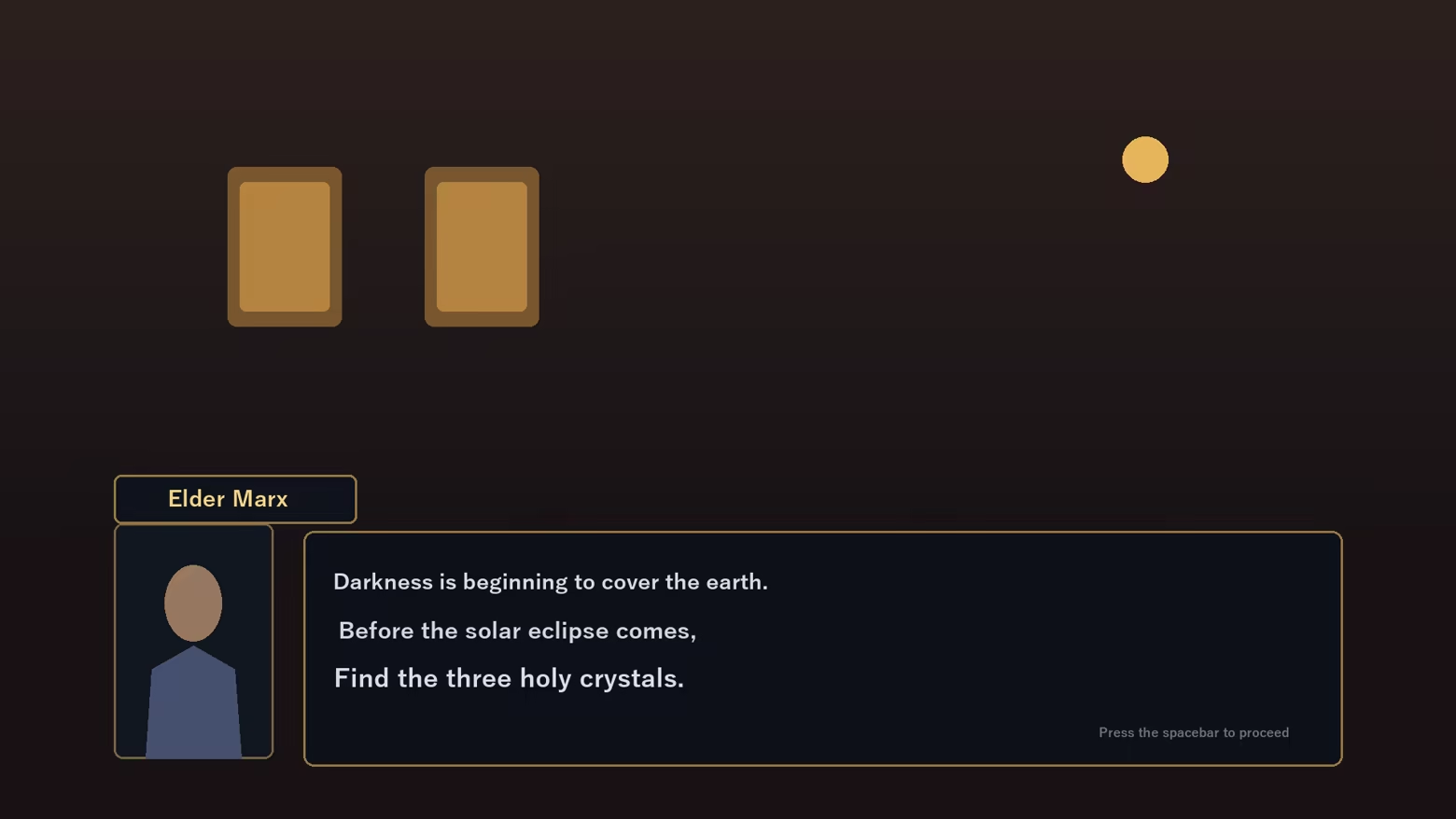
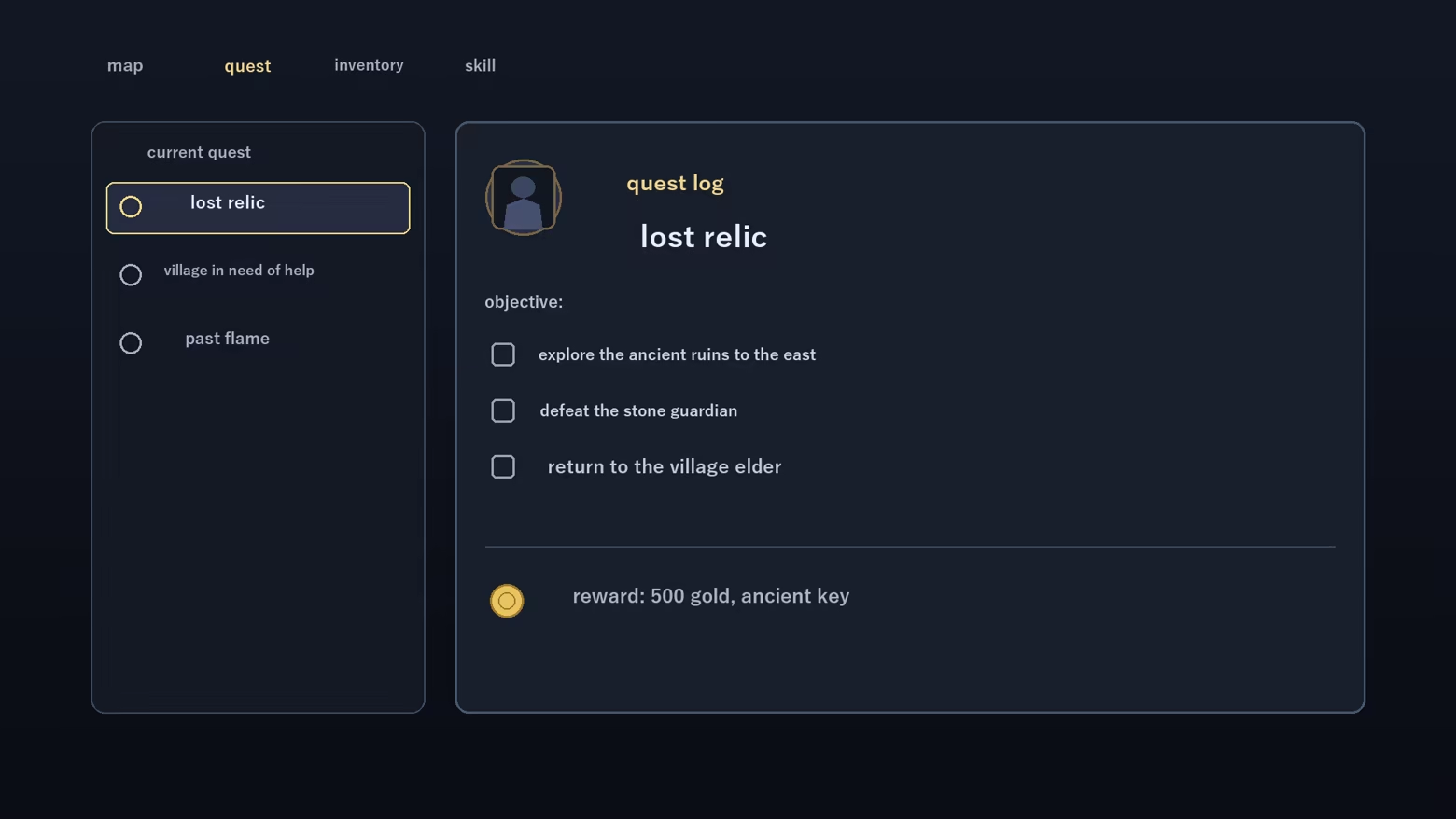
Feature guide: what it does, when to use it, where to find it
Here's what each feature does. Any measured numbers below are our own benchmarks and can vary by game and setup. Every hotkey can be changed anytime in Settings.
- Full-screen translate (F9) — Translates everything on screen at once. Use it when you don't know where the text will appear, or just want everything translated. Also available from "Full" on the control bar.
- Region translate (F5 to select, F6 to translate) — Press F5 and drag to draw a box, then F6 to translate only that area. Use it when you know exactly where the text you want is — a chat window or quest log, for example. You can also draw the box from "Select" on the control bar.
- Auto translate (F10) — Keeps watching your selected area (full screen or region) and only re-translates when it detects a change. Use it for anything that keeps updating, like ongoing dialogue or an MMO chat window. On real game footage, our own measurements show a median display delay of 579 ms (GPU) and a chat window that used to miss 95% of new lines improved to 0% missed after the v1.29 update (our own measurements; results vary by game and setup). Toggle it from "Auto" on the control bar or F10.
- Original / translation toggle (F4) — Briefly hides the translation to show the original English text. Since v1.31, it stays hidden until you press F4 again (a new Auto-mode translation won't bring it back). Use it when you suspect a mistranslation or want a clean screenshot of the original. The control bar shows "Showing original (F4 to show translation)" while it's hidden.
- Streamer mode — Keeps translation fully offline while also showing the overlay to OBS and other streaming/recording software (by default it's visible only on your own screen). The same setting also makes it visible during remote-desktop screen sharing. Use it when you stream, record, or share your screen while playing. Pick "Streamer mode" during first-run setup, or turn on "Show on stream (visible in OBS/recording)" later in Settings → Options.
- Low-VRAM mode (GPU to the game) — Runs text recognition on the CPU instead of the GPU, so the GPU is free for the game. Translation gets slower (roughly 0.3 s to 1.3 s in our measurements), but it reduces the impact on your game's own rendering. Use it on demanding games where frame rate matters more. Flip the "Low-VRAM mode (run text recognition on the CPU)" switch in Settings.
- OCR quality = Light mode — Runs text recognition with a smaller, faster model. It's only suggested during first-run setup, and only on PCs without graphics acceleration (GPU) — the default doesn't change, and you can pick "Keep accuracy priority" in the same dialog. Use it if translation feels heavy on a lower-power PC. On our 4-core CPU test rig with real game footage: missed text dropped from 40.1% to 15.7% and median display delay from 1411 ms to 846 ms, at the cost of a small drop in recognition of small, degraded text (99.7% to 95.7% — our own measurements; results vary by PC and game). Change it anytime under "OCR quality" in Settings.
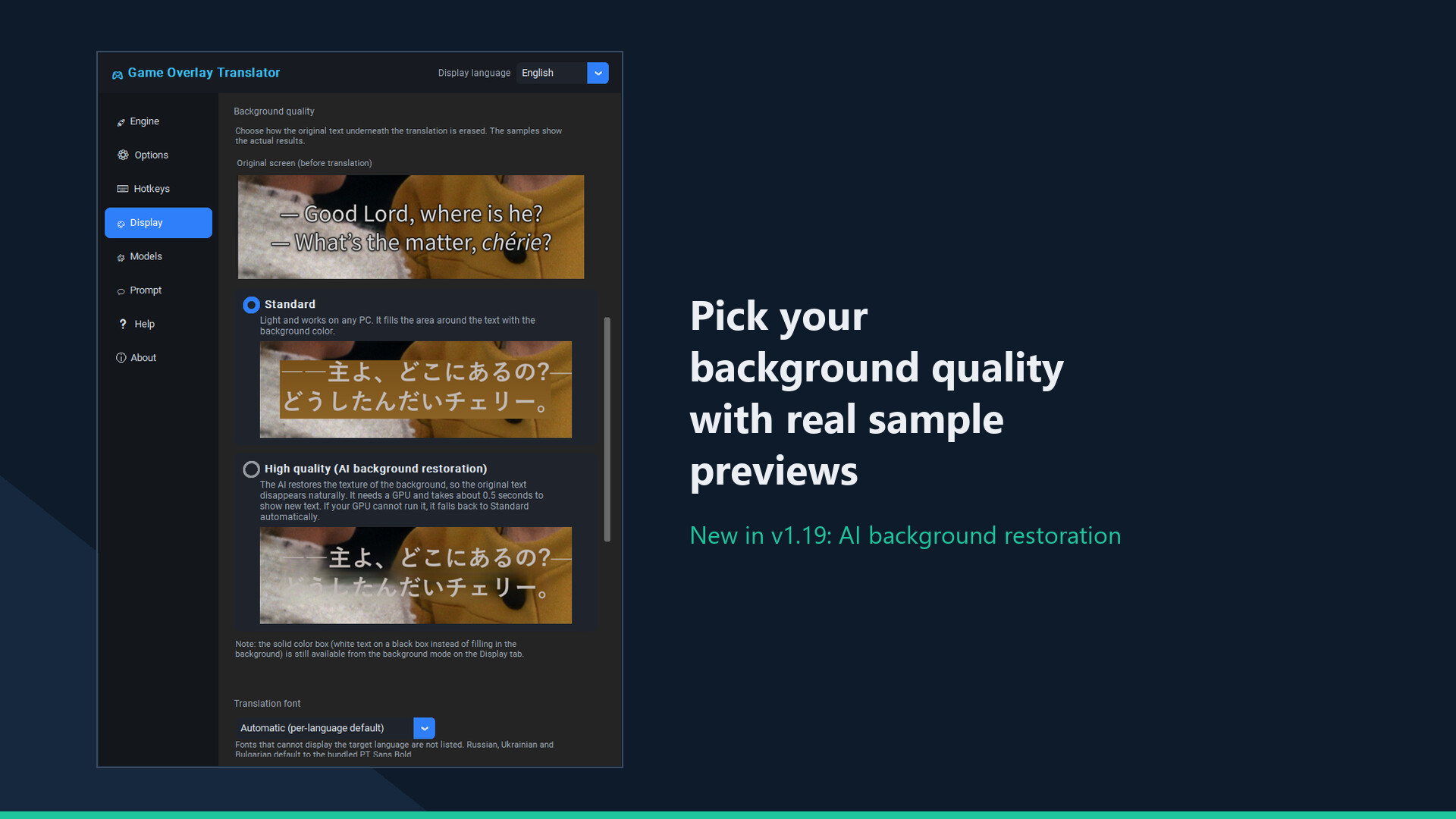
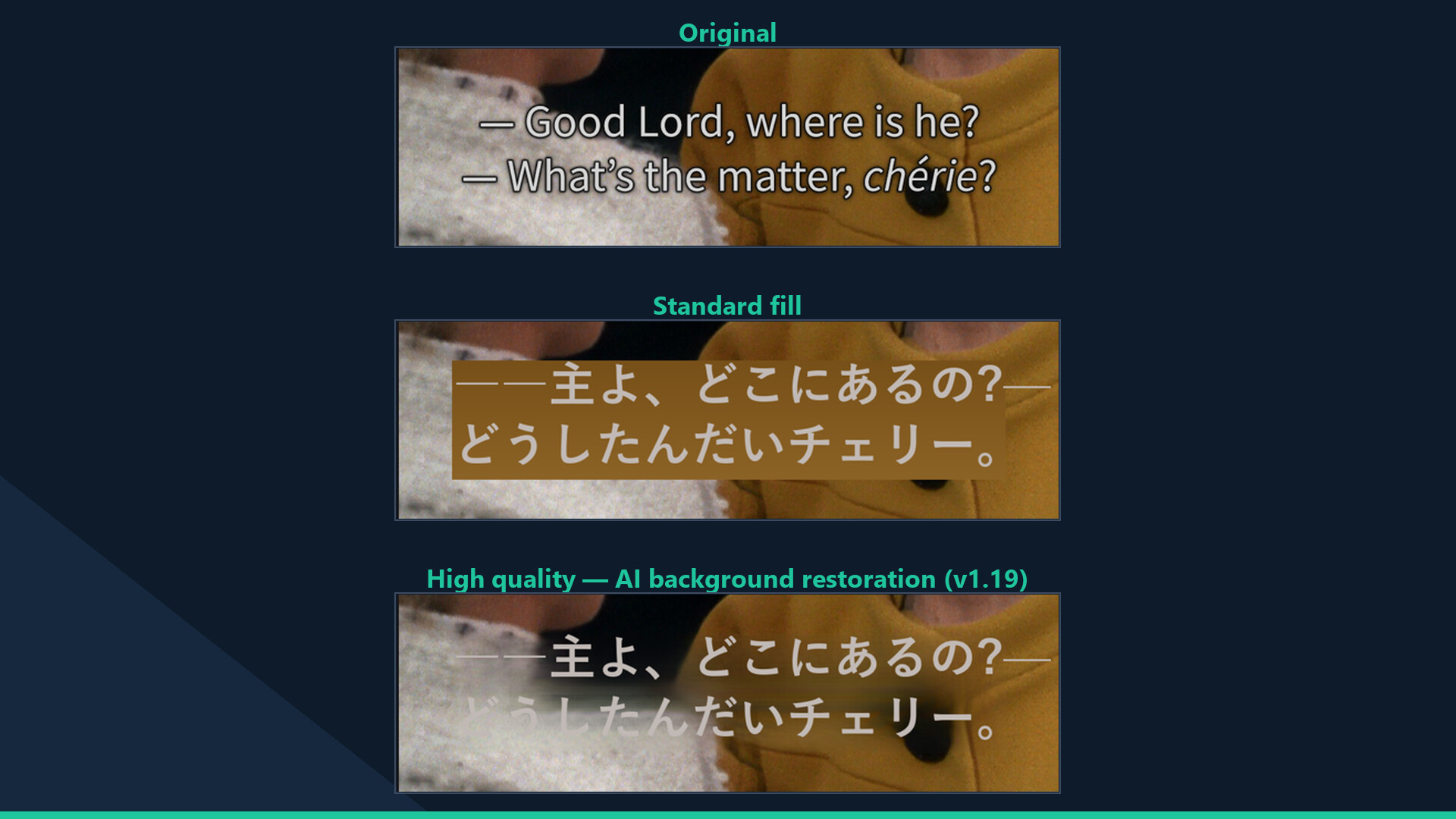
- High quality background (AI restoration) — Instead of covering the original text with a flat color box, the AI restores the background's texture so the text disappears naturally. Works especially well on movie and live-action subtitles. It uses your GPU (DirectML) and adds about 0.5 s before new text appears, so we don't recommend it during GPU-heavy games. The default stays the lightweight "Standard", and it falls back to "Standard" automatically if your GPU can't run it. Choose "High quality (AI background restoration)" in Settings' display options.
- Glossary, manual fixes, and translation memory — Register a word you don't like in the glossary and it's used every time after that. You can also click a line directly with "Edit" on the control bar to fix it on the spot. Games are auto-detected, so the glossary switches per game automatically. Every translated line is cached locally (translation memory) so it appears instantly the second time. Use these whenever a translation is wrong or a proper noun needs to stay consistent. Find them under "Glossary" in Settings, or "Edit" on the control bar.
- Fully offline, 35 languages, 22 UI languages — Translate into 35 languages, including 19 European languages. Major language pairs are bundled and work fully offline right after install, with unlimited use and no subscription (some European languages download once on first use, then run offline). The app's own interface is available in 22 languages too. Use it anywhere with unreliable internet, or when you'd rather not stay connected. Switch either during first-run setup or anytime in Settings.
- Display customization — Font size, color, background opacity, and selection-box color, all in Settings' display options.
- Optional local AI (Ollama / LM Studio) — More natural, context-aware translations. Choose it from Settings' translation engine (needs separate setup).
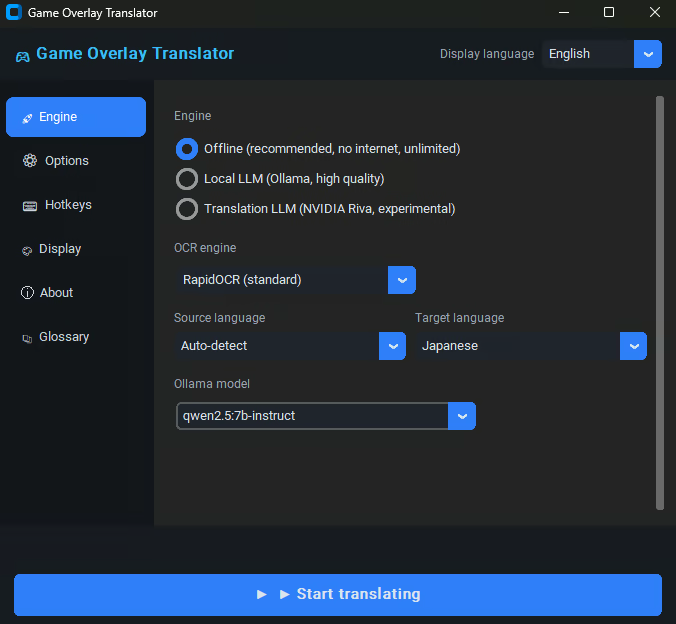
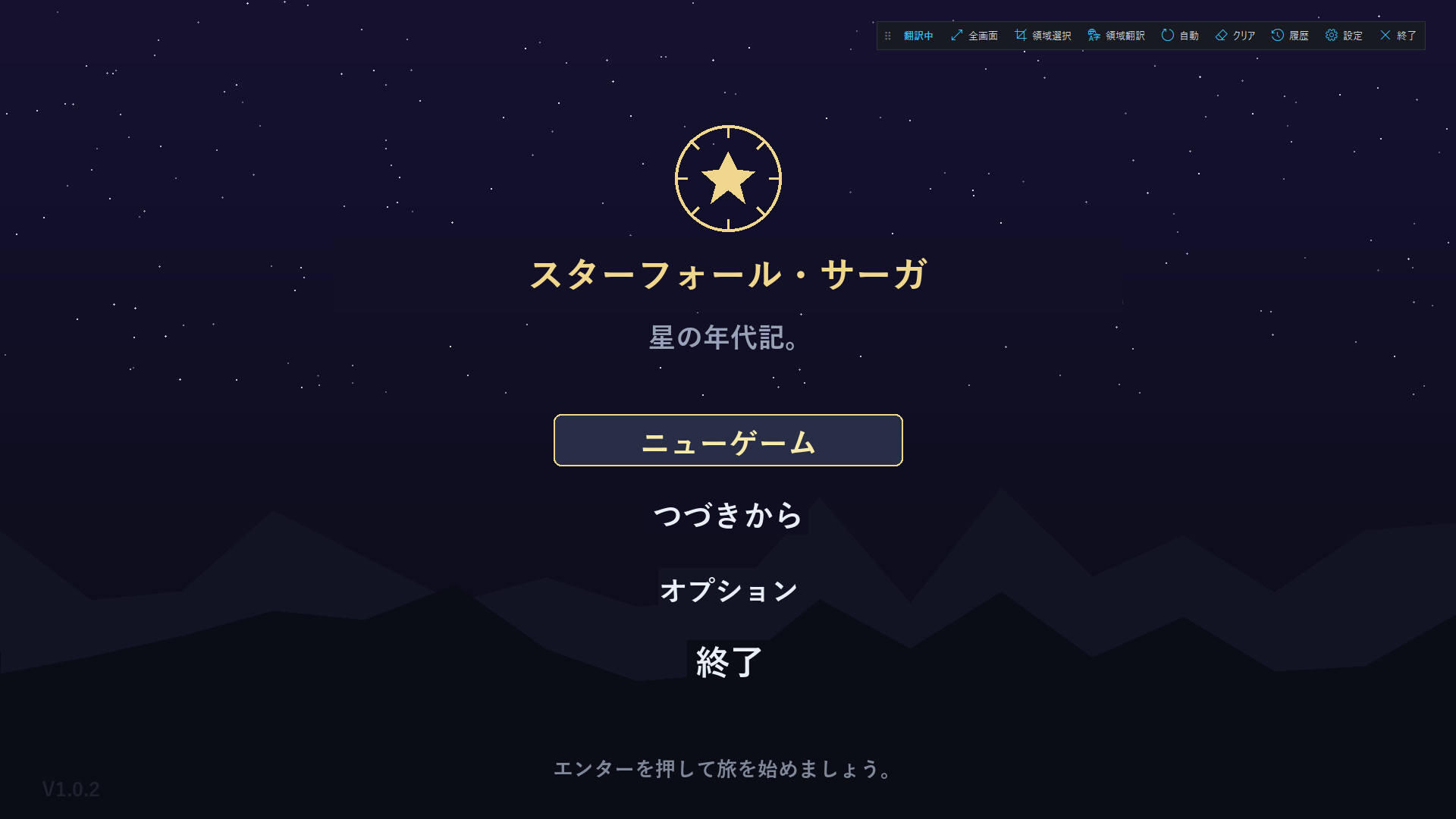
A floating control bar
While translating, a small on-screen bar gives one-click access to full-screen / region translate, auto mode, history and settings.
How it works
Screen capture, OCR, translation, then in-place overlay. Results are cached locally for instant re-display.
Important notes
- As an on-screen overlay, games with anti-cheat (EasyAntiCheat / BattlEye / VAC, etc.) may warn, kick, or penalize your account. Use with online/competitive games at your own risk and check each game's ToS.
- May not appear in exclusive-fullscreen games — use borderless/windowed mode.
- Machine translation may not always be accurate.
Constantly improving — 12 updates in the first two weeks
- New-generation OCR: far more accurate recognition (Cyrillic errors down to zero in our benchmark, no more words glued together)
- Subtitle style for movies and videos: solid background box with adjustable color and opacity
- 19 bundled open-source fonts including a Japanese pack — pick the overlay font per game, or try experimental auto-matching
- Local AI translation via Ollama or LM Studio with your own custom prompt — everything stays on your PC
- Up to 62% faster full-screen translation, a hideable control bar, and much more
Every item above came from player reviews and reports. Post yours — it may well become the next update.
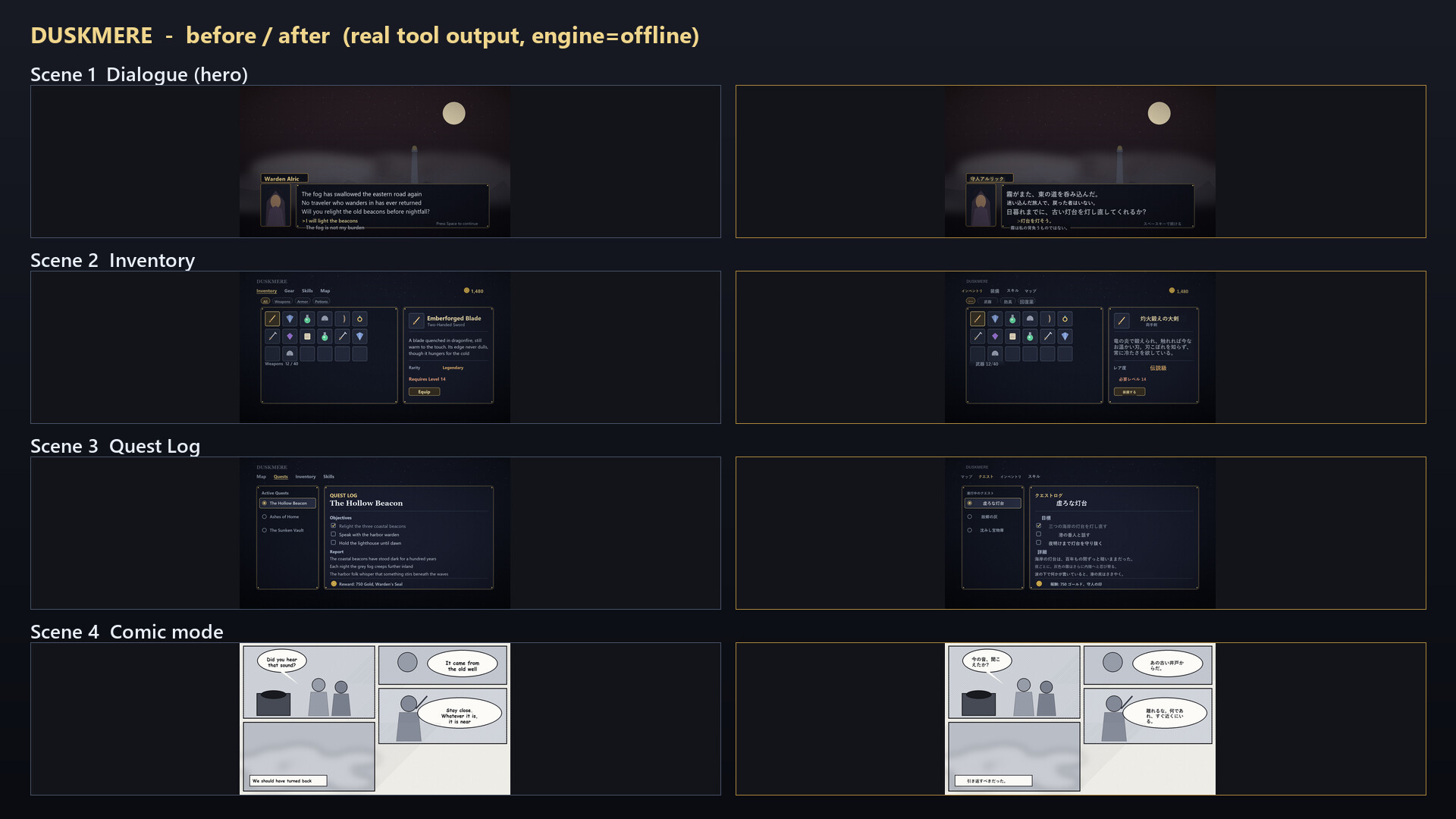
About translation quality (honestly)
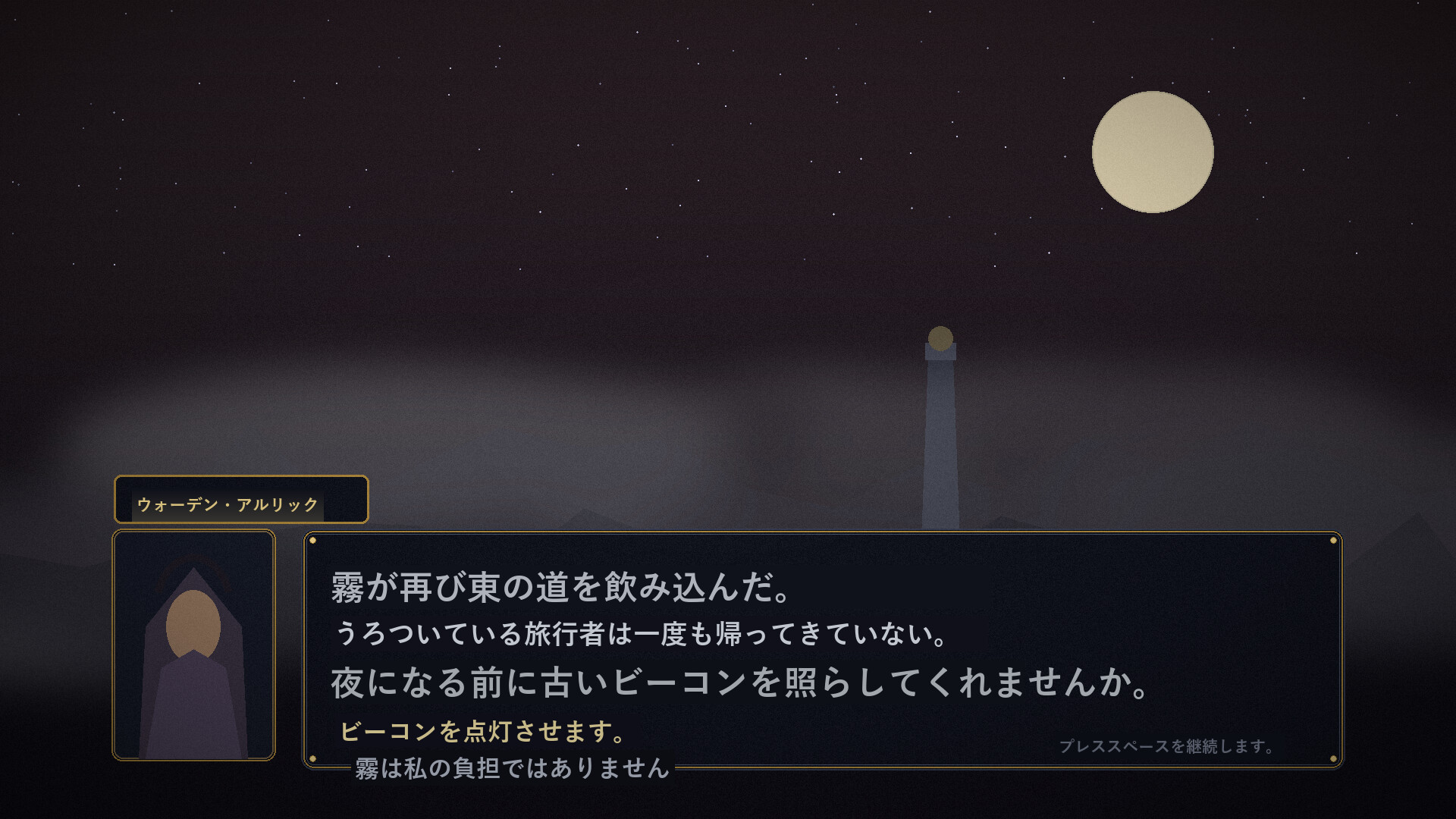
The default engine is offline machine translation: fast, free and good enough for menus and quest text, but not literary. The screenshots show real, unedited output. If you want more natural, context-aware translations, the free Ollama integration runs a local LLM. And any translation you dislike can be pinned to your own wording with the glossary feature.