

Cursor for Live2D
No Reviews · 0 reviews
Link Hub
View on Steam→Screenshots

Description
Import any Live2D model and let it follow your mouse, with physics effects, hotkey-triggered expressions, and idle animations. Whether you're streaming, drawing, recording videos, or simply using your computer, your character can accompany you with every click.
Released
September 7, 2026
Price
Platforms
Windows
Developer
Publisher
About
A lightweight interactive mouse companion for Live2D models.
Live2D Desktop Companion
Import any Live2D model and let it follow your mouse, with physics effects, hotkey-triggered expressions, and idle animations. Whether you're streaming, drawing, recording videos, or simply using your computer, your character can accompany you with every click.
Features
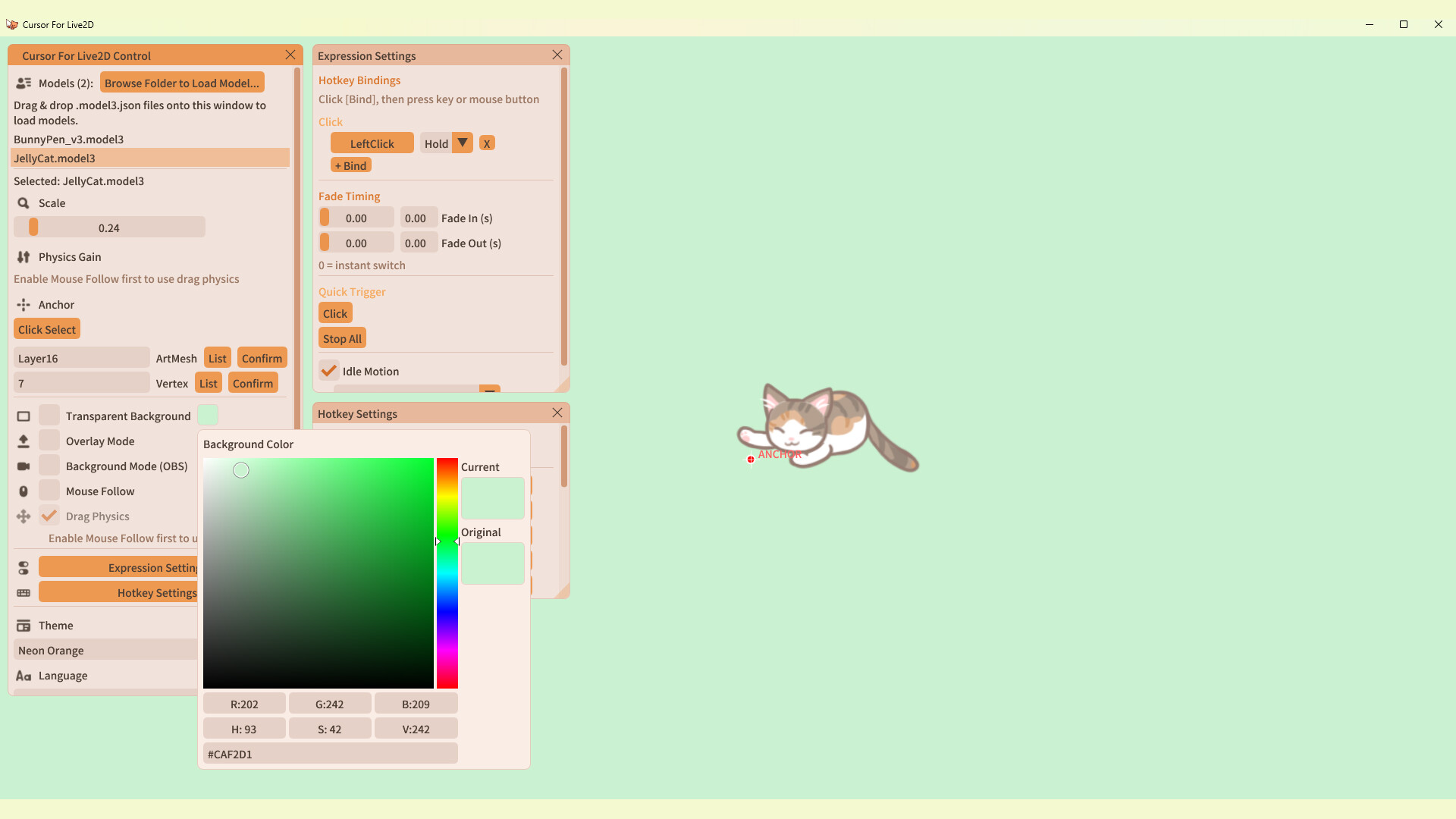
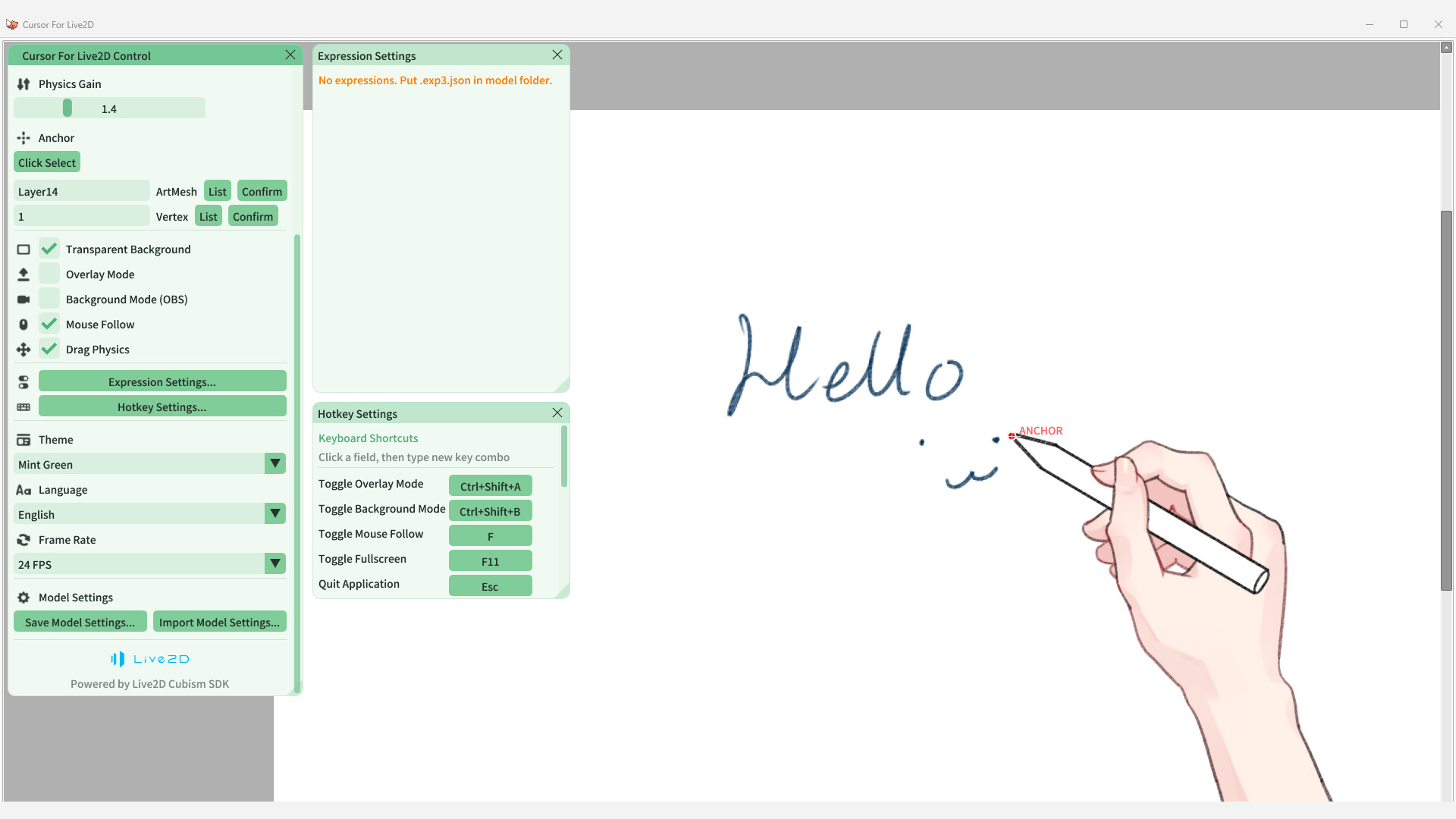
- Customize a model's tracking anchor point so it can follow your mouse.
- Automatically detect the model's X- and Y-axis physics effects, with a slider to adjust the physics intensity.
- Background Mode allows video recording software to capture the model's movement while the model itself is not displayed on screen.
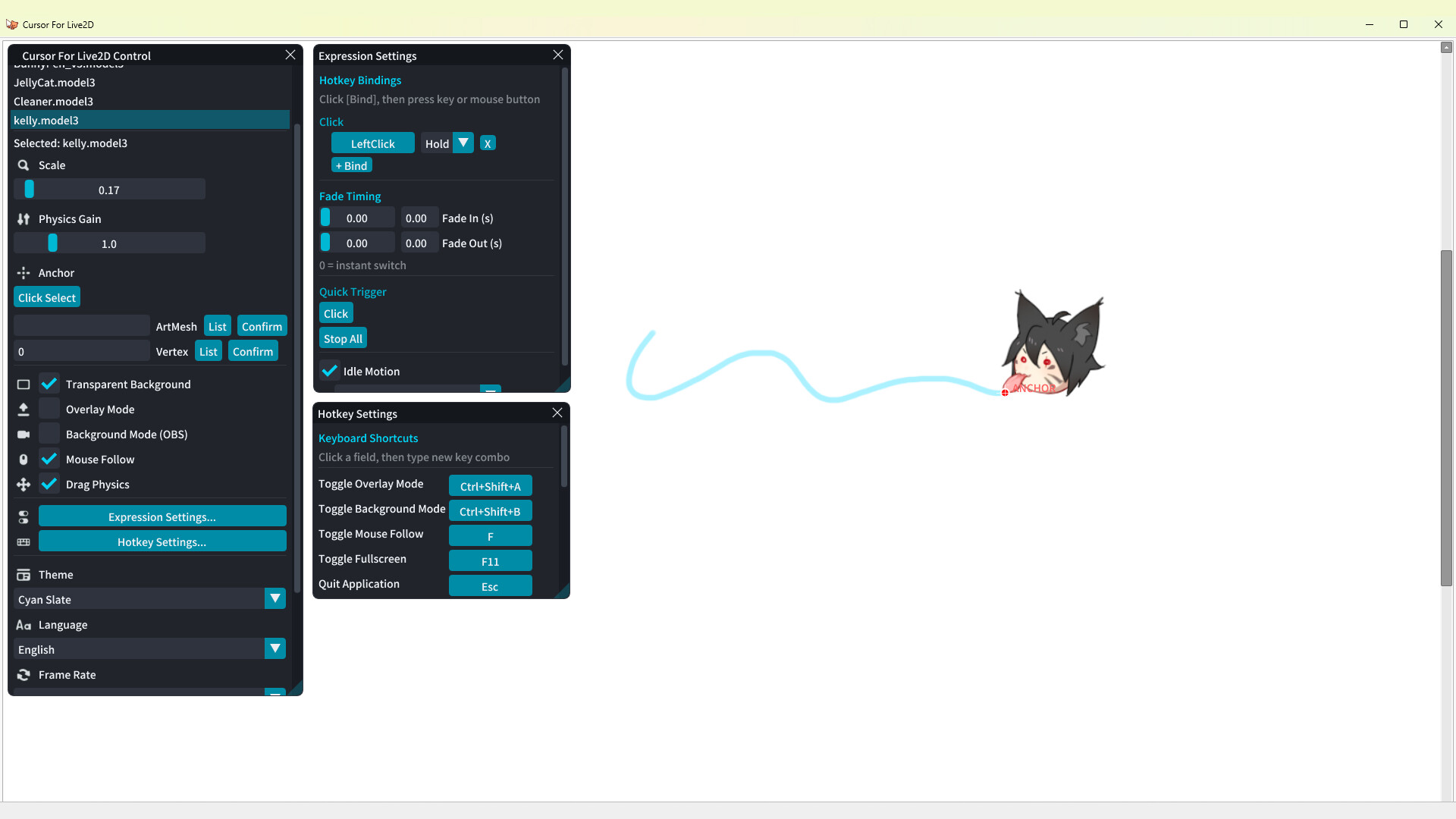
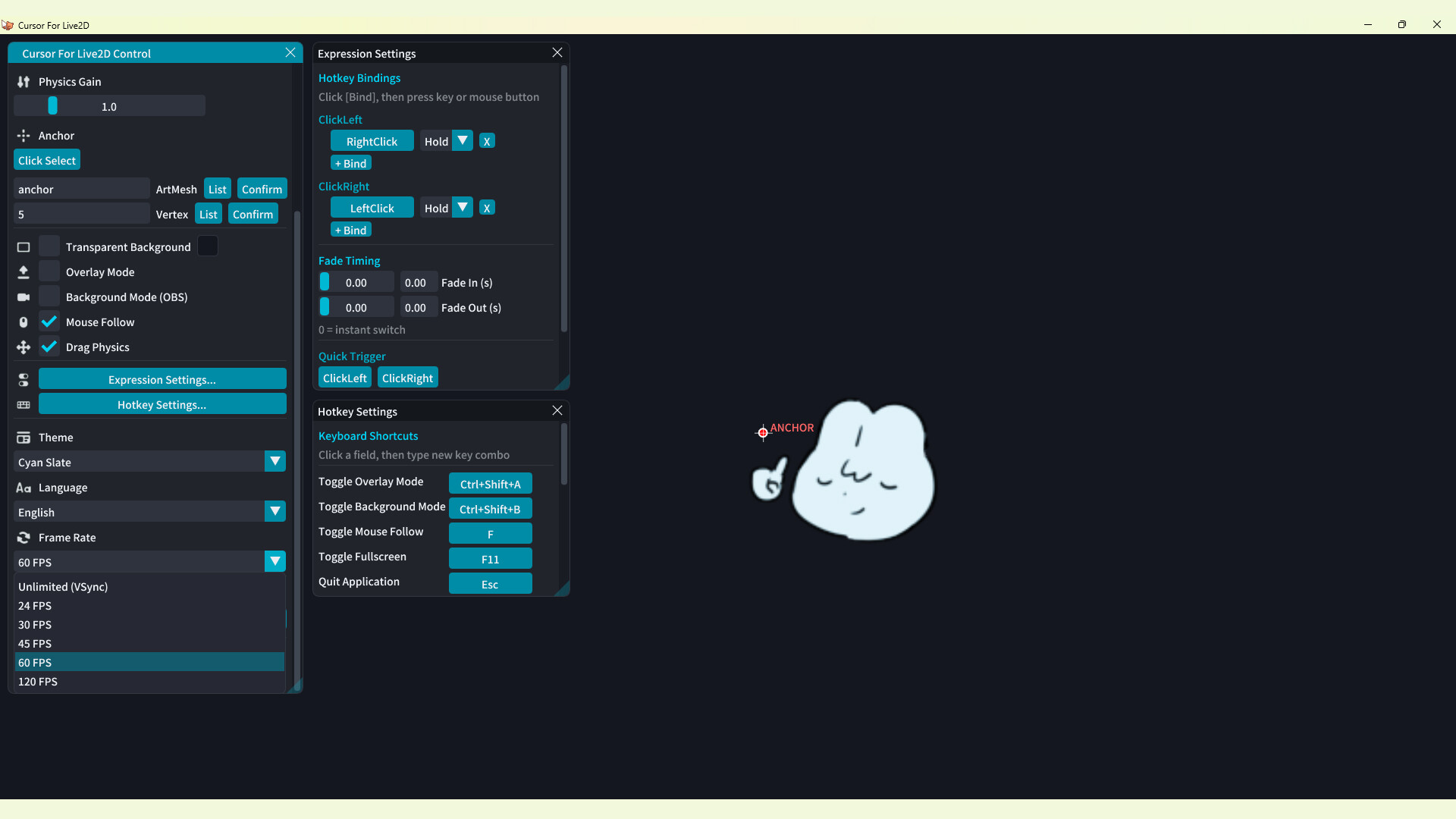
- Freely bind expressions to hotkeys, with options for hold or toggle mode and adjustable fade-in and fade-out durations.
- Import models by dragging and dropping a ".model3.json" file or selecting a folder. Multiple models can be imported and switched between at any time.
- Runs in the system tray for quick access.
- Supports multiple languages, currently including Chinese, Japanese, Korean, and English.
Default Hotkeys
- F: Makes the model track the mouse based on the user-defined anchor point.
- Ctrl + Shift + A: Overlay Mode — hides the UI, displays only the model, and keeps the application always on top.
- Ctrl + Shift + B: Background Mode — runs the model in the background so OBS can capture it.
- ESC: Exit the application.
For Live2D Creators
Please refer to the manual for information about setting the model's tracking anchor point and parameters.
Thank you for using the software!