WinGrid is a Windows utility that allows you to instantly resize game windows using hotkeys without changing the game's internal rendering resolution.
Unlike changing the resolution inside the game, WinGrid only changes the size of the window. This allows you to create a zoom effect while preserving the original image quality and performance with minimal impact on GPU load and FPS.
Want to see WinGrid in action? Check out our YouTube, TikTok, and Instagram channels for videos showcasing the app.
WinGrid Guide
📖 The WinGrid user guide is available in Steam Community Guides.
If you have any questions or find any bugs, please post them in the WinGrid Discussions. I’ll do my best to help and fix the issue.
Multi-Instance Window Management
Run and manage multiple copies of the same game or application without conflicts.
• Precise HWND and PID detection: WinGrid identifies each window using its unique system handle HWND and process ID PID.
• Convenient indexing: windows with identical titles are automatically numbered in order: #1, #2, #3.
• Ideal for working with multiple processes at the same time.
Quick Screen Layout and Positioning Grids
Organize your monitor space instantly.
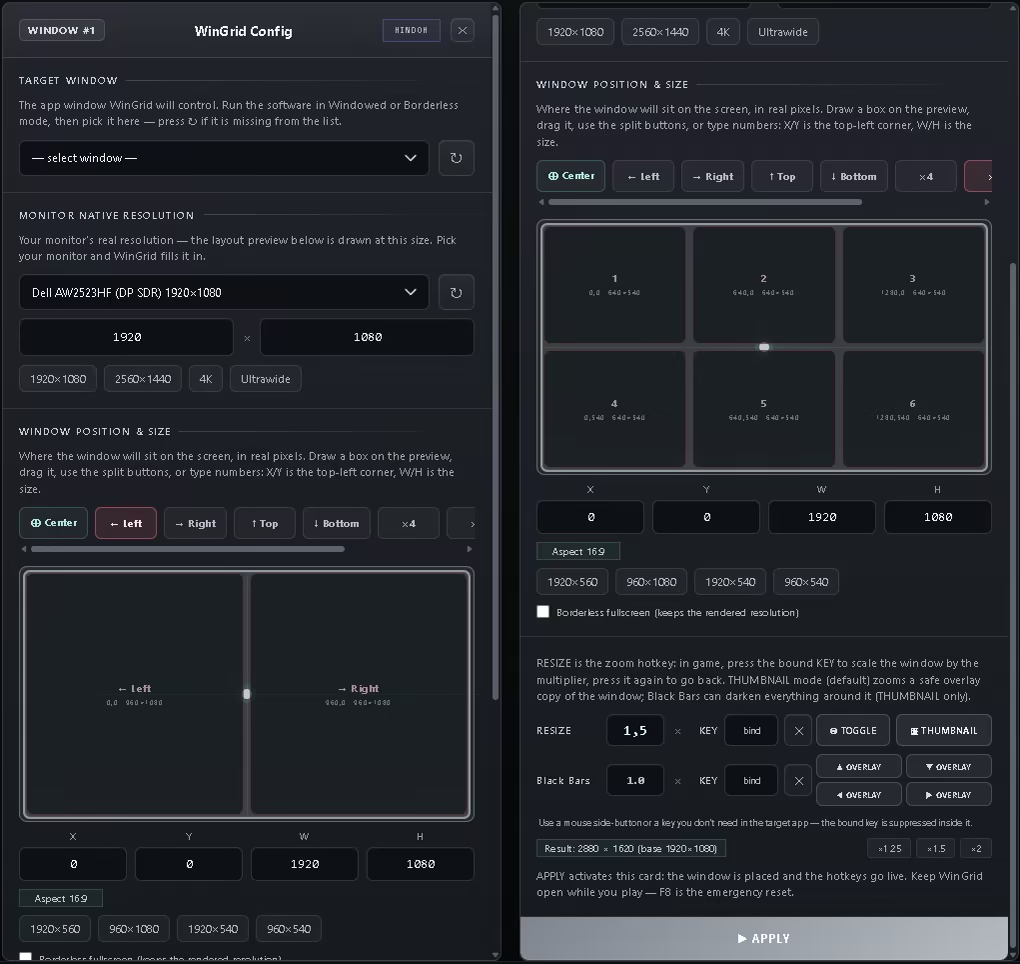
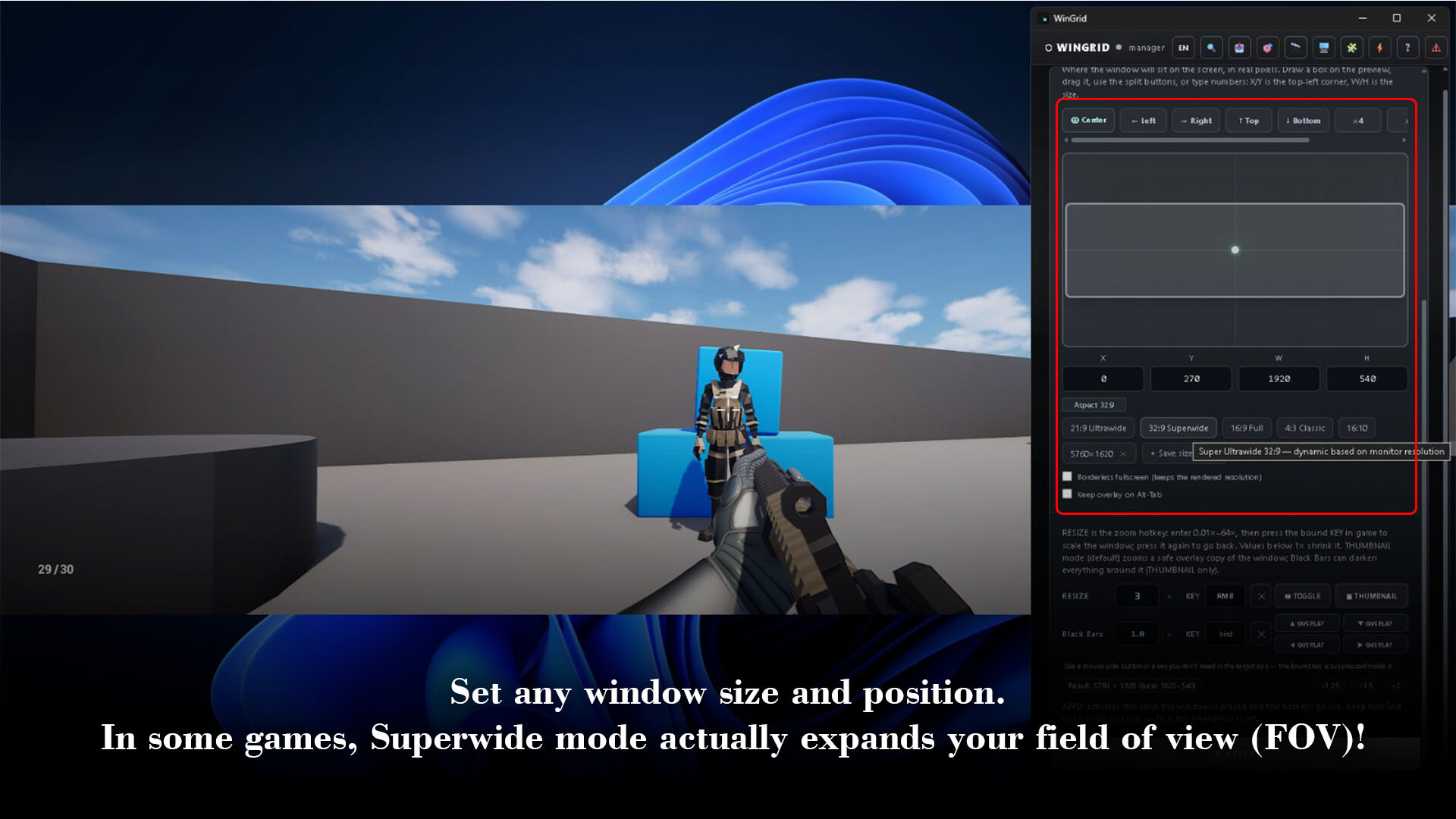
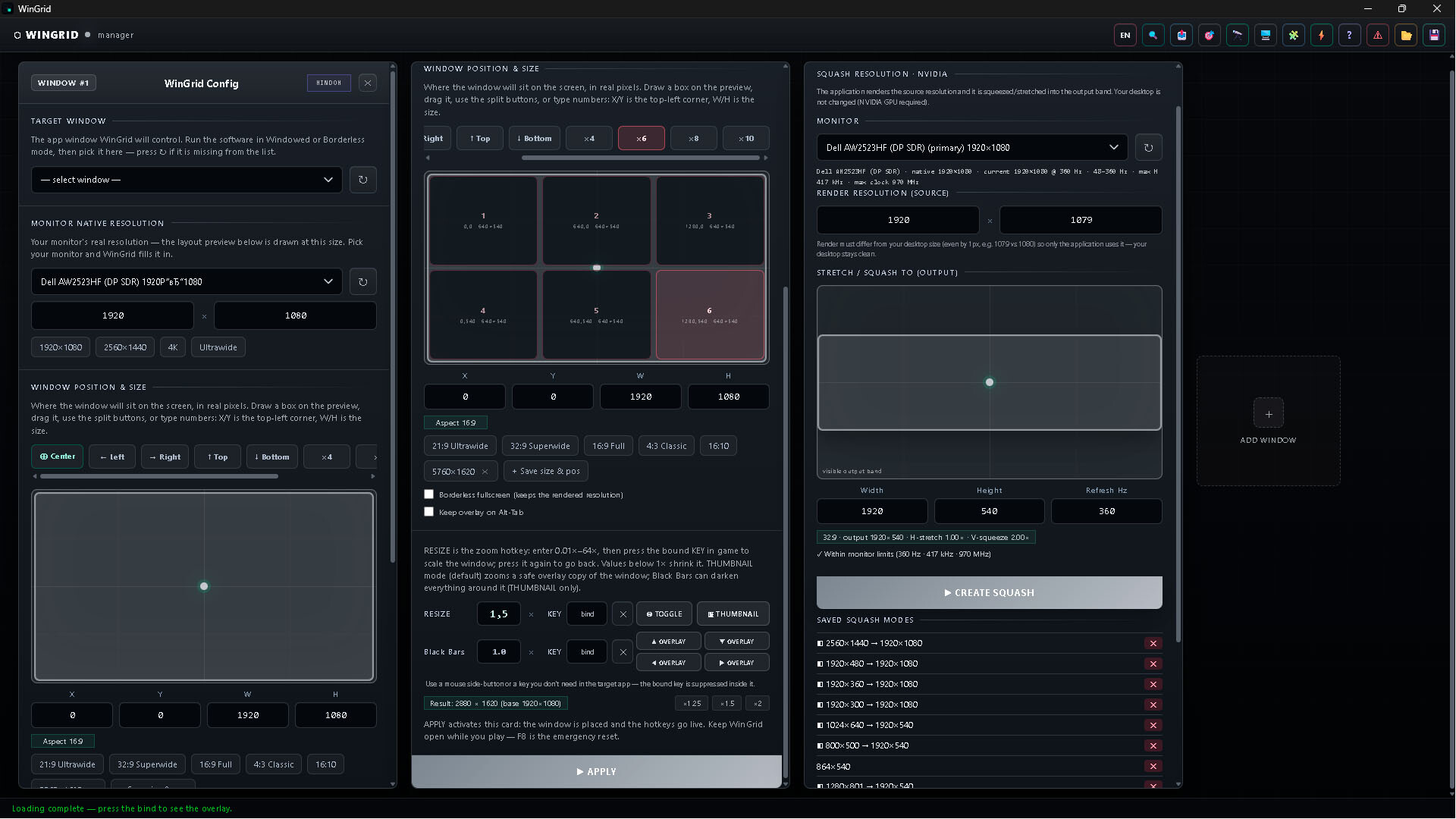
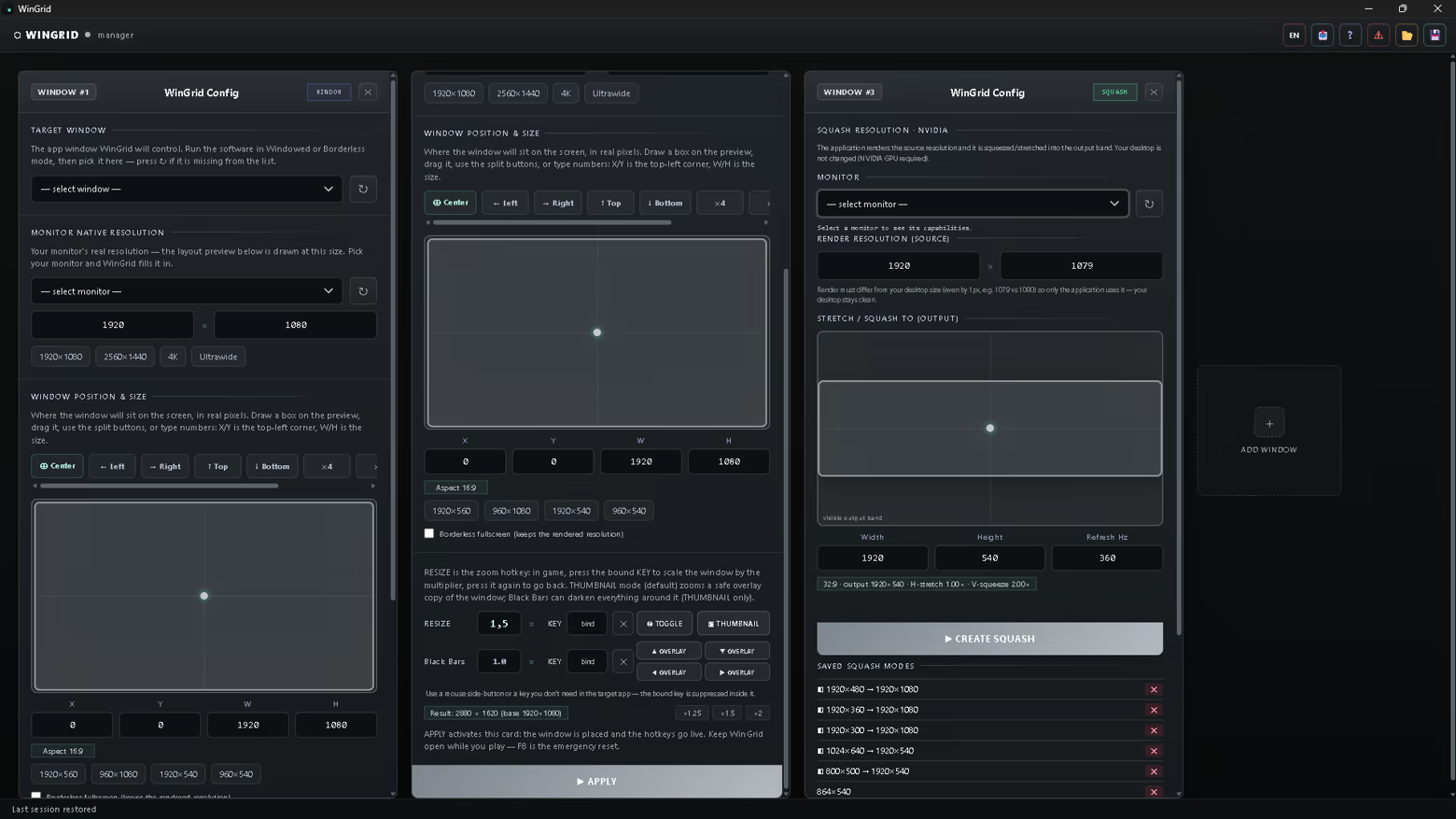
• Quick positioning buttons: Center, Left, Right, Top and Bottom halves.
• x4, x6, x8 and x10 grids: divide your screen into 4, 6, 8 or 10 precise zones using the convenient scrollable panel.
• Real-time preview: interactive canvas for precise X, Y, W and H adjustments.
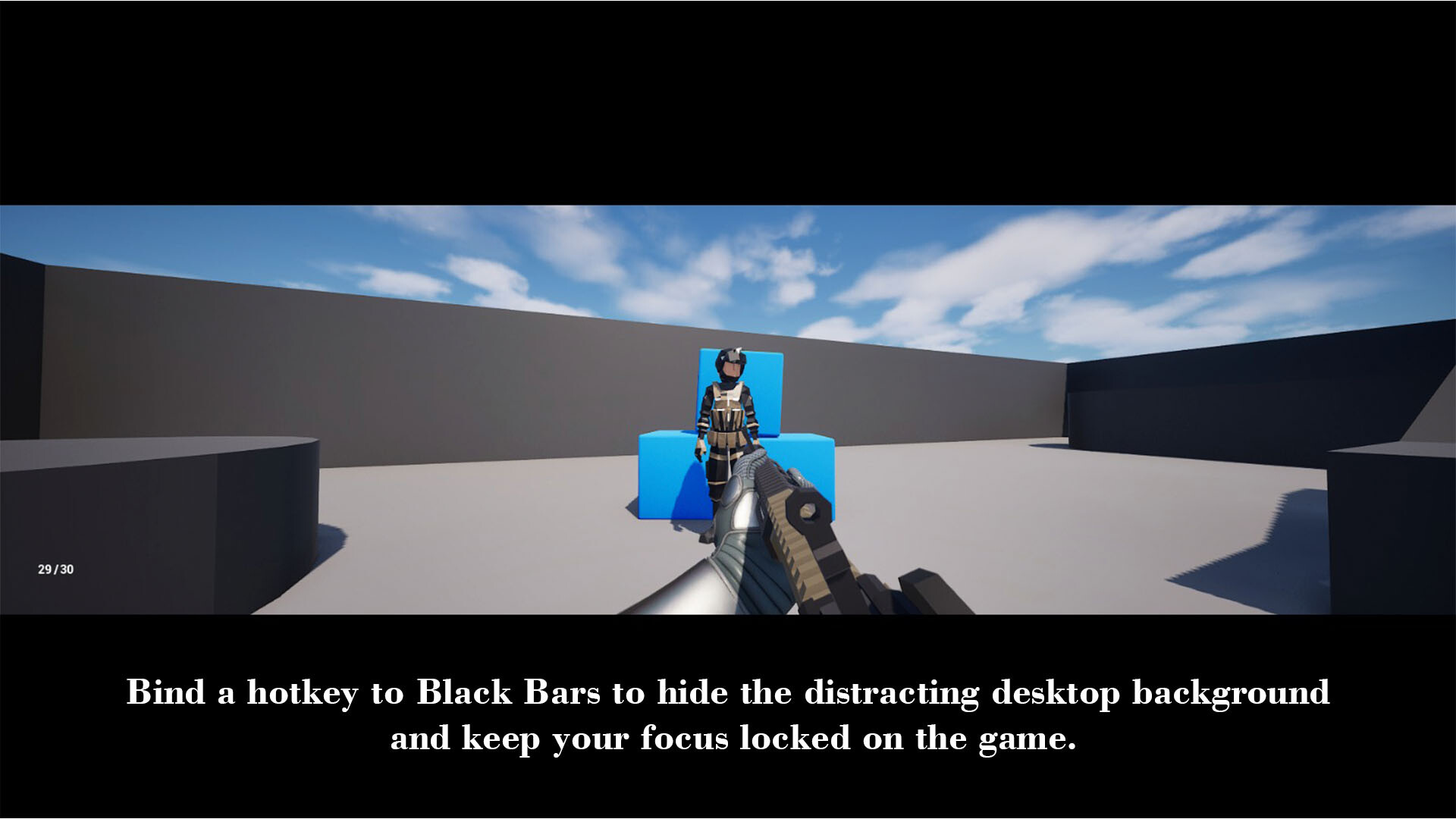
Custom Overlays and Black Bars (Letterbox)
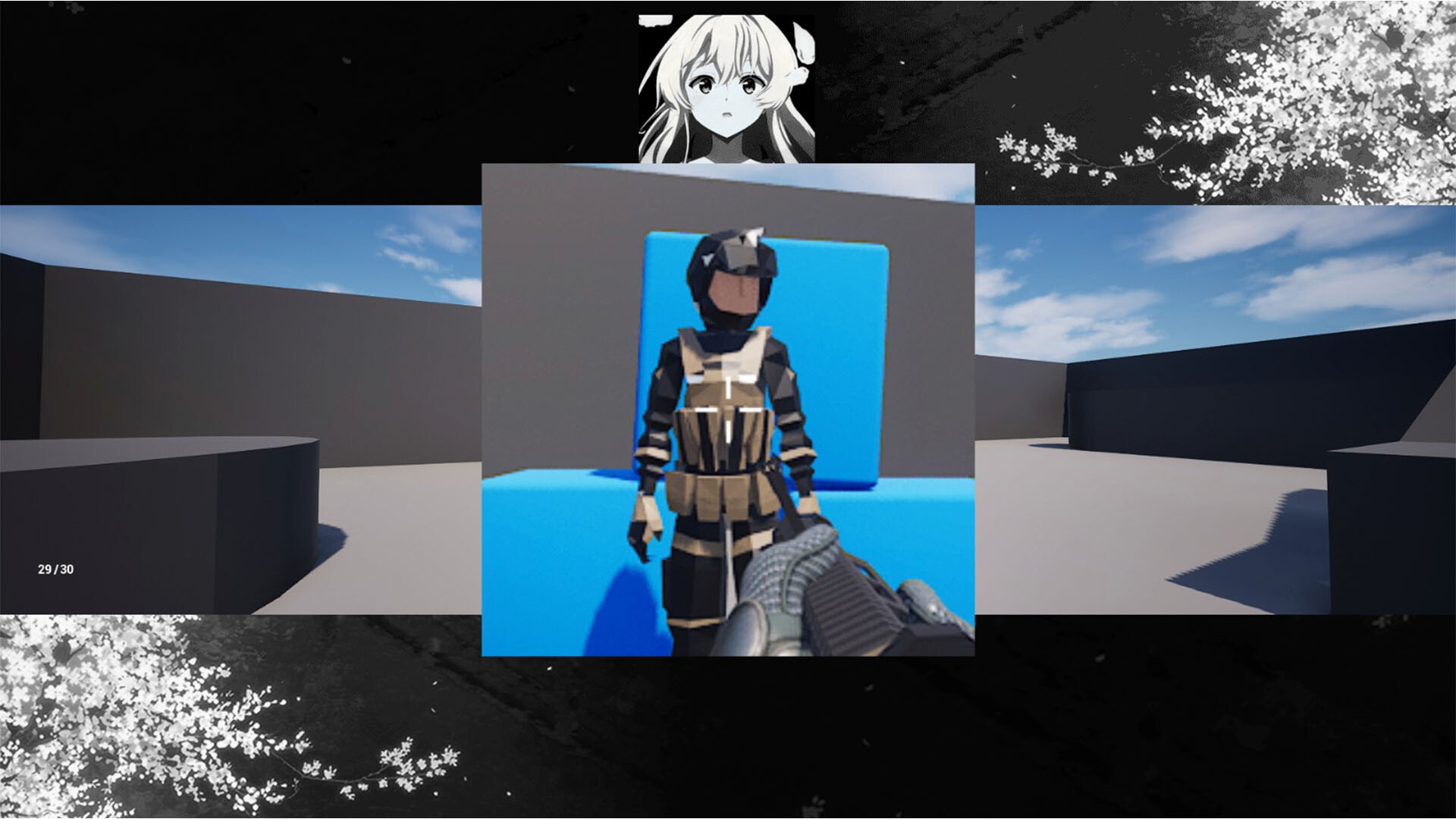
Replace standard black bars with your own images or animations.
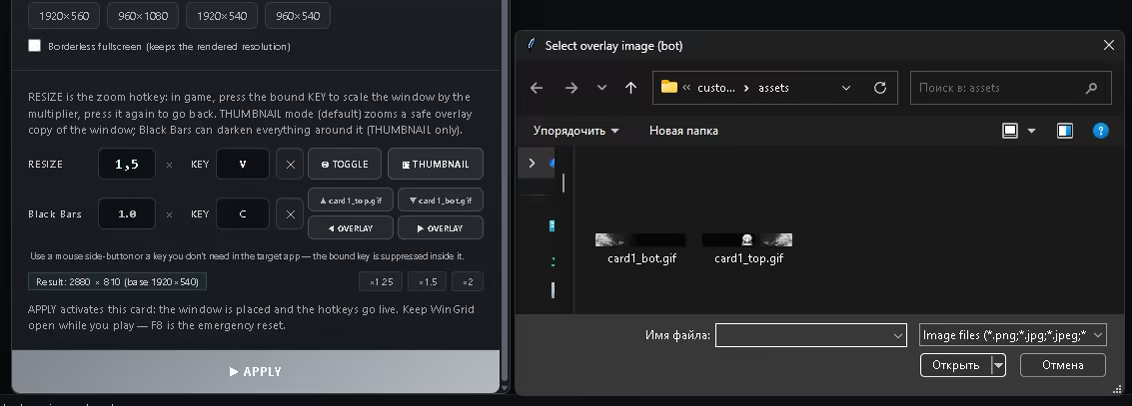
• Place custom artwork around the game window to create a unique visual style.
• Supports PNG, JPG and animated GIF.
• Use separate images for the top, bottom, left and right sides.
• Custom images work together with window resizing and Zoom features.
Steam Workshop
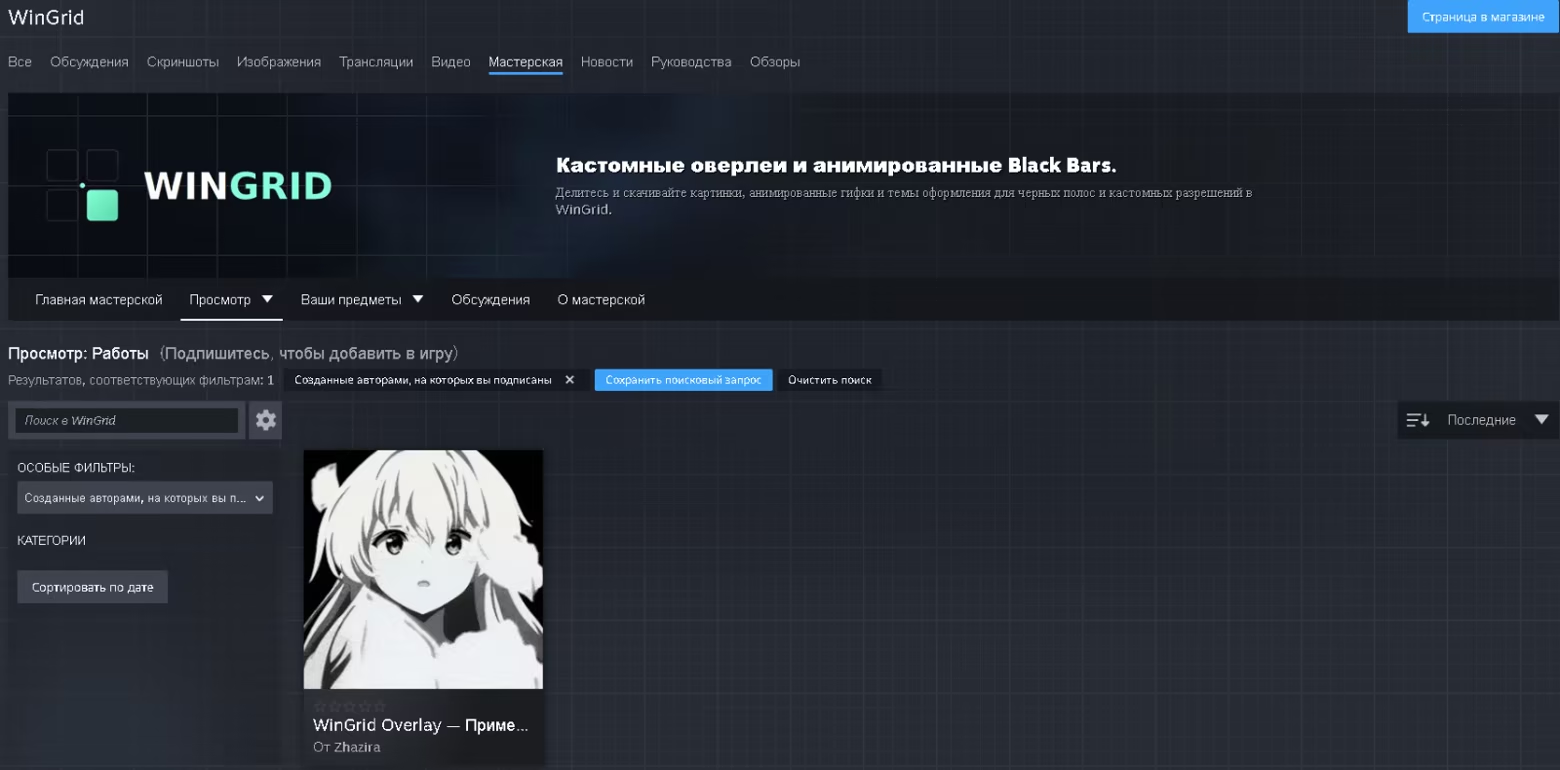
Share your layout presets, custom overlays and configurations with other players, or download community presets with a single click.
How to use downloaded profiles:
• Subscribe to an item you like in Steam Workshop. The files will be downloaded automatically.
• Launch WinGrid. Your subscriptions will automatically appear in the local Workshop Overlays folder.
• Activate a profile using the Load Profile button in the WinGrid control panel.
How to publish your profile to Steam Workshop:
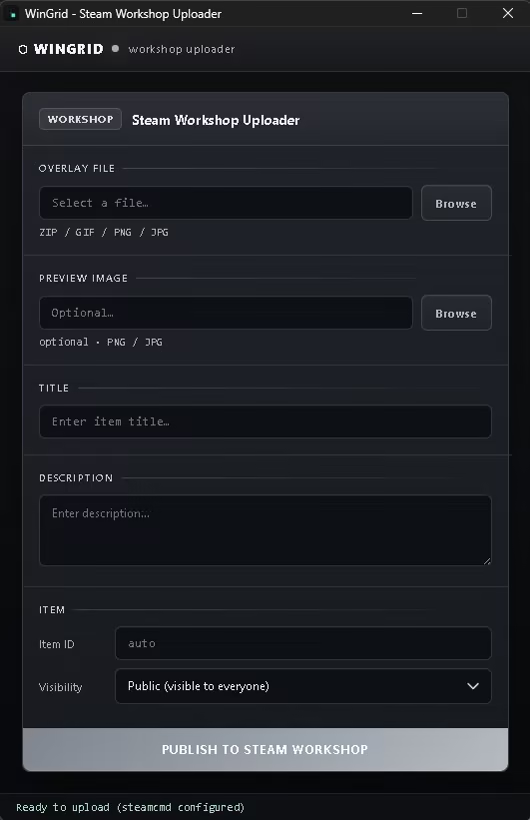
• Save your current profile using the Save Profile button.
• Click Share Workshop in the WinGrid top bar. The built-in uploader will open.
• Select a profile or overlay file in ZIP, GIF, PNG or JPG format, then enter a title, description and preview image.
• Click PUBLISH TO STEAM WORKSHOP. Your profile will appear in Steam Workshop.
GIF, PNG and JPG are supported for images and animated elements.
Operating Modes: WINDOW and SQUASH
WINDOW Mode
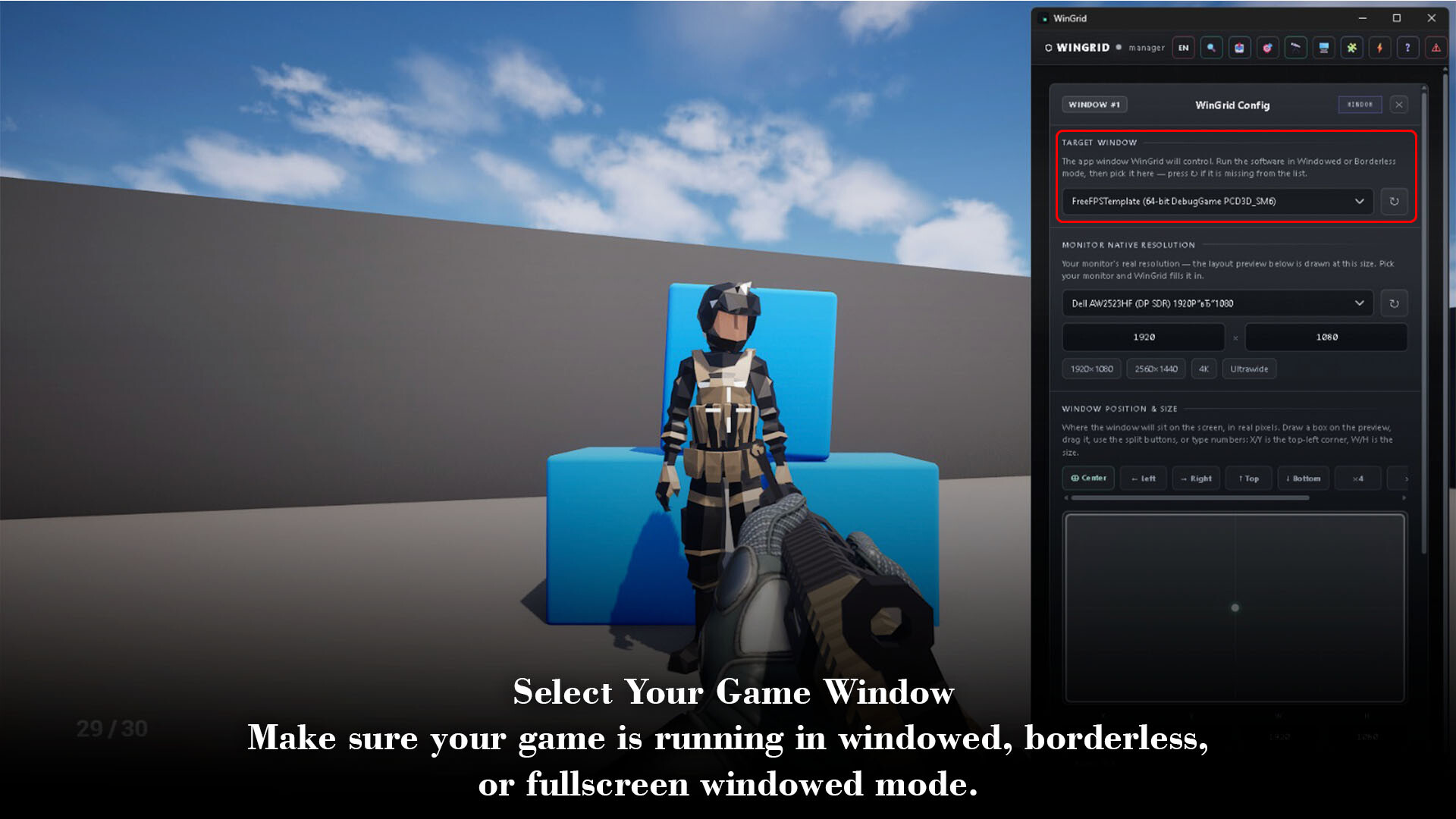
Works with Windowed, Borderless Windowed and Fullscreen Windowed game modes.
The following features are available:
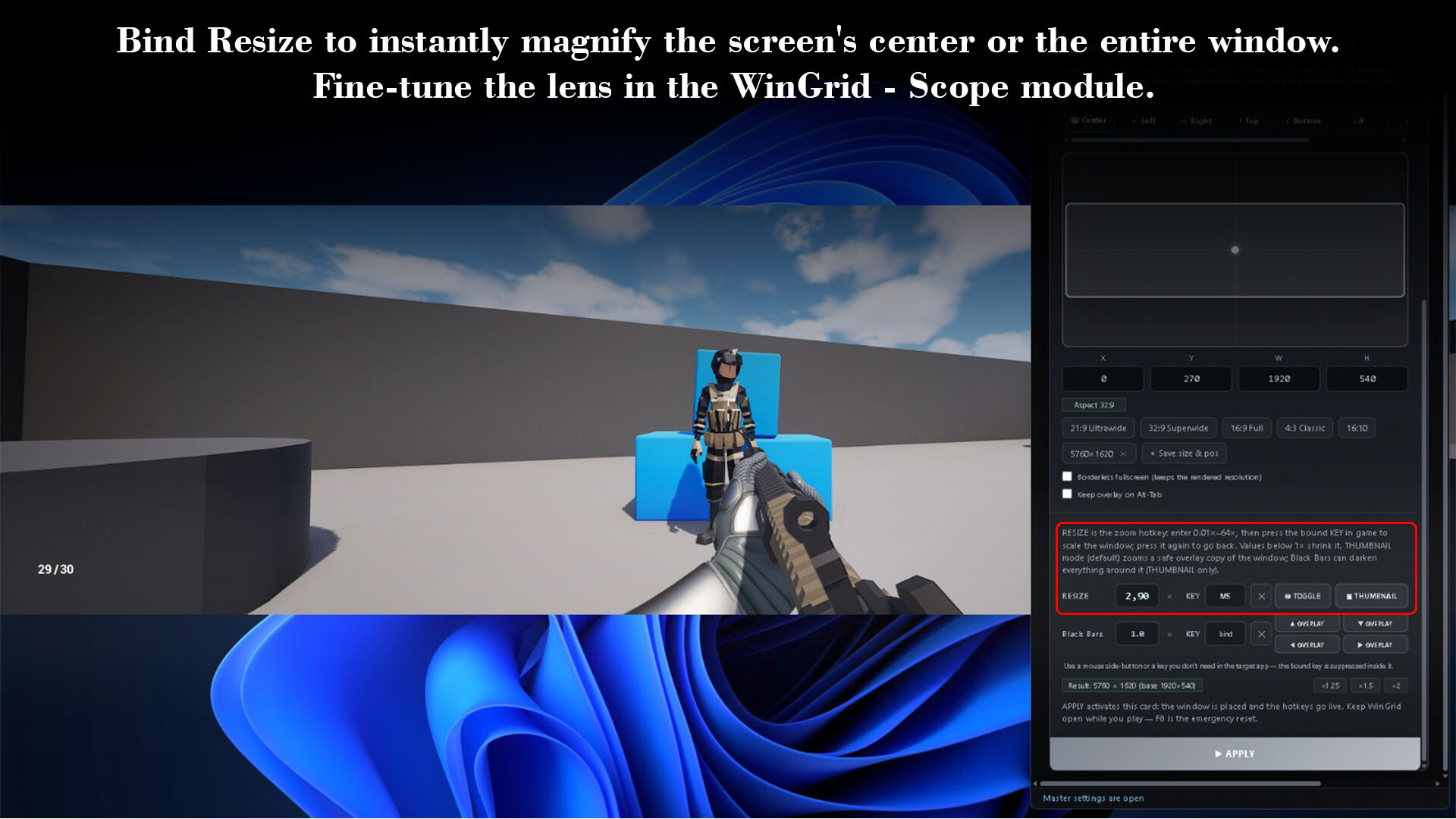
• Resize: resize the game window.
• Black Bars: add black bars around the window.
• Custom Overlays: use custom overlays.
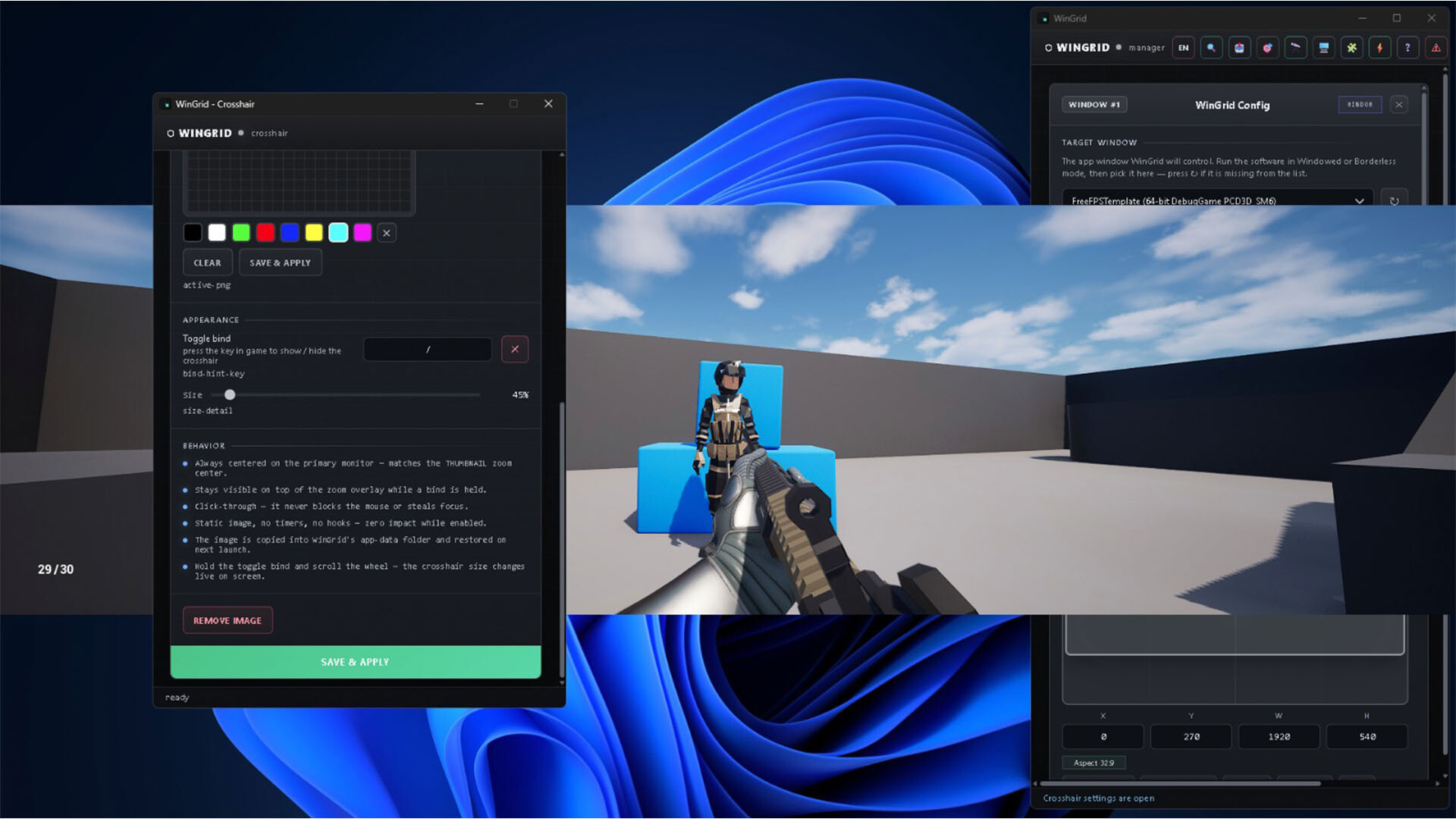
Custom Crosshair
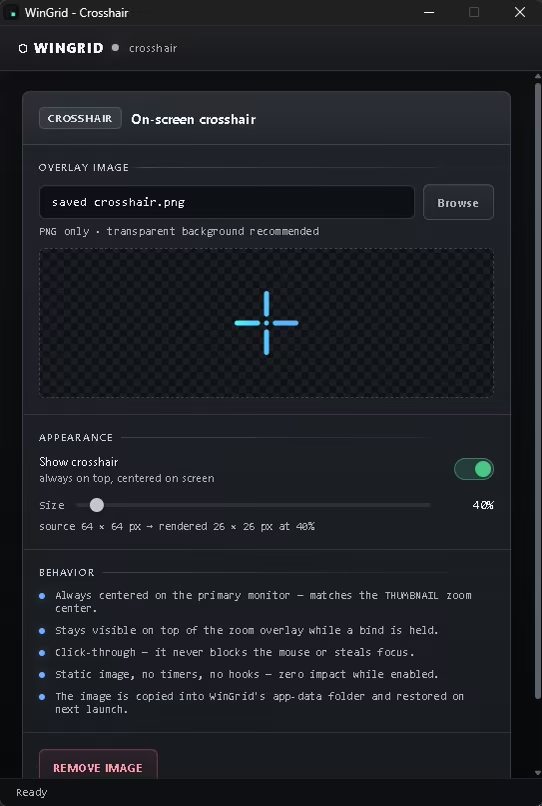
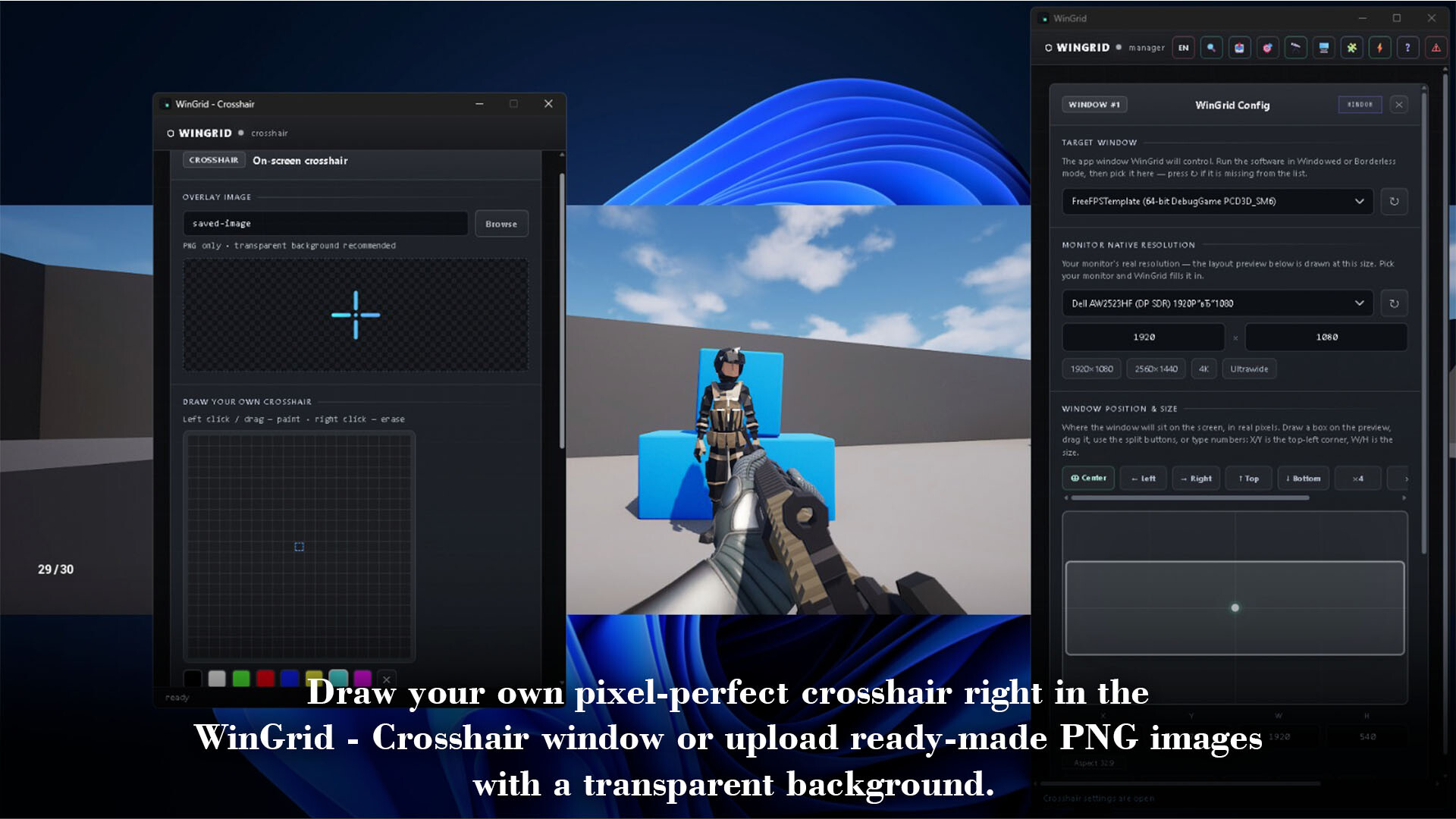
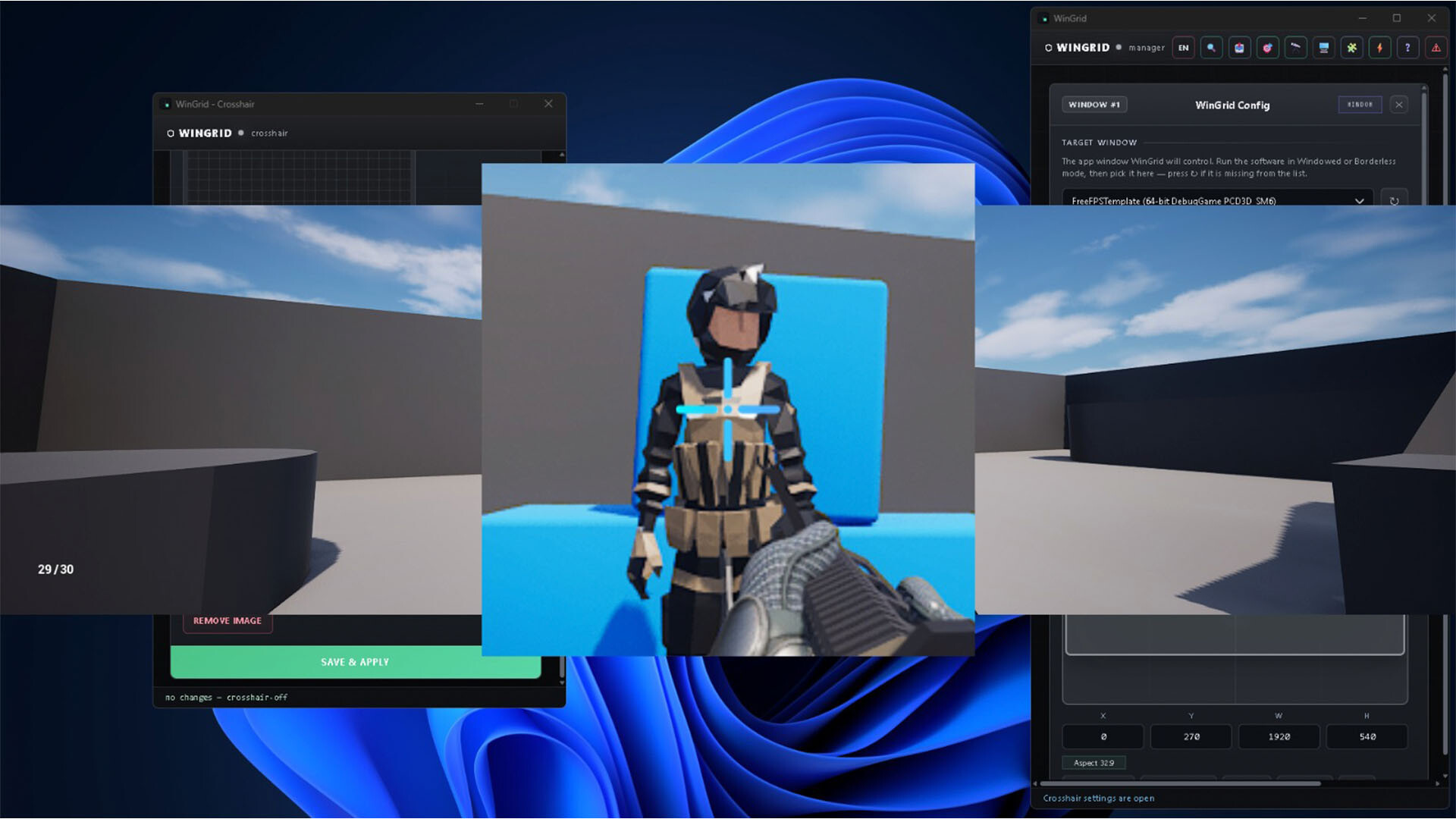
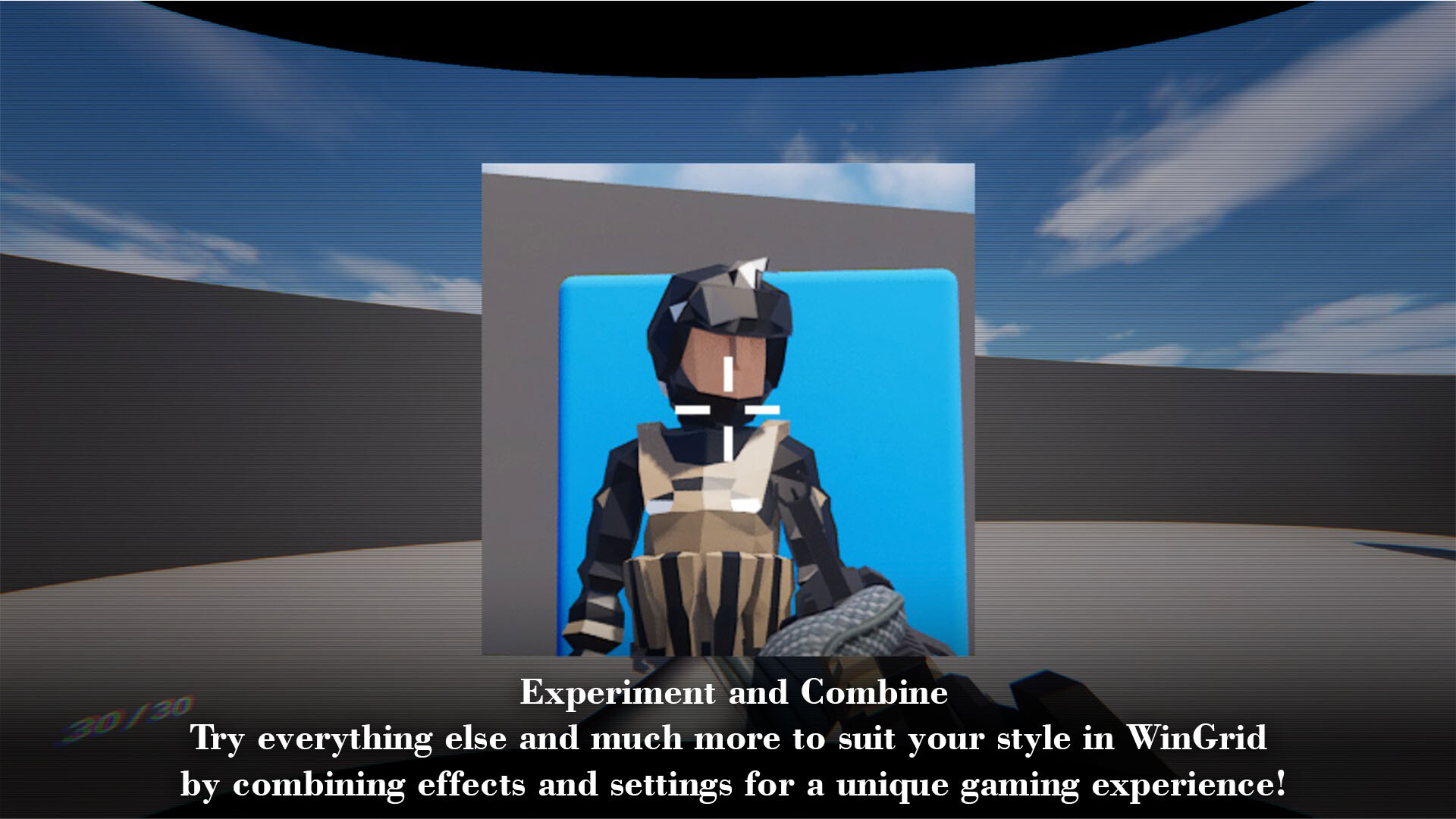
Place your own PNG reticle exactly at the center of the screen — above any window, overlay, or zoom.
• Always on top and click-through: it never blocks the mouse or steals focus.
• Scale 25–400%. Any PNG with transparency is supported (transparent backgrounds work great).
• Toggle with the 🎯 button in the toolbar (click — on/off, right-click — settings).
• State persists between sessions and is restored at startup.
• The reticle stays visible above the scope lens and zoom overlays.
Custom Scope Zoom (lens)
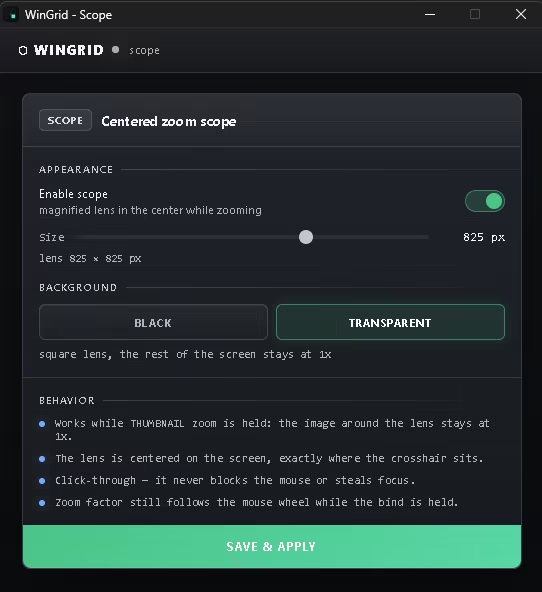
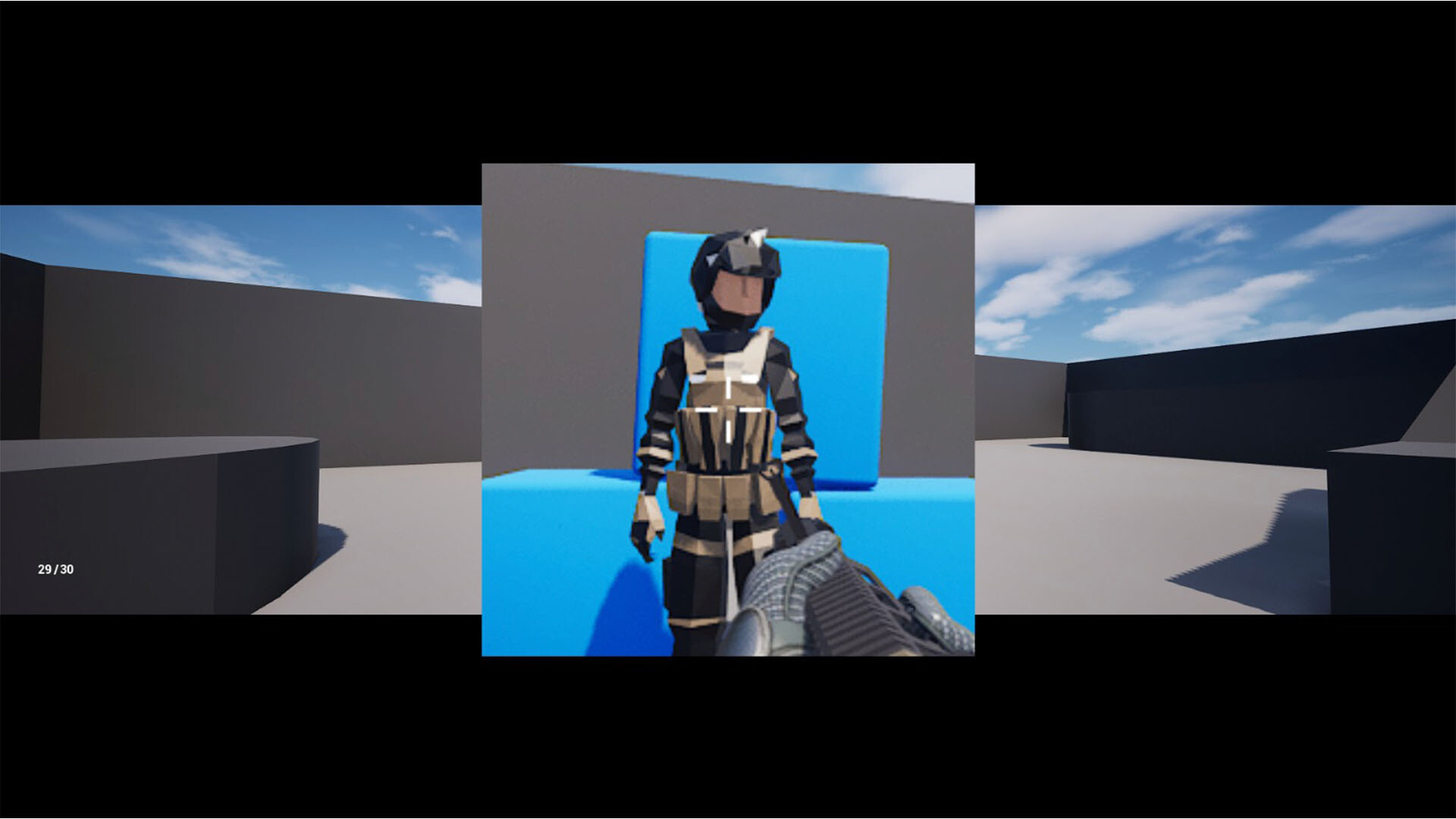
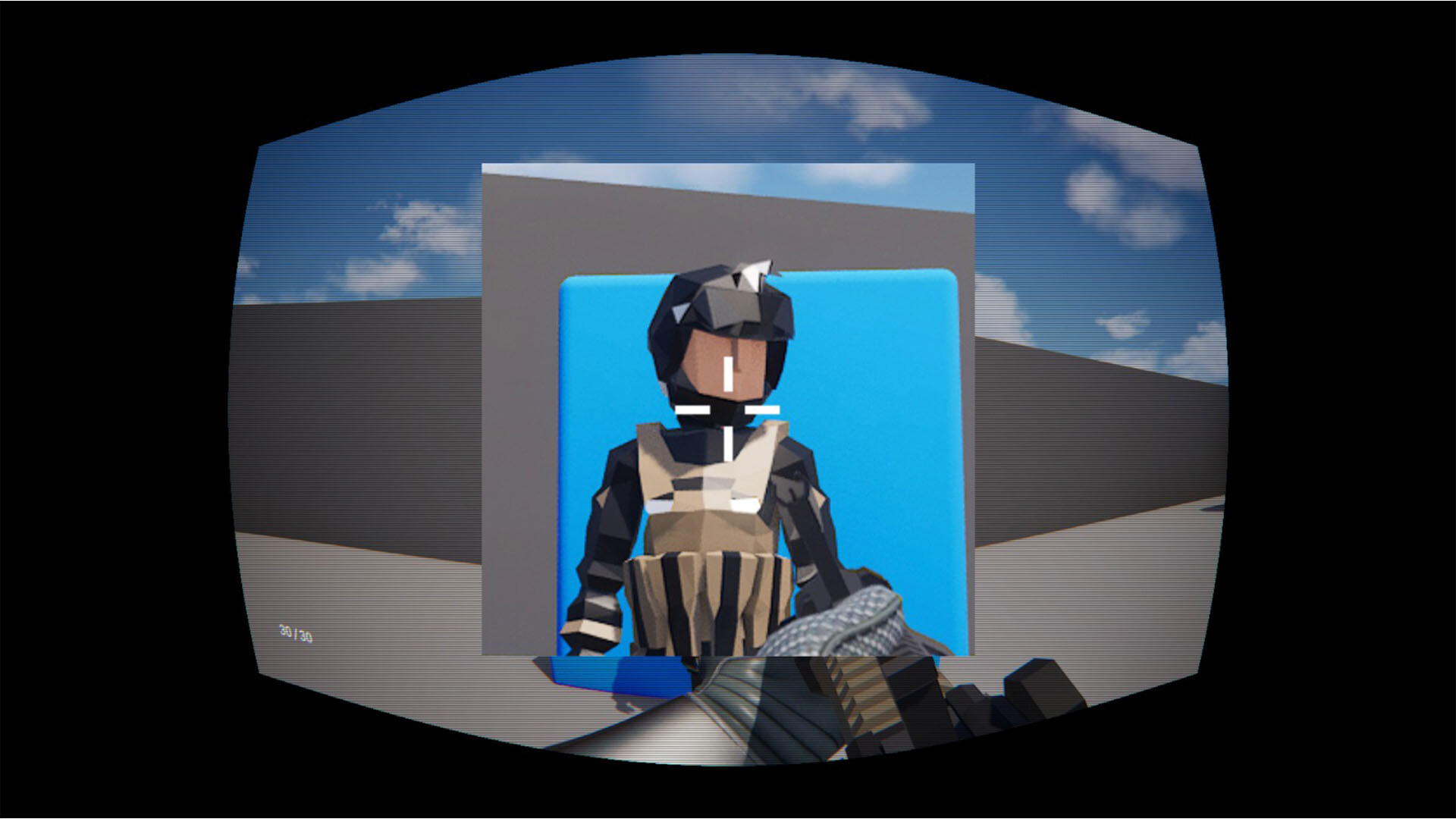
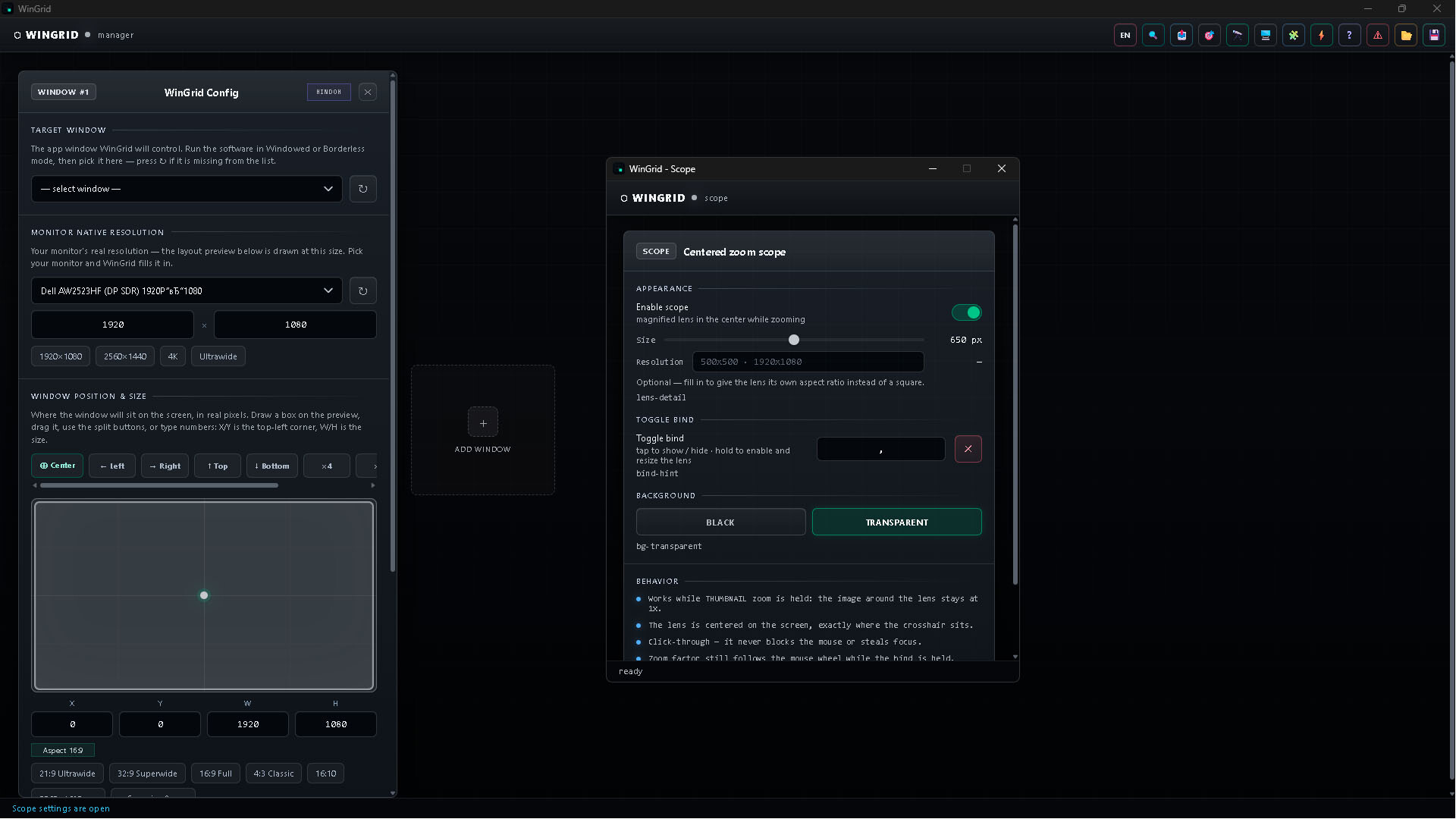
Not the whole screen — just the center. A square lens in the middle of the screen shows the zoomed area while everything around it stays at 1x, like a sniper scope.
• Toggle with the 🔭 button in the toolbar (click — on/off, right-click — settings).
• Lens size 100–1200 px, background BLACK (lens on black) or TRANSPARENT (1x view around the lens).
• Works with THUMBNAIL mode and the RESIZE hotkey.
• The zoom factor still follows the mouse wheel while the bind is held.
• Settings apply instantly — even while the zoom is already held.
• Pairs perfectly with the custom crosshair and Black Bars (the bars stay black around the edges).
WinGrid Layers — Separate HUD Above Your Zoom
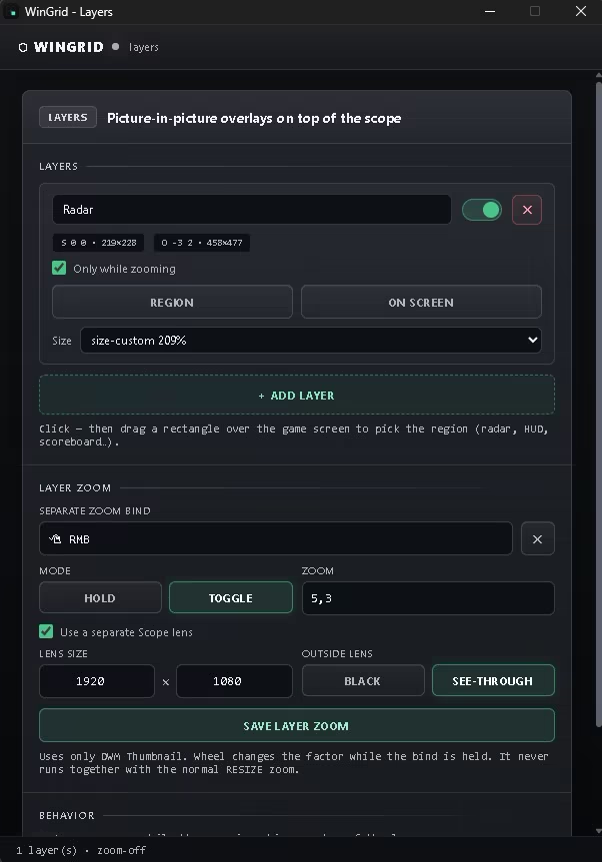
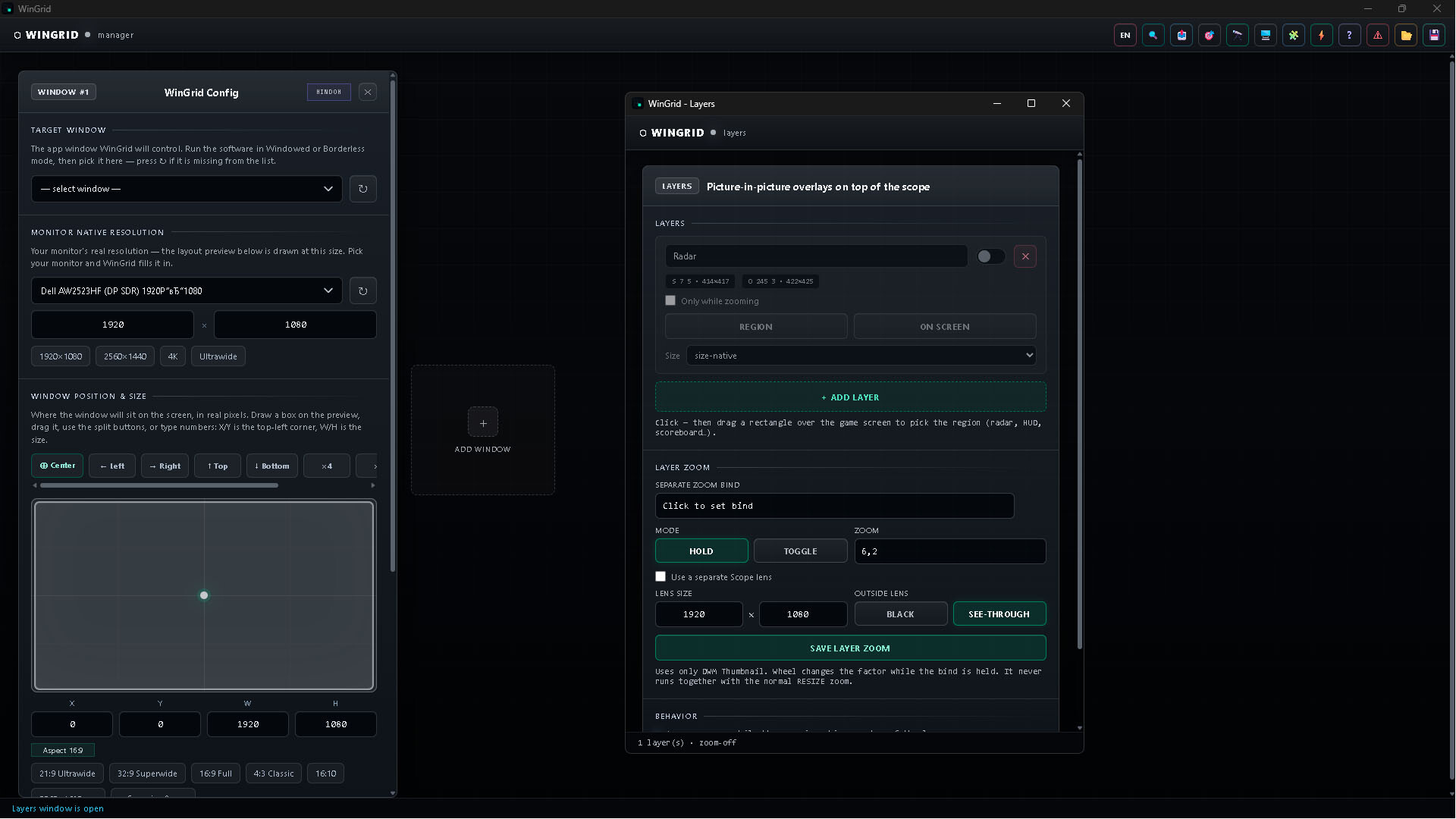
Build your own game interface using live elements from the game window.
• Select the radar, killfeed, chat, score, or any other HUD area on screen.
• Each selected area becomes a separate live Layers window.
• Name, move, resize, and save every layer independently.
• Choose when a layer is visible: always, or only while zoom is active.
• Layers stay above Thumbnail Zoom, Scope, and other WinGrid overlays.
• Visual resize handles, placement outlines, and matching cursors make editing easier.
• Your Layers layout and HUD placement are saved between sessions.
Custom 4:3 / Stretched Layout
WinGrid lets you build an alternative 4:3-style or 1:1-style layout in compatible windowed and borderless games.
Reduce the game window height, then use Thumbnail Zoom to enlarge the central gameplay area to your monitor. Move the radar, killfeed, chat, and other HUD elements into Layers and place them wherever you want.
For example, a 1920×608 game window creates a strong vertical stretch effect that can feel close to a 1:1 layout, while 1920×810 is closer to classic 1280×960 4:3.
This is a visual window and HUD layout feature. WinGrid does not modify game files, game memory, or the game’s internal rendering resolution.
Stability and Controls
• Alt-Tab no longer resets your custom window size or placement.
• Improved Thumbnail Zoom and Layers stability with reduced image flickering.
• Fixed an issue where mouse input could remain captured after cancelling layer placement.
• Resize, Scope, Crosshair, and Layers hotkeys work only while the selected game window is focused.
• Layers includes its own Thumbnail Zoom bind with Hold and Toggle modes.
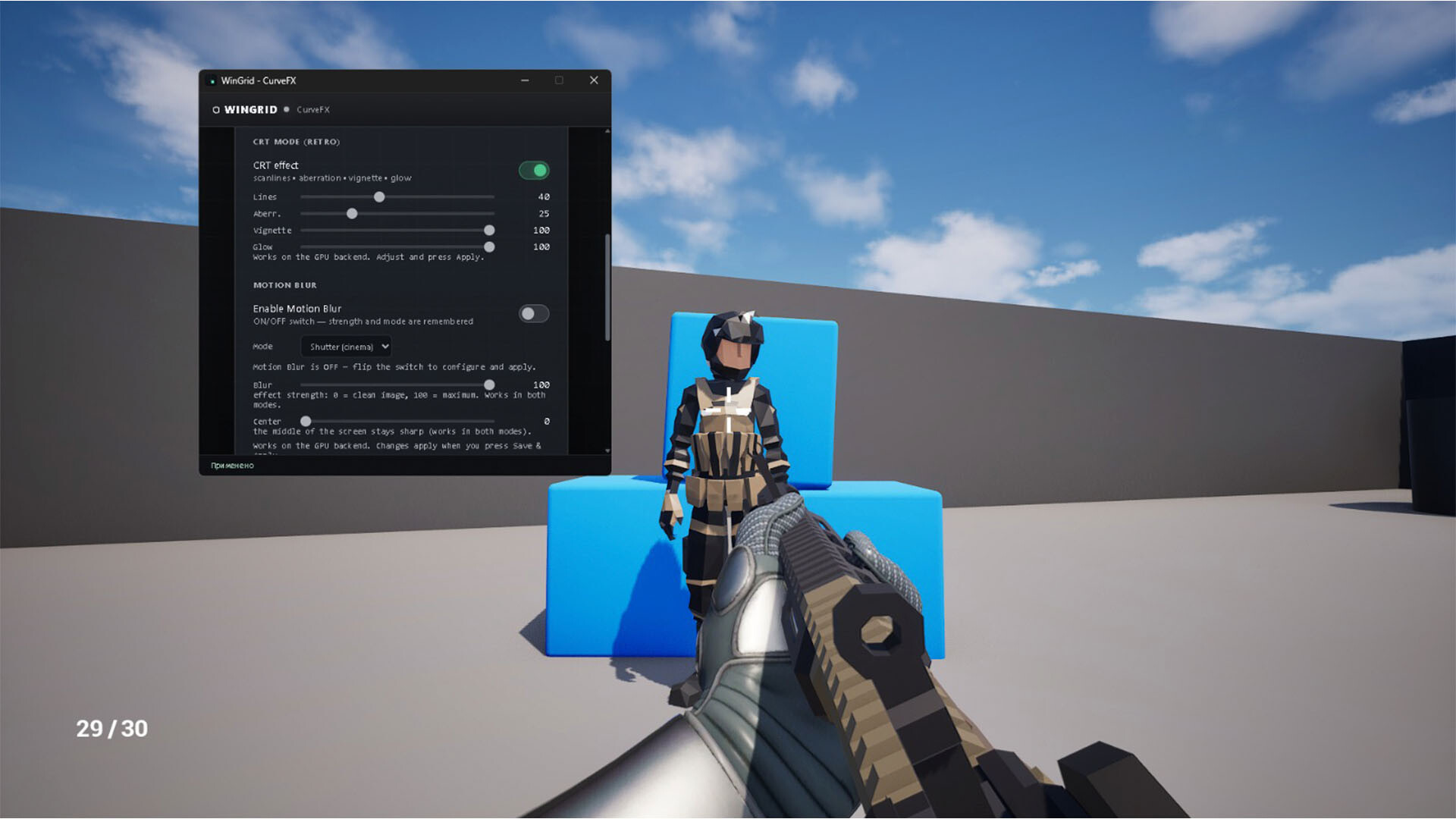
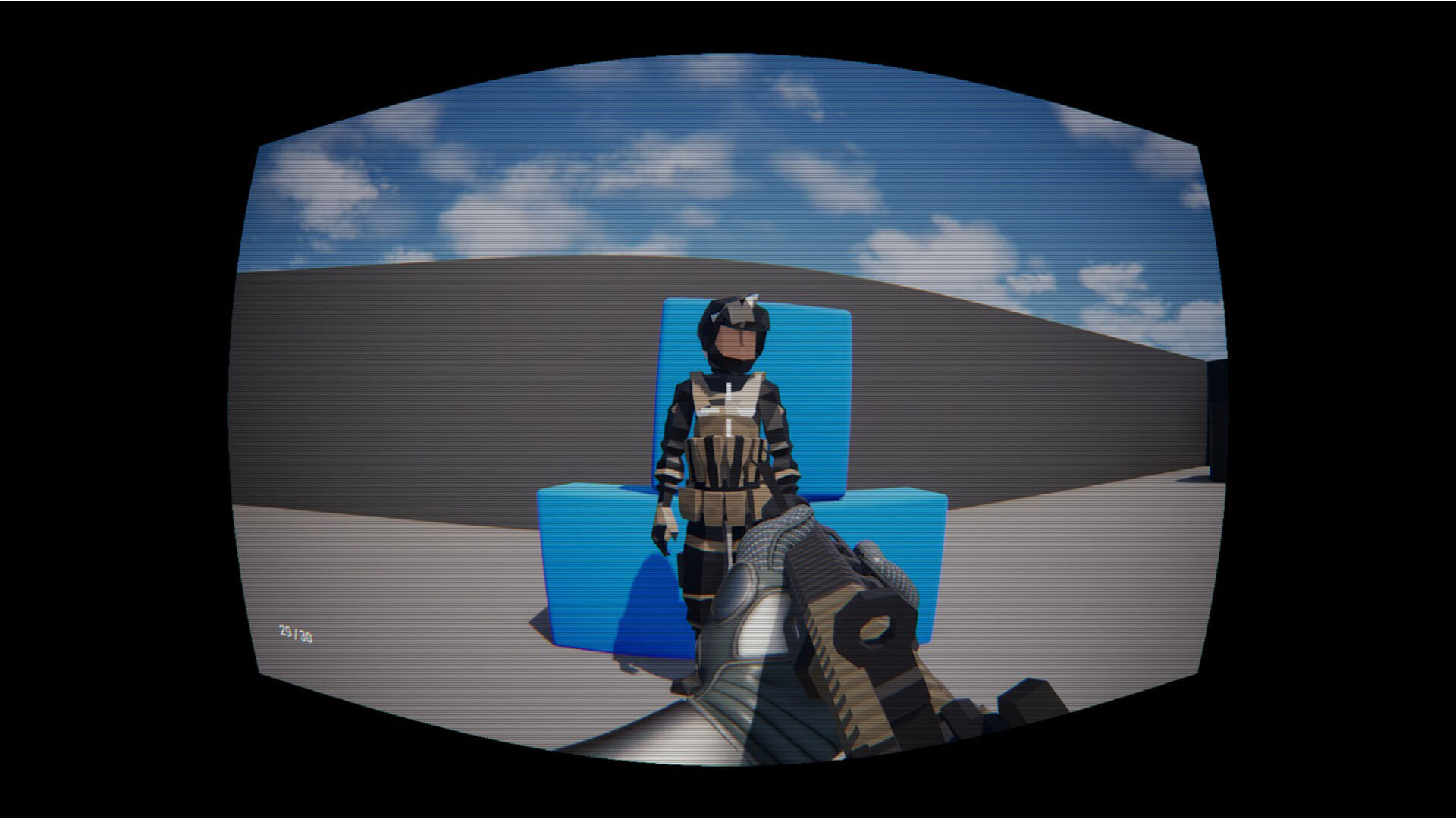
CurveFX
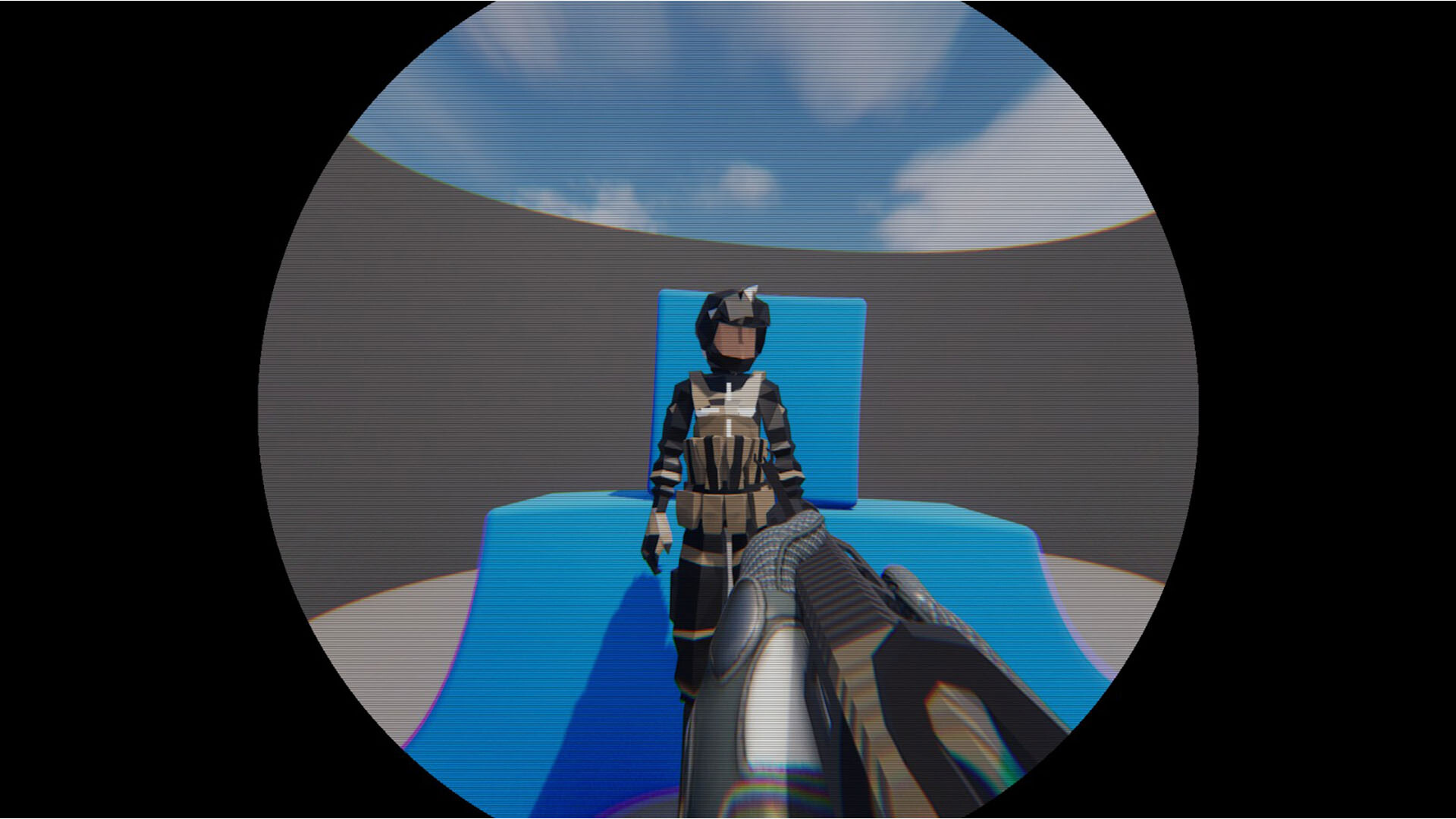
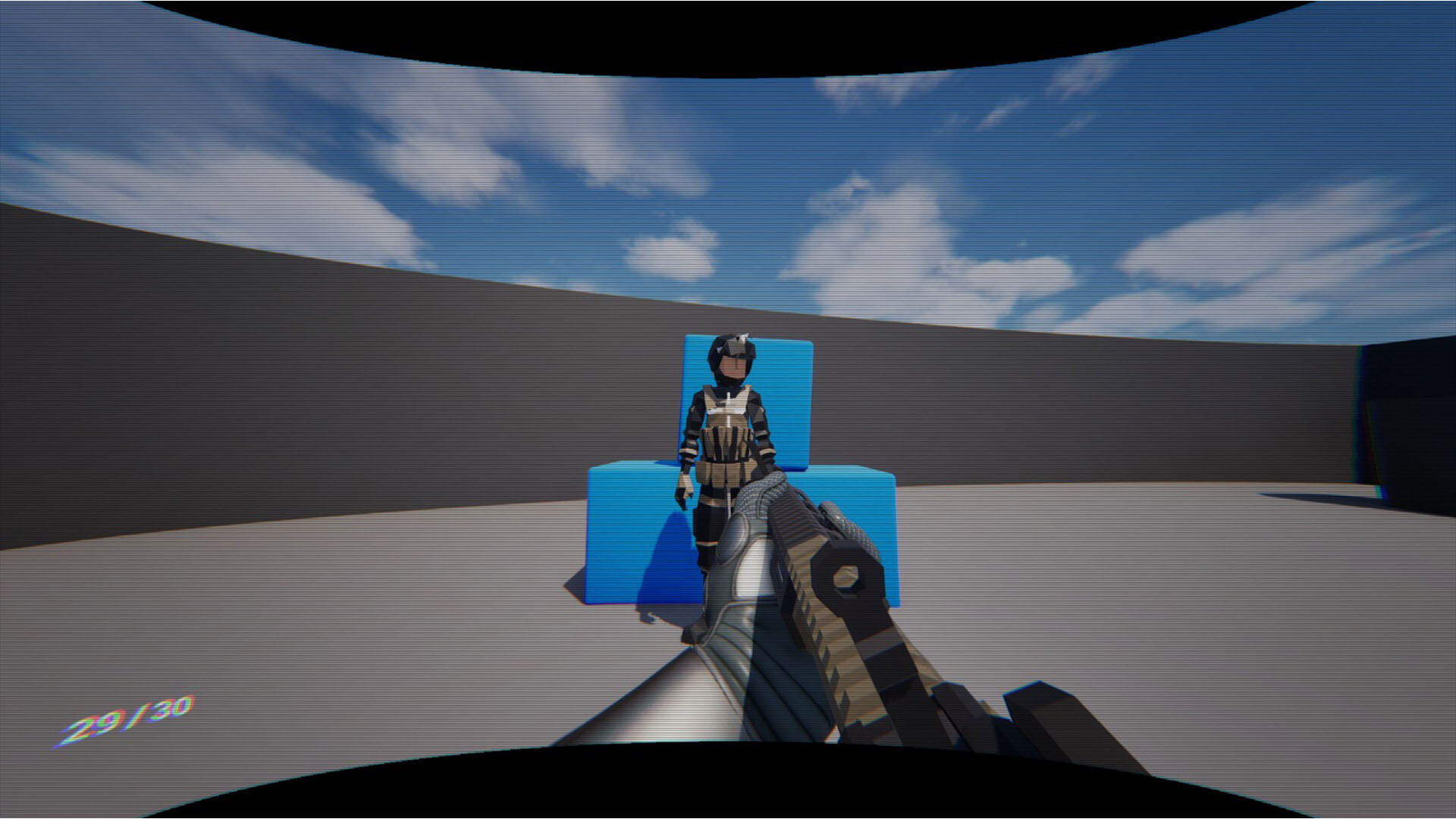
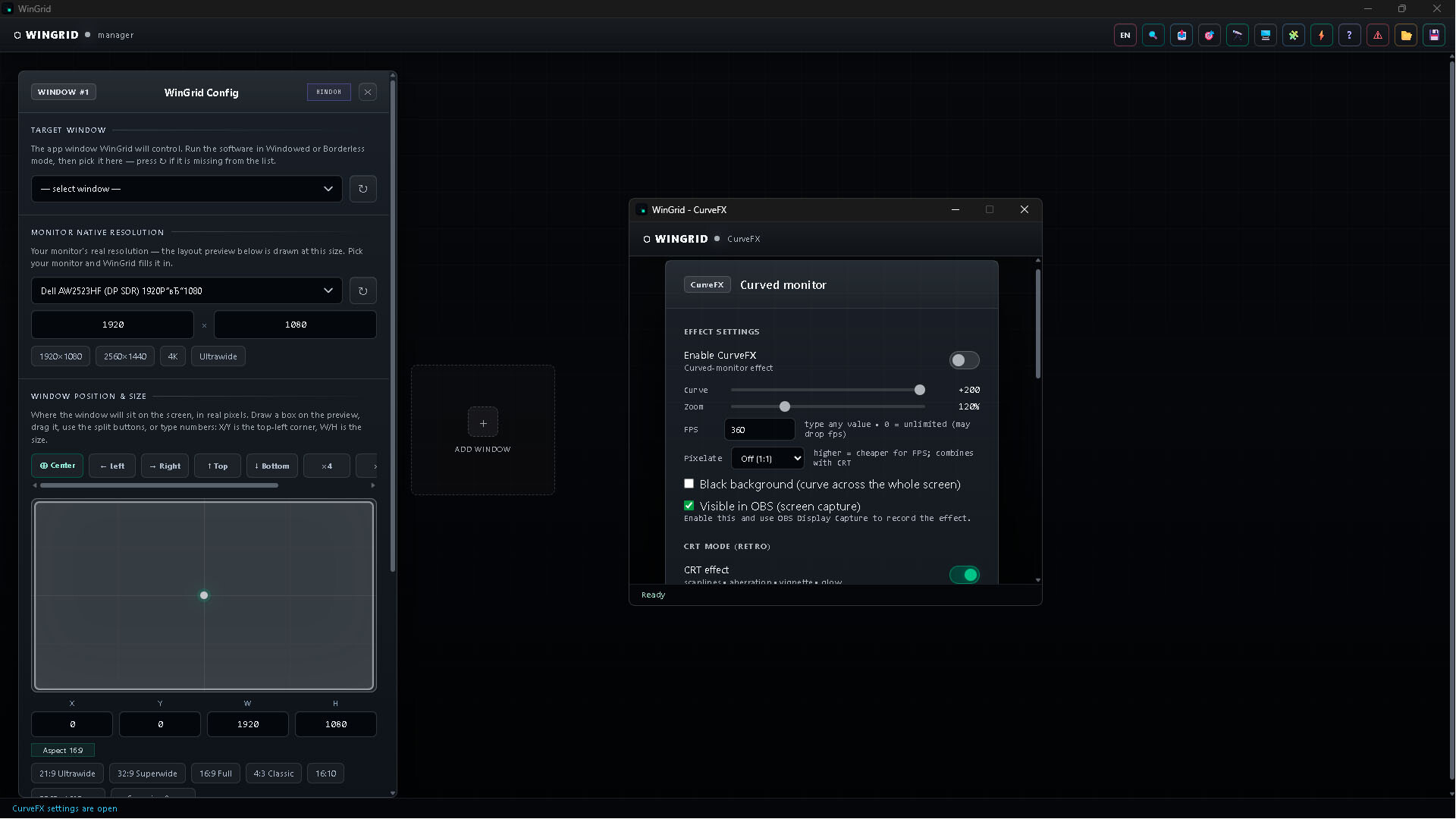
a real-time curved monitor effect for your game window (GPU).
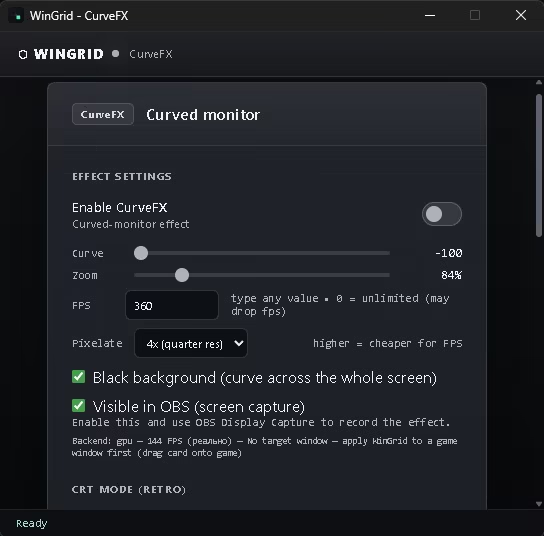
Bends the image like a curved screen, fully click-through, without touching the game.
Zoom, pixelation, CRT — all already included.
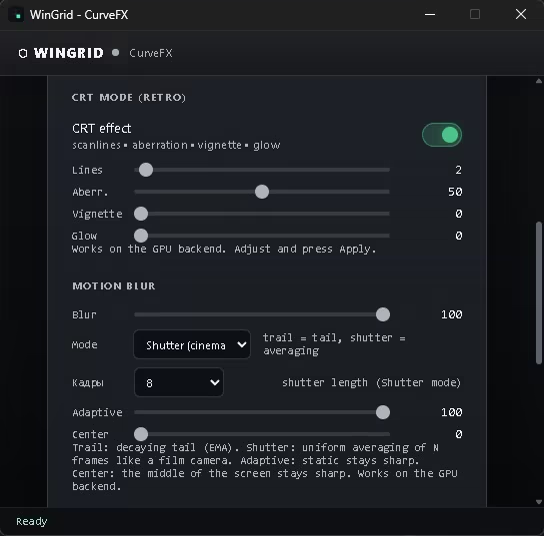
Motion Blur — two modes:
• Trail — classic decaying tail behind movement
• Shutter — cinematic uniform smear over 2–8 frames (film-camera look)
• Adaptive — static picture stays sharp, only motion gets the smear
• Center — the middle of the screen can stay sharp while the sides blur
How to enable:
1. Run the game in Windowed or Borderless Windowed mode.
2. CurveFX: open the CurveFX panel, select your window, press Apply.
3. Tray: just close the window. Right-click the icon → Exit to really quit.
4. Crosshair: open Crosshair settings → "Draw your own crosshair" → draw → Save & apply.
Notes:
- CurveFX works on the GPU. If GPU capture is unavailable, WinGrid falls back
to a compatible CPU mode (lower FPS, no motion blur).
- FPS: 0 = unlimited (can drop). Default = your monitor Hz on first launch.
- This is a cosmetic overlay: WinGrid does not interact with the game process.
Other additions
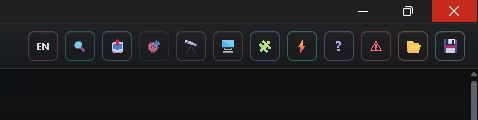
• 🔍 Zoom Scroll button — enables/disables adjusting the zoom factor with the mouse wheel while holding a hotkey.
WINDOW Mode does not work in Exclusive Fullscreen mode.
SQUASH Mode for NVIDIA GPUs
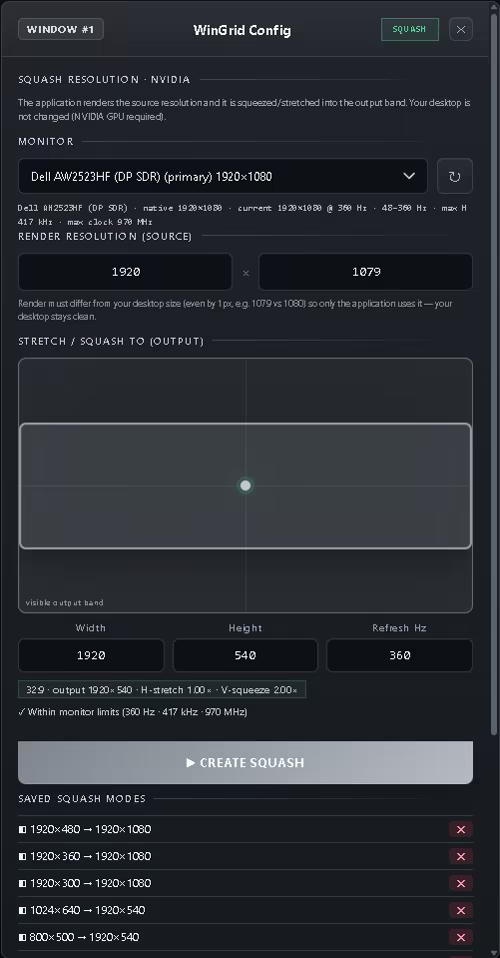
Works in Exclusive Fullscreen mode. This mode is designed to create custom display resolutions using NVIDIA NvAPI.
For example, compressing a 1920x880 resolution to 1920x540 creates black bars at the top and bottom while producing a vertical image stretching effect.
SQUASH Mode does not support Resize, Black Bars or Custom Overlays hotkeys.
Four Resizing and Scaling Methods
• THUMBNAIL Mode: enlarged DWM preview overlay of the target window.
• WINDOW Mode: real-time scaling of the window area.
• STRETCH Mode: stretches the window to the dimensions you specify.
• DPI Mode: applies DPI-based scaling to the target window.
Resolution Presets and Profiles
• Custom resolution presets: 1920x1080, 2560x1440, 4K (3840x2160) and Ultrawide (2560x1080).
• Window size presets: 1920x560, 960x1080, 1920x540 and 960x540.
• Hotkeys: keyboard or mouse bindings, Toggle or Hold modes, x1.25, x1.5 and x2 multipliers, plus mouse wheel adjustment.
• Profiles: save and load named profiles, automatic session restoration and an emergency reset hotkey using F8.
Security and Technical Information
WinGrid is built entirely using official Windows APIs, including Win32, Desktop Window Manager, Microsoft Edge WebView2 and NVIDIA NvAPI. The application does not use code injection, kernel drivers, or read from or modify the memory of other processes.
WinGrid is not an injector, cheat or macro.
Technical Note About SQUASH Mode
SQUASH uses NVIDIA driver capabilities to create custom display resolutions. On some laptops with hybrid graphics using NVIDIA Optimus, the display output may be handled by the integrated GPU (iGPU), which can limit SQUASH functionality.
WinGrid automatically detects the system configuration at startup and notifies the user through the interface. All other window management features continue to work normally.
Before You Buy: Compatibility
• OS: Windows 10 version 1903 or later and Windows 11, 64-bit only. WinGrid does not work on Linux, macOS, SteamOS or Steam Deck.
• Window modes: window management features work in Windowed or Borderless Windowed modes. Compatibility with Exclusive Fullscreen is not guaranteed.
• GPU: SQUASH Mode requires an NVIDIA GPU. All other features work fully on AMD and Intel GPUs.
• Internet: an internet connection is not required for normal WinGrid operation.