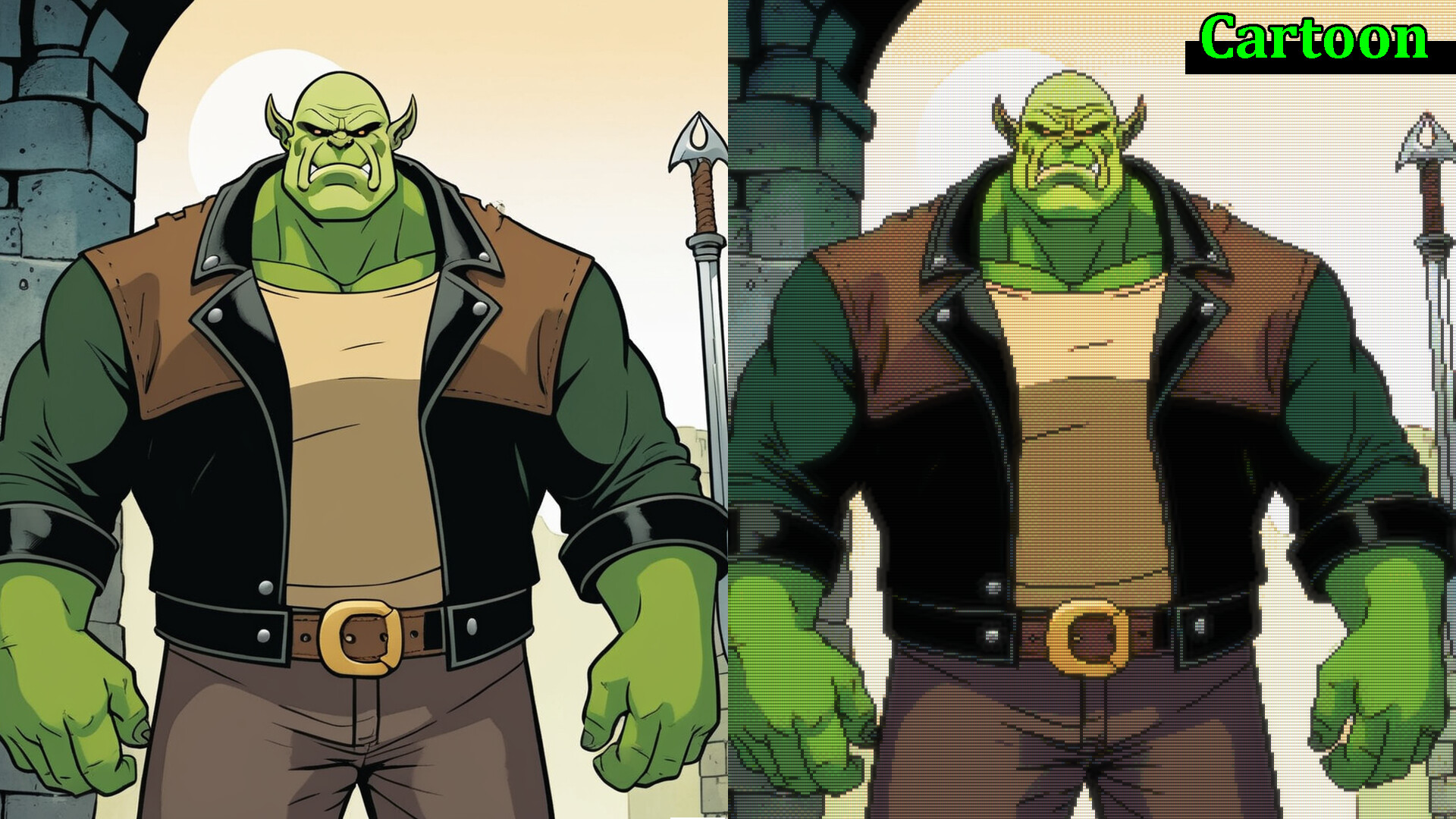
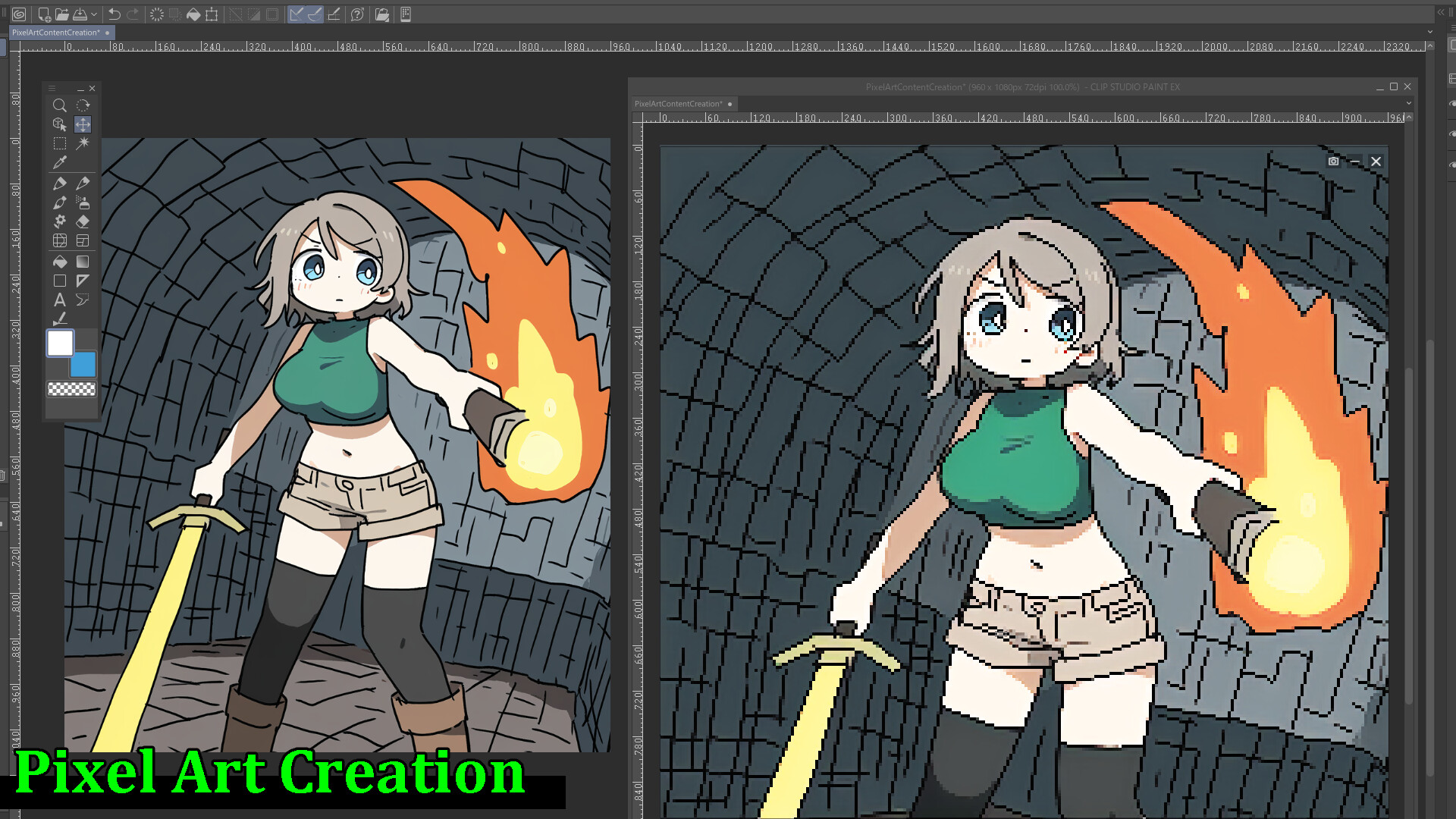
Place a lens, and watch any video turn into pixel art in real time.
■ Overview
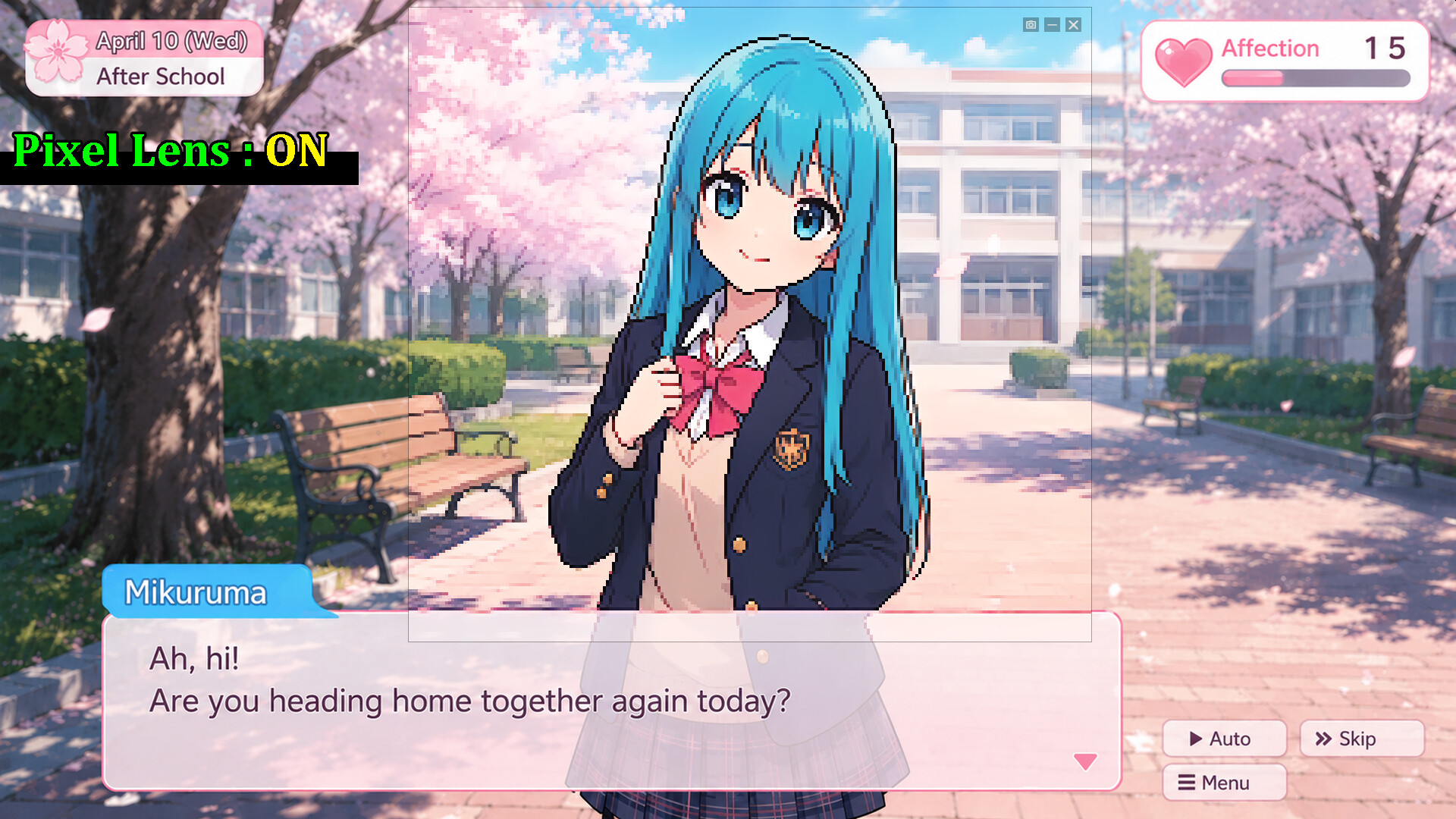
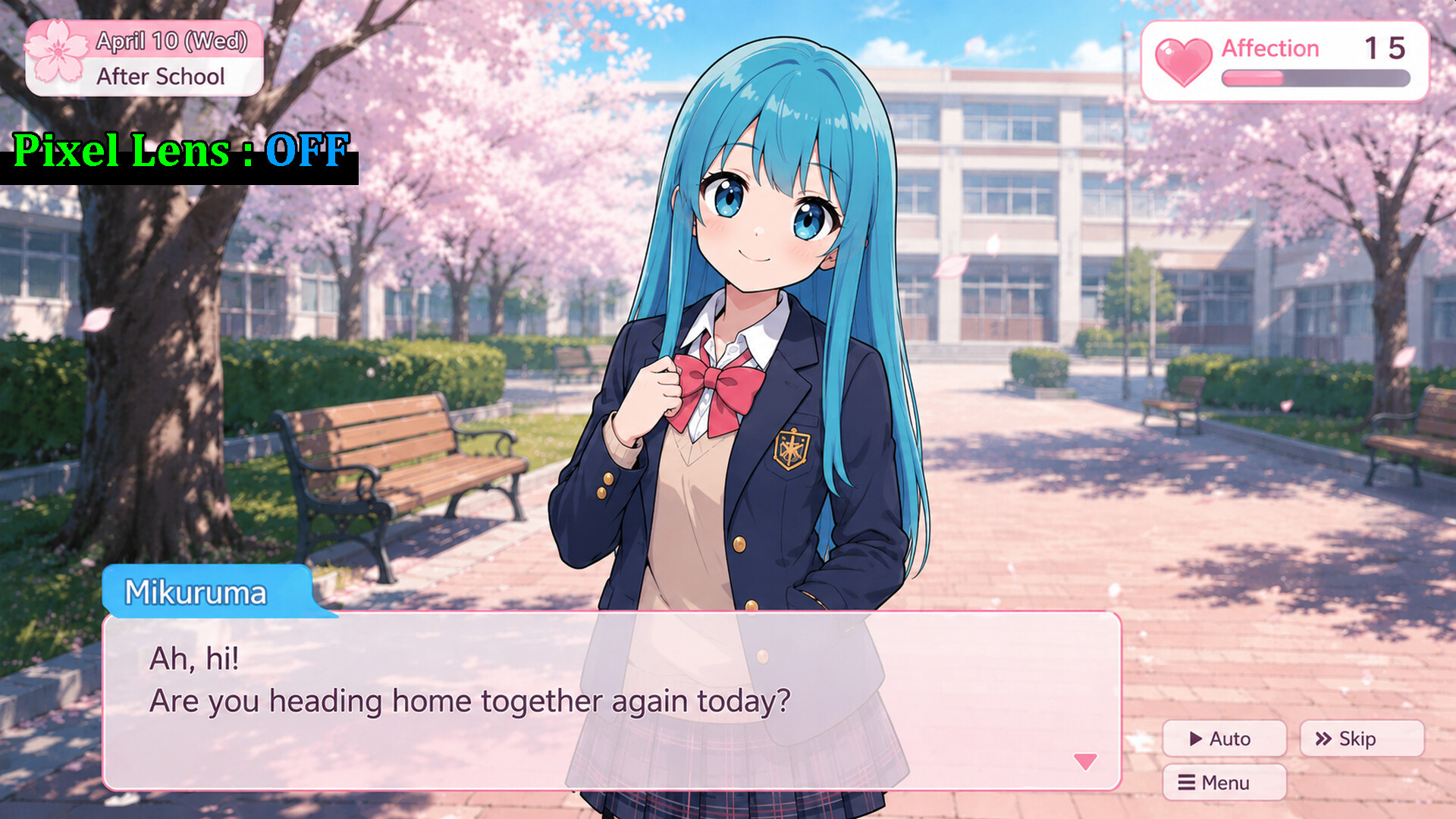
Pixel Lens is a real-time conversion tool that overlays a "pixel-art lens" on top of your desktop.
Just drop the lens over a video or game, and our in-house lightweight AI turns the image into pixel art on the spot. Anime, YouTube, web browsers, gameplay — anything on your screen, only the area you choose.
Audio plays through unchanged, so you can add the fun of "watching in pixel art" without compromising your viewing experience.
* A DirectX 12-compatible GPU is required. Please see the system requirements below for details.

■ Features
- Ultra-light, fast in-house AI: The model is just a few MB. Runs in real time at about 24 FPS on an RTX 3060-class GPU, and about 30 FPS on RTX 3090-class hardware. It produces pixel art with crisp outlines and keeps color noise down in dark scenes. * Measurement conditions: Full HD (1920×1080) input / Target FPS = 30 / Dot size = 4
- Overlays on any app: Works with video players, browsers, games, and any other Windows window or screen region.
- Dot size and Sharpness to taste: Five dot sizes from 4×4 to 8×8, each with its own AI, so lines stay crisp and unbroken even with large dots. Turn Sharpness on for crisp outlines, or off for a calm, anti-aliased look.
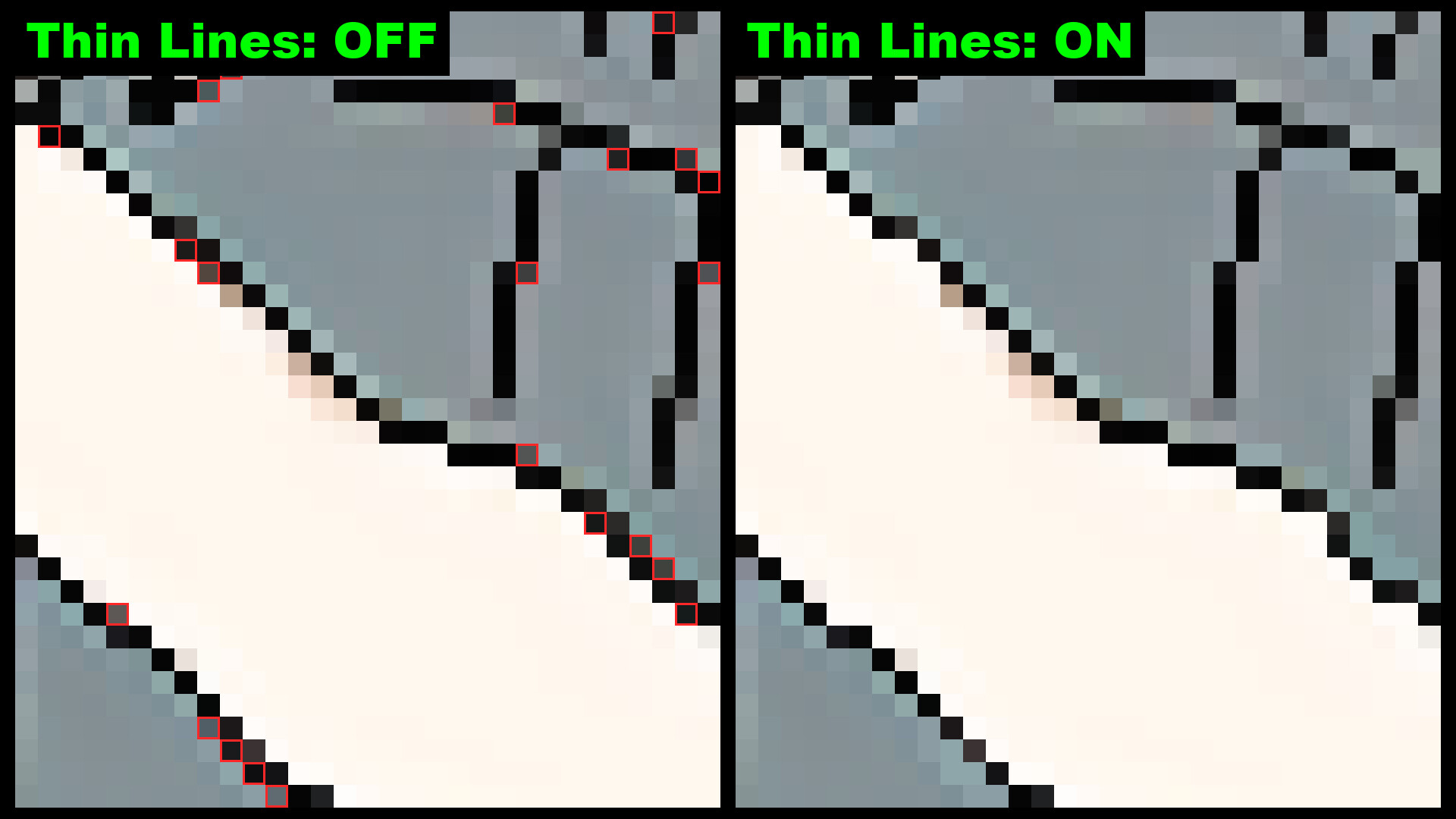
- Thin Lines for true pixel-art lines: Removes the extra dot that doubles up where diagonal lines step, for one-dot outlines that look hand-placed.
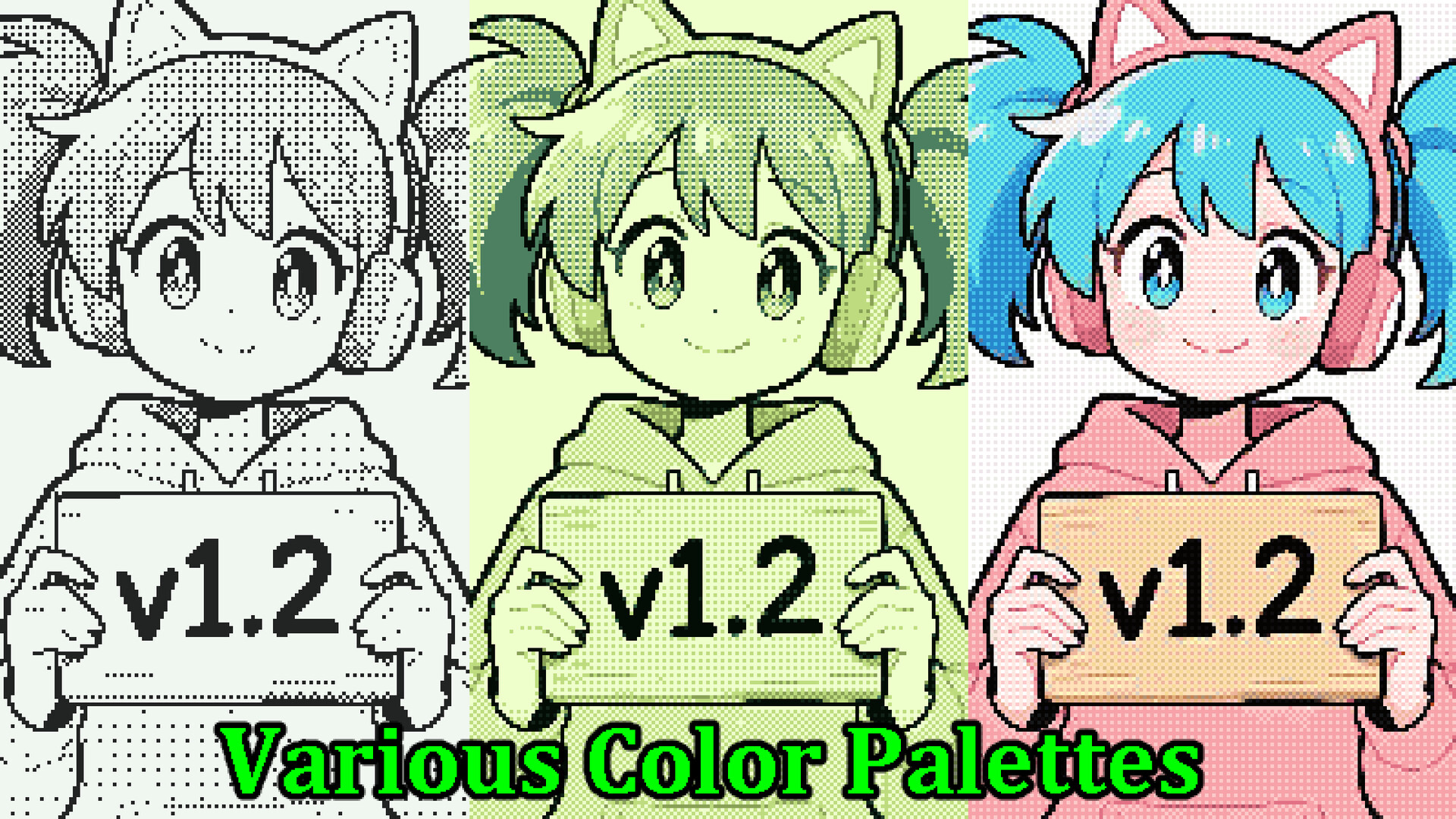
- Palettes and dithering for a retro-game look: 39 palettes included, from Game Boy and PICO-8 to Windows 95 styles. Adjust how the colors mix with Blend, Opacity and Dither (Bayer / error diffusion), and add your own palettes from sites like Lospec.
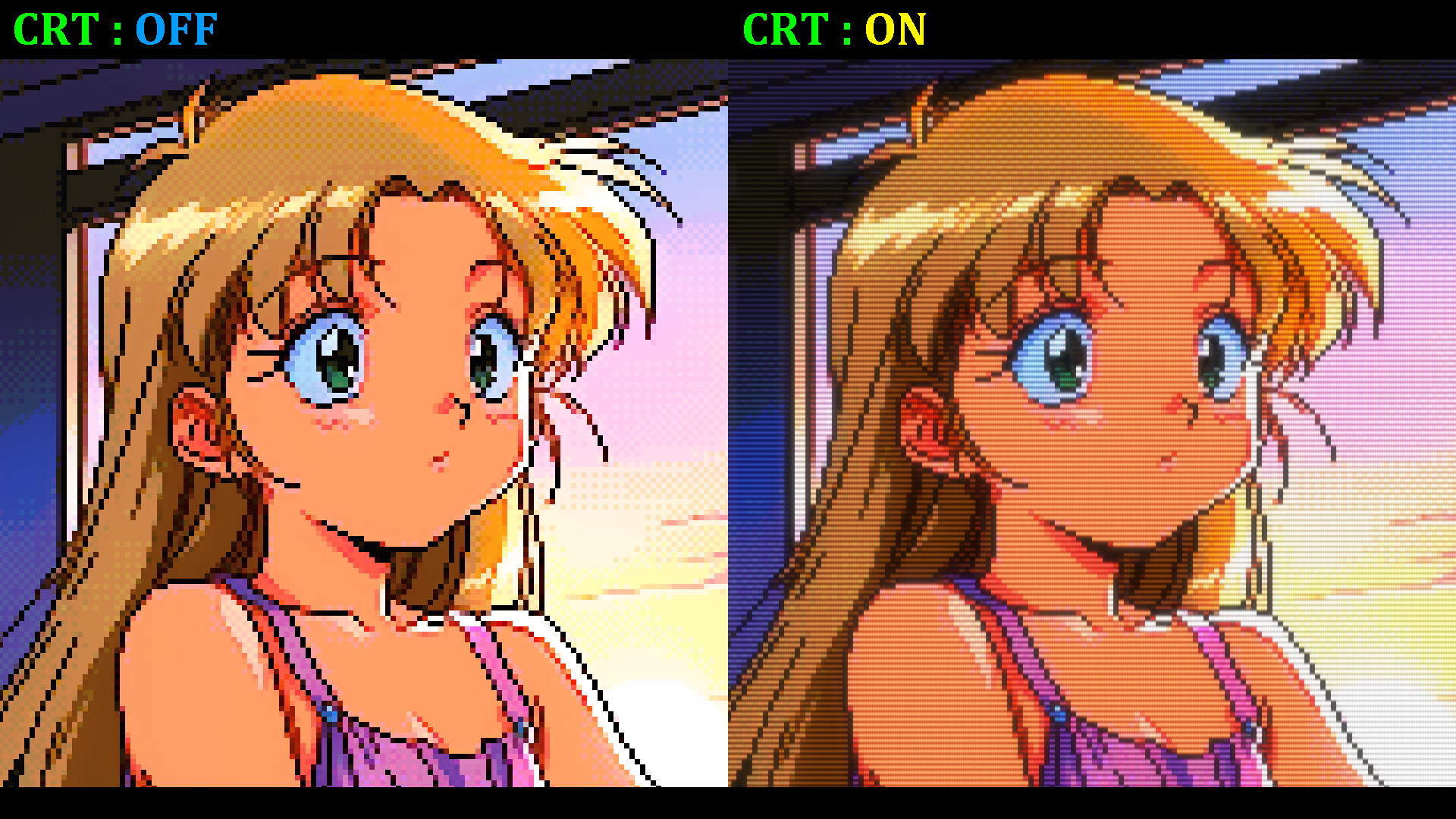
- CRT effect for an old CRT TV look: Recreates scanlines, glowing light, a gently curved screen and more, for the feel of watching on an old CRT TV. Choose from four profiles (Home TV, Arcade, Pro monitor, Subtle), or fine-tune every detail. Also works in Stream mode and in screenshots.
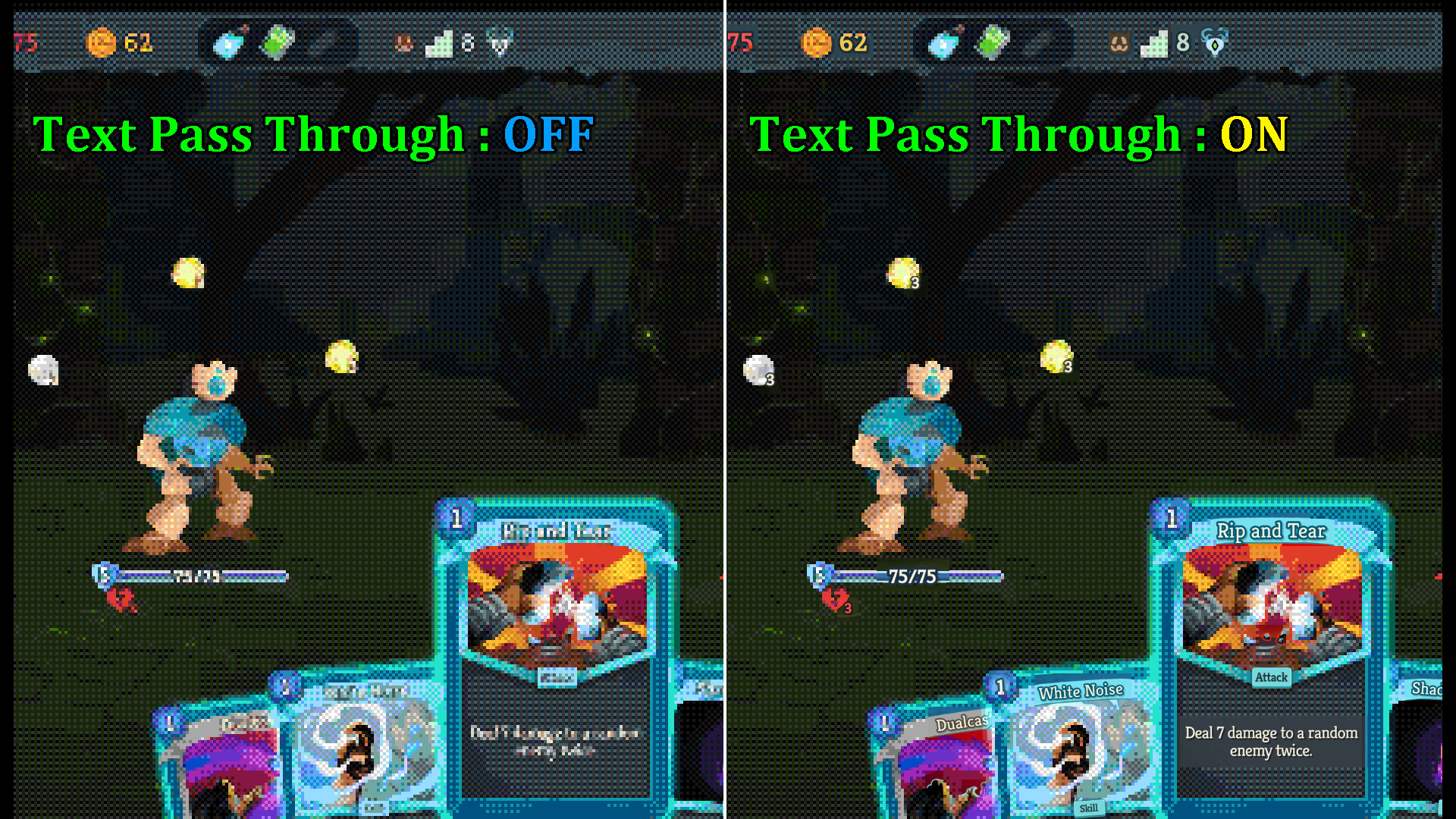
- Small text stays readable (Raw Text): Automatically finds small text such as subtitles and UI labels, and keeps just those areas as in the original video.
- Presets (five official presets included): Save every setting, palette, dither and CRT effect included, under a name and recall it in one click. Five official presets, each pairing a dot size with the CRT effect, are ready to try right away.
- Screenshot capture: Save the perfect moment in one click.
- Stream mode (OBS integration): Send the pixel-art image to OBS through a virtual camera, ready for streaming or recording. You can also record pixel-art videos to file via OBS.
- Batch conversion of images and videos (CLI): The included command-line program pixellens-cli converts images, image sequences and videos into pixel art in one go. Presets saved in the app work as they are, CRT effect included.
- 15 languages: The app can be displayed in 15 languages, including English and Japanese.
■ How to use
[Lens mode]
1. Launch the app
2. Select "Lens" mode
3. Place the lens over the area you want, and adjust its size
4. Watch the pixel-art image directly
[Stream mode]
1. Launch the app and select "Stream" mode
2. Pick the window you want to capture
3. In OBS, add a "Video Capture Device" source → choose "Pixel Lens Virtual Camera"
4. Stream or record as usual in OBS
■ Tips
- If pixels look smudged, try widening the lens. Expanding it toward Full HD (1920×1080) makes things sharper.
- Lens size directly affects rendering load. To raise the FPS, make the lens smaller.
- Anime and illustration-style high-contrast content works best. Live-action footage may lose fine detail.
- If outlines feel too crisp, try turning Sharpness off for a calmer, softer look.
- With large dot sizes (such as 6×6 to 8×8), turning on the CRT effect softens blocky dots and black outlines just enough.
- If "(restart app for fast mode)" appears in the title bar, restarting the app will give a small speed boost.
■ Notes
- DRM-protected content (Netflix, Amazon Prime Video, Disney+, etc.) cannot be captured by design and will appear as a black screen. This is expected behavior of content protection, not a bug in Pixel Lens.
- We recommend using Pixel Lens at Full HD (1920×1080) or below. Higher resolutions still work, but the processing load grows with the square of the resolution, so the FPS will drop.
- The lens window does not support click-through. Since it cannot coexist with mouse-driven gameplay, we recommend using it with games controlled by keyboard or gamepad.
- Stream mode is not compatible with Discord screen sharing (please go through OBS / OBS Virtual Camera instead).
■ Support
For the full manual, please visit the official PanzerSoft website.
For feedback, feature requests, and bug reports, please use the official Discord.