#360Video #2D #2DPlatformer
CAT SUDOKU🐱
CAT SUDOKU is an extremely cute game where you play a little sudoku with cats.
View game
$0.99

Positive · 3 reviews
100% positive (3 / 3)
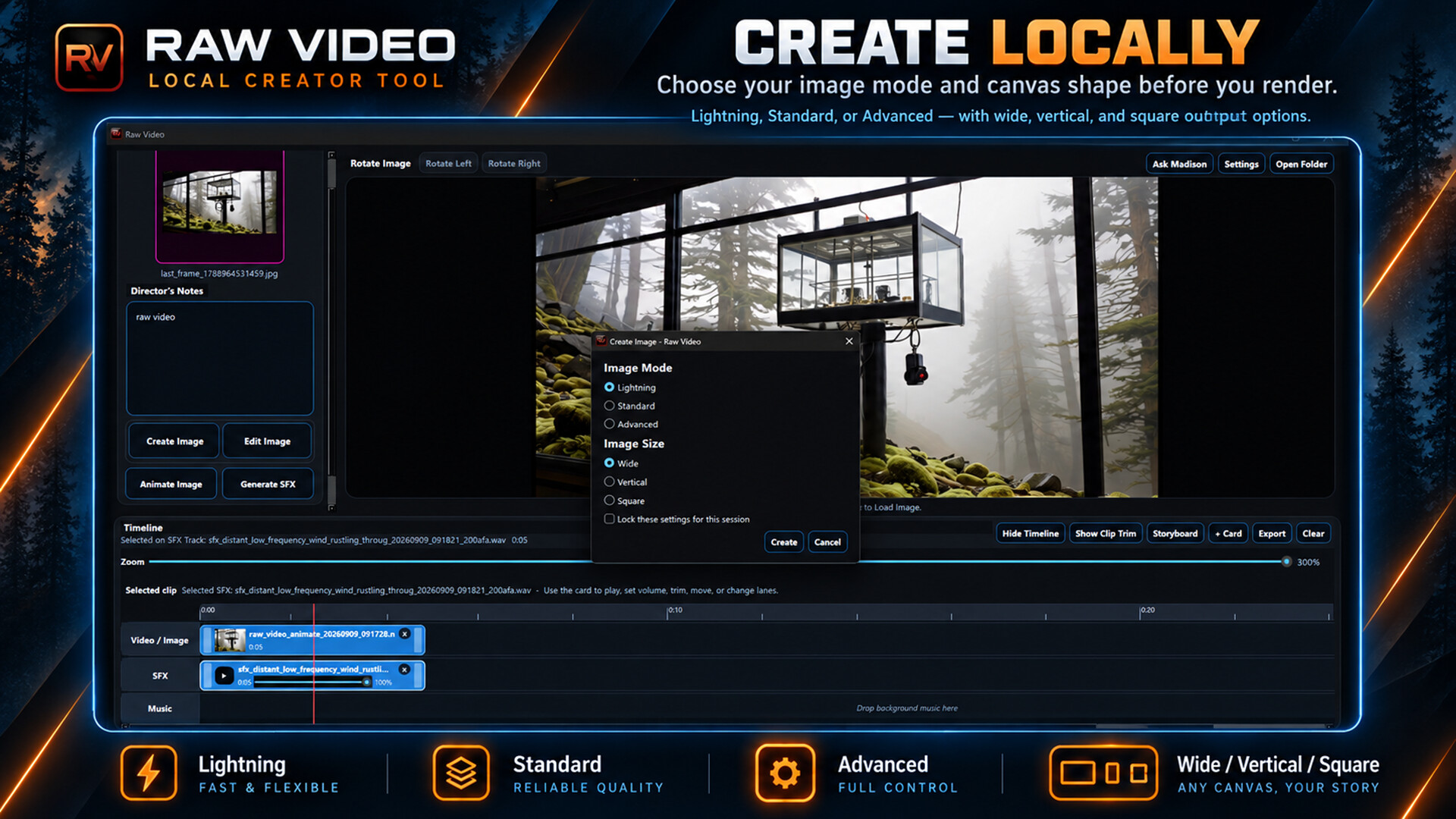
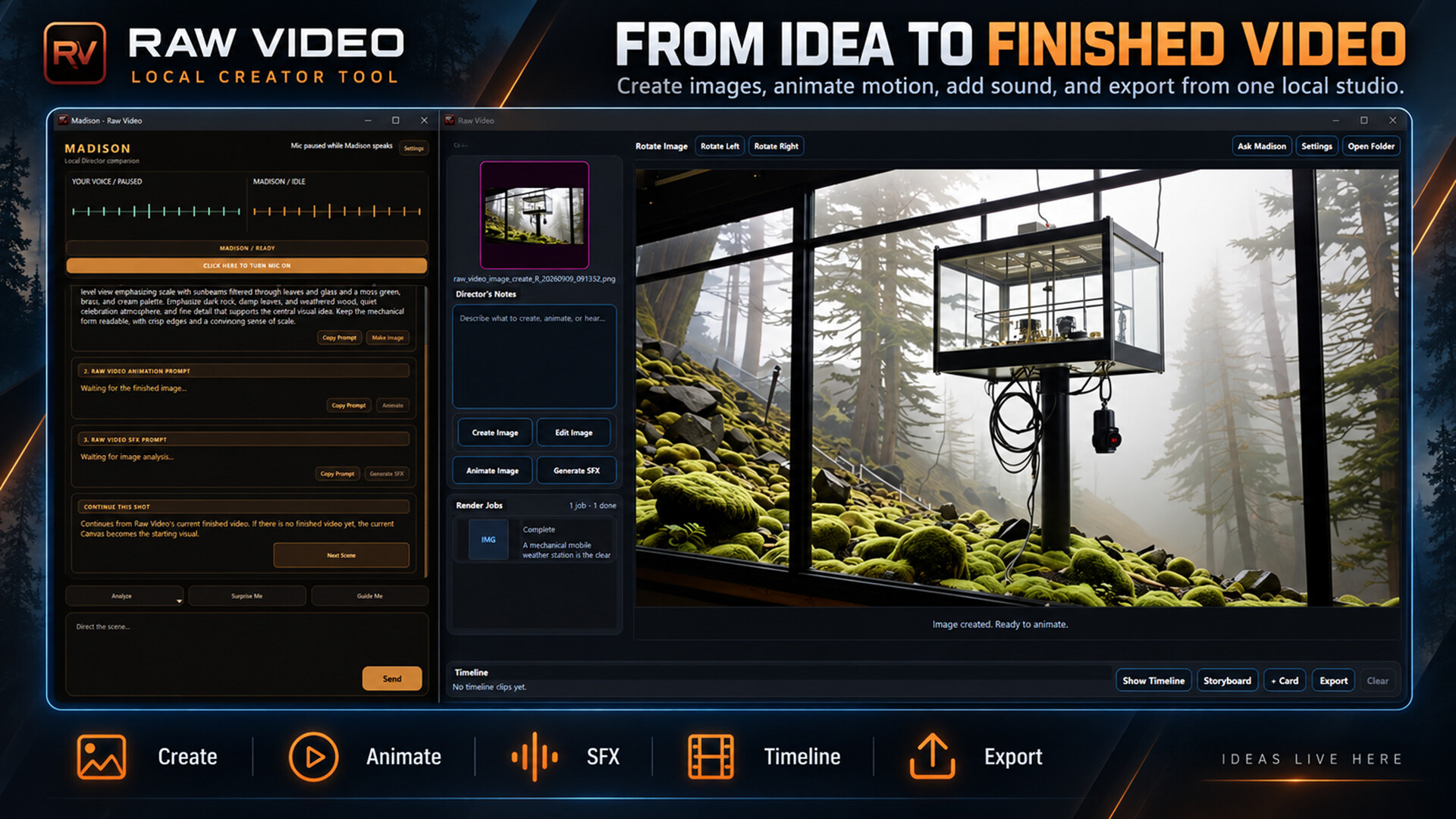
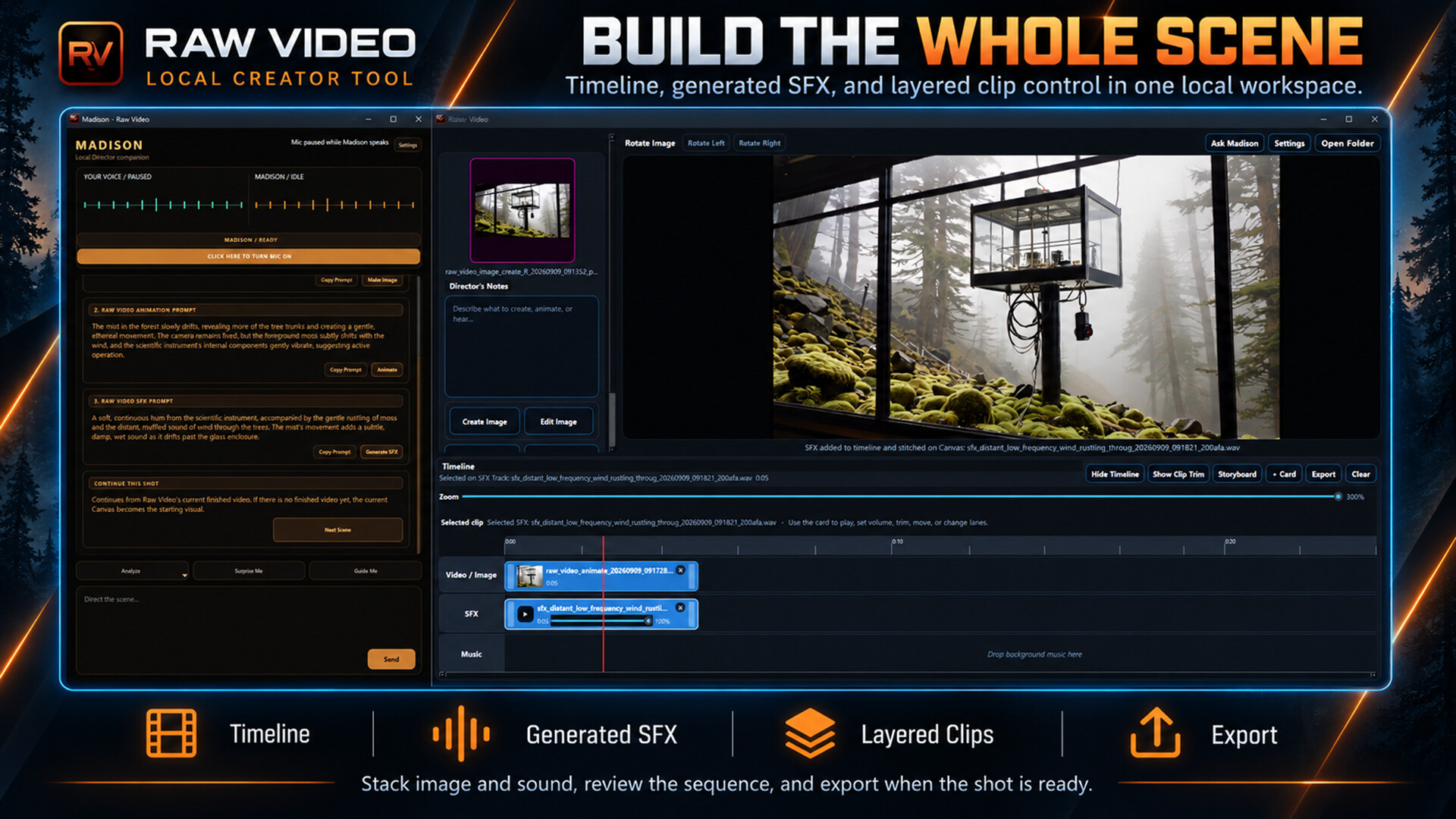
Raw Video is a Windows-based AI studio application designed for local deployment, enabling users to generate images, edit scenes, produce audio, and transform still images into short video clips on compatible NVIDIA RTX desktop hardware.
Released
May 29, 2026
Price
Platforms
Windows
Developer
Publisher
Last sync
September 25, 2026
Create original images. Edit existing scenes. Animate still images into video. Continue from the last frame. Add sound effects. Arrange clips and audio on the built-in timeline. Export your finished result.
No cloud render queue.
No generation credits.
No token meter.
No per-render fees.
No hunting down models before you can create.
Install Raw Video and the studio is there.
Create Images Locally
Raw Video includes multiple local image-generation modes designed for different creative needs.
Lightning is built for speed, making it easy to rapidly explore ideas, characters, environments, and compositions.
Standard is designed for stronger composition, cinematic staging, environments, poses, and more complex scenes.
Advanced gives you another powerful image-generation workflow with stronger instruction-following and access to Raw Video’s image-editing tools.
Choose Wide, Vertical, or Square directly inside the Canvas and create without leaving the application.
Edit Images And Change The Scene
Raw Video can do more than generate a new image.
Load an existing picture or work directly from something you created inside Raw Video, then describe what you want changed.
You can:
This is especially powerful when building a sequence. Instead of rebuilding every scene from scratch, you can take an image you already like, change what needs to change, and keep moving forward.
Turn Still Images Into Video
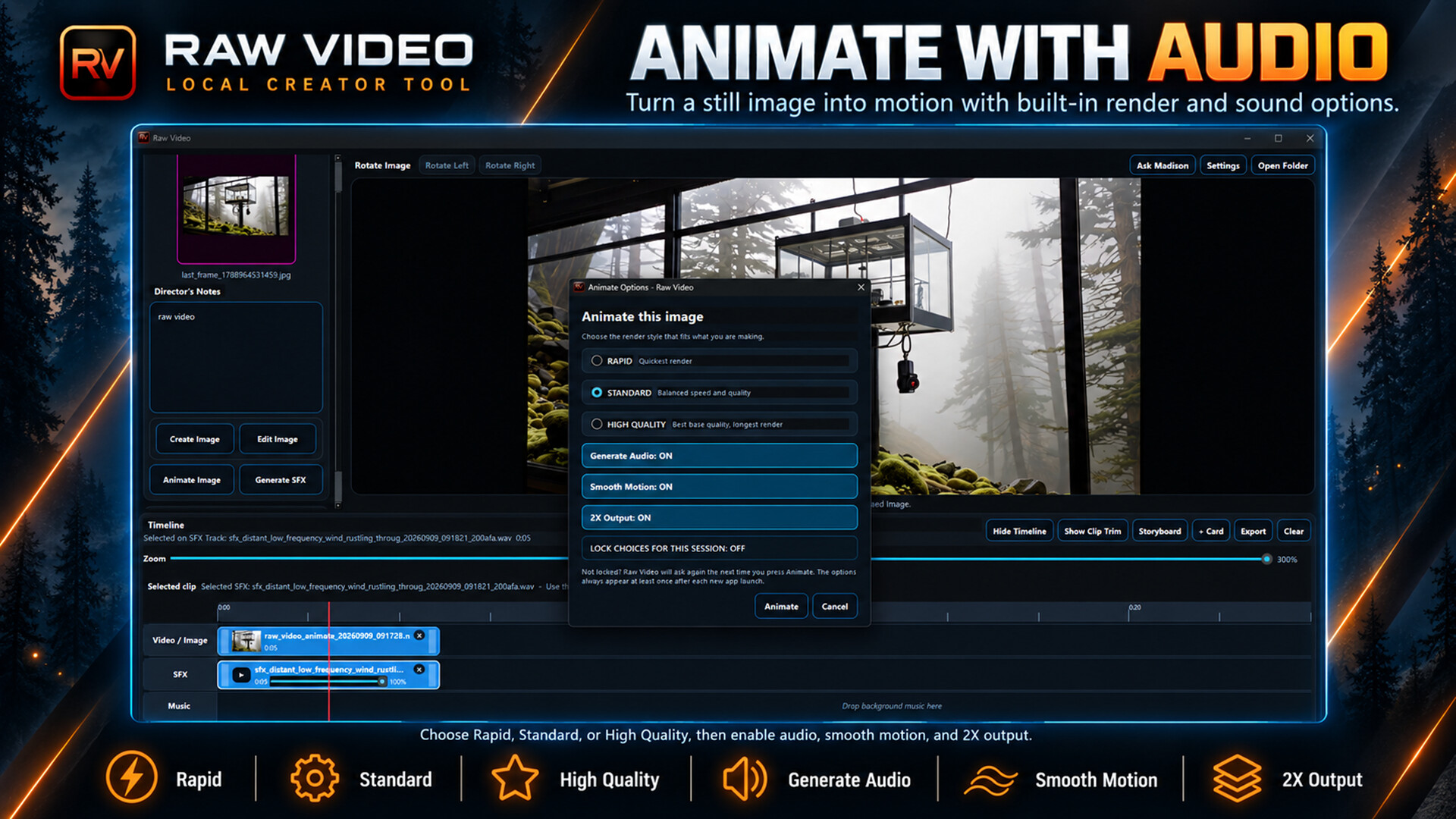
Import an image or create one inside Raw Video, describe the motion you want, and animate it locally.
Direct character movement, facial expressions, camera motion, hair and clothing, smoke, fog, rain, water, lighting, background activity, mood, and atmosphere.
Raw Video gives you multiple video-generation quality options so you can choose between faster experimentation and higher-quality final renders.
Landscape, portrait, and square source images are handled with source-aware output behavior rather than forcing everything into the same shape.
Build Scenes Instead Of Starting Over
Raw Video is built around a simple creative loop:
Create. Edit. Animate. Continue.
Generate a character or scene.
Animate it.
Save the last frame.
Change the location, camera setup, environment, pose, lighting, or visual direction.
Animate the next shot.
Then keep going.
A finished shot does not have to be the end of the road.
With Next Scene and Last Frame tools, Raw Video helps you continue from what you already made so you can build longer sequences with stronger visual continuity.
Meet Madison
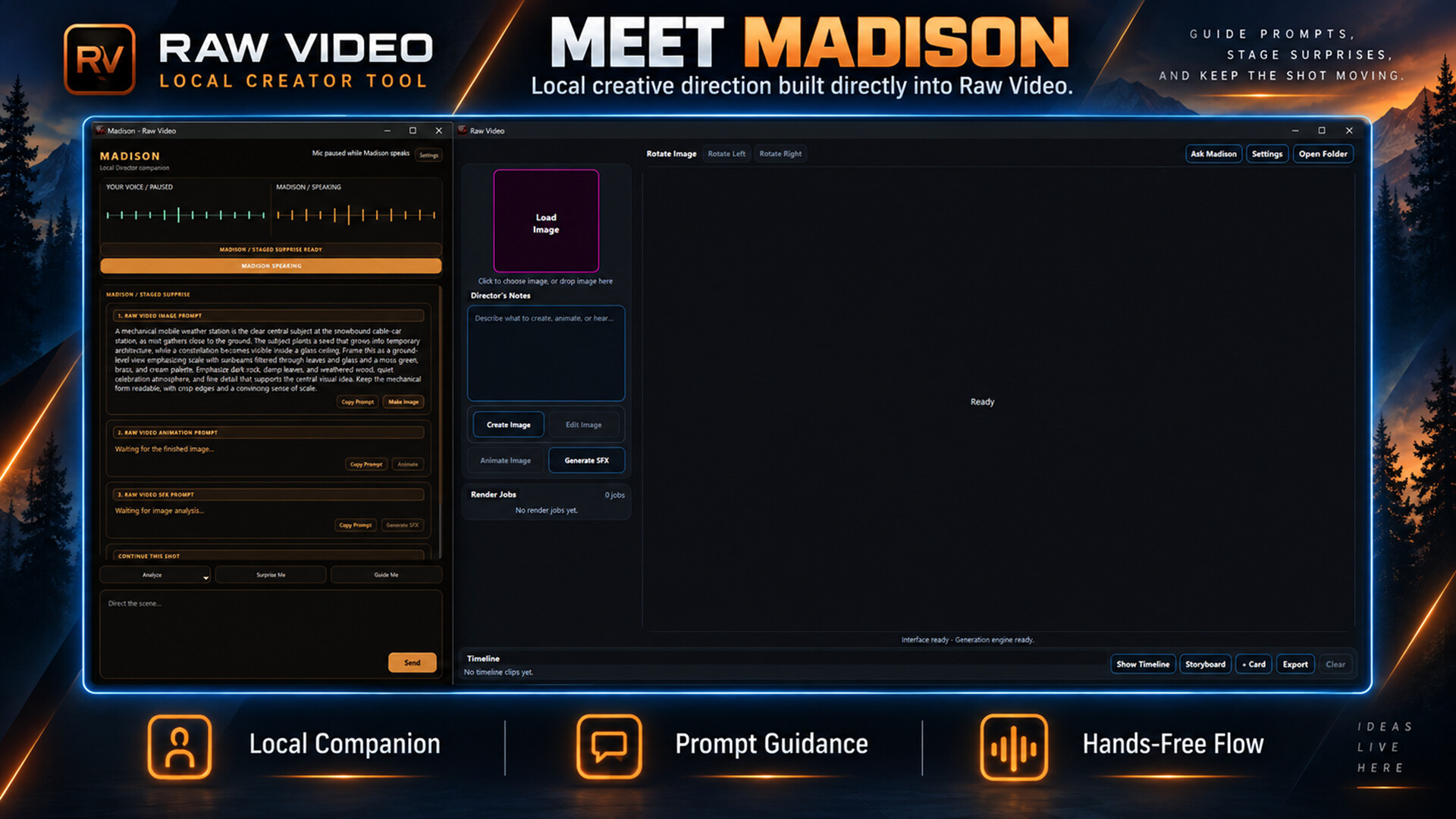
Madison is Raw Video’s built-in local creative assistant.
She can help with image prompts, motion ideas, creative direction, scene development, guided workflows, Canvas analysis, and figuring out what to do next.
Madison can look at the current visual on the Canvas and help critique it, develop it, or suggest where the scene could go next.
She is built into the creative process so you can stay focused on making instead of constantly jumping into another app for help.
Create Sound Effects
Raw Video includes local sound-effect generation for bringing your scenes to life.
Describe the sound you need and generate effects for environments, impacts, machinery, movement, atmosphere, creatures, cinematic moments, and more.
You can also let Raw Video generate matching sound effects for a finished animation and preview the result directly in Canvas.
Generated and imported audio can be added to the built-in timeline and edited alongside your video.
The Canvas Is The Center Of Raw Video
From one workspace you can:
The goal is to keep the creative process moving without bouncing between a pile of unrelated AI tools.
Timeline And Audio
Raw Video includes a built-in timeline for assembling your work.
You can:
The timeline is designed for straightforward creative assembly rather than replacing a full professional nonlinear editor.
If you need deeper post-production, export your work and continue in your preferred video editor.
Enhance Your Video
Raw Video includes a local enhancement workflow for creating a higher-detail version of supported generated clips.
Use enhancement as a finishing pass when a scene deserves a little extra polish.
A Local AI Studio
Raw Video is intentionally different from cloud-generation services.
The image models, video-generation systems, AI components, runtimes, and processing tools required by the application are bundled with Raw Video.
That means the installation is large.
It also means you are not buying access to a remote queue.
There are no per-image credits.
There are no per-video generation tokens.
There is no subscription meter ticking in the background while you create.
After installation, ownership verification, updates, and activation are complete, Raw Video’s creative generation workflow is designed around local processing on your own supported hardware.
The show travels with its own stage.
No Model Hunting
Local AI can be incredible, but getting it running often means hunting down models, downloading files from multiple websites, building Python environments, installing dependencies, configuring folders, repairing package conflicts, and learning node workflows before you ever make anything.
Raw Video is designed to remove that layer.
You install Raw Video.
You open Raw Video.
You create.
Hardware Requirements
Raw Video performs demanding AI workloads directly on your PC.
A supported NVIDIA RTX desktop GPU is required.
A GPU with 16 GB of dedicated VRAM is the recommended target for Raw Video.
A GPU with 24 GB of VRAM provides additional headroom for demanding workflows, longer sessions, and other GPU workloads.
Performance can also be affected by CPU performance, system memory, SSD speed, PCIe configuration, GPU drivers, cooling, background applications, available VRAM, model-loading state, image complexity, and requested output quality.
Systems below the recommended hardware specification may experience substantially longer render times, failed generations, or unstable behavior.
Rendering Takes Time
Raw Video performs real AI generation locally.
These are computationally intensive processes, not conventional video filters.
Generation time varies depending on your hardware, selected quality mode, resolution, source material, and current system workload.
The first generation in a session may take longer while large AI models are loaded into memory.
Later generations using the same workflow may start faster while those resources remain available.
Better Sources Produce Better Results
For stronger results:
Artifacts already present in a source image may become more noticeable after editing or animation.
AI Has Limitations
Local generative AI is powerful, but it is not perfect.
Generated or edited content may occasionally contain issues involving hands, fingers, small or distant faces, crowds, text, logos, fine object details, complex interactions, fast movement, background characters, reflections, water, dense environmental motion, or highly complicated editing instructions.
Trying another seed, simplifying the request, adjusting the source image, or using another Raw Video image mode can produce a very different result.
Storage
Raw Video has a large installation footprint because the AI models, video-generation systems, image-generation systems, editing model, local assistant components, runtimes, and media-processing tools are included with the application.
This is intentional.
Please make sure you have enough SSD space for Raw Video itself, Steam updates, temporary generation files, exported media, and projects.
Safety And Responsible Use
Raw Video includes responsible-use notices, prompt checks, and local source-image verification features intended to reduce inappropriate or disallowed use.
Some prompts or source images may be blocked or may require confirmation.
Users remain responsible for the material they create and distribute.
Content And Commercial Use
Raw Video is intended for lawful creative use.
Users are responsible for ensuring they own, license, or otherwise have permission to use imported material including images, video, music, logos, characters, trademarks, likenesses, photography, artwork, and other copyrighted or protected content.
Raw Video does not grant rights to third-party copyrighted characters, trademarks, celebrity likenesses, private images, logos, or other protected material.
AI Technology Disclosure
Raw Video uses locally operated generative AI models and AI-assisted systems for image creation, image transformation, image editing, video generation, visual analysis, creative assistance, and other supported creative functions.
AI-generated and AI-assisted content may include invented visual information, altered appearances, unexpected details, artifacts, unstable motion, inaccurate text, or other transformations produced by generative models.
Users should review all generated content before publishing, distributing, or using it commercially.